Posted on

Oppo Find X8 Ultra Tipped to Come With 2K Display and 6,000mAh Battery; Other Key Specifications Leak

Oppo Find X8 series, which includes both the Find X8 and Find X8 Pro, was launched in India and the global markets last month. Another model, dubbed Oppo Find X8 Ultra, is speculated to join the lineup soon. Ahead of its anticipated debut, a tipster has leaked several of its specifications. The phone may come equipped with a 6.82-inch 2K display, an X-axis haptic motor, an IP69 rating, and an ultrasonic fingerprint sensor. The Oppo Find X8 Ultra is expected to arrive as the successor to the Find X7 Ultra, which was released in January this year.

Oppo Find X8 Ultra Specifications (Leaked)

In a post on the Chinese social media platform Weibo, tipster Digital Chat Station (translated from Chinese) revealed key specifications of the Oppo Find X8 Pro. The purported handset is said to sport a 6.82-inch quad-curved screen with a 2K resolution. It may have an ultrasonic fingerprint sensor embedded under the display.

Further, the handset is tipped to come with an IP68+IP69 rating against dust and water ingress. The latter also suggests that the Find X8 Ultra might be able to withstand high-pressure liquids. The tipster claims that Oppo could equip its purported phone with a 6,000mAh battery with support for 80W or 90W fast charging.

Oppo Find X8 Ultra’s other expected features include an X-axis vibration motor and Oppo Imaging technology.

Other Specifications (Expected)

According to previous leaks, the Oppo Find X8 Ultra might feature a spectral red maple primary colour camera similar to the Huawei Mate 70 series. Its camera system is speculated to comprise a 50-megapixel main sensor, a 50-megapixel ultra-wide camera, a 50-megapixel periscope telephoto shooter with 3x optical zoom, and another 50-megapixel periscope telephoto lens with 6x optical zoom.

The handset is tipped to have a 120Hz refresh rate and may be powered by Qualcomm’s latest Snapdragon 8 Elite chipset. It is expected to debut in Q1 2025 alongside the Oppo Find N5.

Affiliate links may be automatically generated – see our ethics statement for details.
Posted on

TCL 98Q9BK 98-inch TV review: a massive mini-LED screen for a small price

TCL 98Q9BK 98-inch TV: Two minute review The TCL 98Q9BK is the latest part of TCL’s apparent bid to become the first brand you think of when you’re considering buying a really huge specimen of the best TVs. And true to form, it combines its vast 98-inch screen with a surprisingly unvast price tag. The TCL 98Q9BK’s high-value proposition merely grows when you clock its spec sheet. Its epic screen is illuminated by mini-LEDs, backed up by a local dimming engine that can control light across a huge 1,536 separate zones. Peak brightness hits an enormous, high dynamic range-friendly 2,000 nits and more, while colour is delivered by a premium Quantum Dot system. Smart TV features are provided by Google TV, and the TV can play all four of the main HDR formats. Gamers, meanwhile, can enjoy their hobby right up to 4K resolution and 144Hz frame rates, complete with variable refresh rate support. The 98Q9BK proves massive fun to watch no matter what you’re playing into it. Its brightness is phenomenal, but thankfully this is backed up by impressive contrast courtesy of the impressive local dimming, while those QD colours go the extra mile necessary to keep saturations in line with the TV’s huge light output. The 98Q9BK’s sound unexpectedly manages to be loud and large enough to actually match the scale of the TV’s massive pictures, too. You need to take a little care with some of the TV’s settings to get the best out of it – especially given that there’s no hiding place for anything out of place on a 98-inch screen. Provided you’re willing to put in a little legwork, though, the 98Q9BK is a home cinema bargain par excellence. The 98Q9BK’s exceptionally bright picture is powered by a mini-LED backlight with 1,536 separate local dimming zones (Image credit: Future) TCL 98Q9BK 98-inch TV review: Price & release date Release date: fall 2024 98Q9BK: £3,249.99 The Q9BK launched in the UK in the last quarter of 2024. The launch price of the 98-inch model is £3,249.99 from its exclusive Costco retailer, and as usual with TCL TVs at the moment, there doesn’t appear to be an exactly equivalent model available in other territories outside the EU. Within the EU, the C765 is essentially the same model. The 98Q9BK sits around the middle of TCL’s current king-sized TV range – below the significantly brighter 98C855K and above the less bright 98C655K, which uses a regular LED backlight. TCL 98Q9BK 98-inch TV review: Specs Swipe to scroll horizontally Screen type: QLED with mini-LED Refresh rate: 144Hz HDR support: Dolby Vision, HDR10+, HDR10, HLG Audio support: Dolby Atmos Smart TV: Google TV HDMI ports: 4 (2x HDMI 2.1) Built-in tuner: NA TCL 98Q9BK 98-inch TV review: Benchmark results TheTCL 98Q9BK’s HDMI 2.1 ports support refresh rates up to 144Hz (Image credit: Future) TCL 98Q9BK 98-inch TV review: Features 4K FALD VA mini-LED TV HDR10, HLG, HDR10+ and Dolby Vision HDR Support for the latest 4K gaming features Some brands might think that just giving you a 98-inch screen for £3,249.99 would be the only features the 98Q9BK needed to bother with, but TCL’s latest TV giant goes much further than that. Its panel specification, for starters, humbles king-sized TVs costing twice as much. It uses mini-LED backlighting, to deliver more light control and higher brightness. It carries the controls to simultaneously output different levels of light for any given image frame from a massive 1,536 separate zones of these mini-LEDs. It claims to be capable of hitting a huge peak brightness of 2,500 nits, and it uses Quantum Dots to achieve higher volumes than you can get with traditional LCD filter systems. This mixture of high brightness and wide colour volumes is used to enliven all four of the AV world’s key high dynamic range formats, too: HDR10, HLG, HDR10+ and Dolby Vision. The 98Q9BK even supports the ‘IQ’ version of Dolby Vision that can adjust pictures on the fly to try and retain a consistent HDR feel to Dolby Vision images in varying room lighting conditions. Many rival TVs, including those of such big hitters as Sony, Samsung and LG, only support three of the four main HDR formats, meaning they can’t join the 98Q9BK in claiming to be capable of taking in the best version of every source they’re fed. The 98Q9BK has received IMAX Enhanced accreditation, too, proving it has been deemed capable of doing justice to content created using IMAX’s proprietary high-quality mastering system. The 98Q9BK’s connections include a commendable four HDMI ports (with support for most of the latest HDMI 2.1 specification’s features, including refresh rates up to 144Hz), two USBs, an optical digital audio output, a headphone output, and a tuner input plus attendant CI slot. Plus, of course, the 98Q9BK can receive content wirelessly using either Bluetooth or Wi-Fi. The various elements of the 98Q9BK’s pictures are marshalled by the latest generation of TCL’s AiPQ processing engine. This AI-infused processor works to improve six key picture elements: contrast, clarity, colour, motion, the way HDR tone maps to the screen’s capabilities, and scene detection. AiPQ’s workings also include bi-directional 16-bit content sensing, enabling the 98Q9BK to deliver a claimed 65,000 levels of backlighting control in real-time from its local dimming engine. The speed of the backlight response should reduce such common local dimming issues as dark shadows, unwanted bright spots and distracting brightness ‘jumps’ when showing sharp cuts between light and dark images. So-called HVA Pro screen technology, meanwhile – in TCL’s own blind-em-with-science words – “uses nano-level bionic technology to add polyimide to the liquid crystal molecule to form a butterfly wingsuit microstructure which effectively improves the contrast while removing halo and ambient light interference”. In other words, the 98Q9BK claims to offer enhanced contrast by reducing screen reflections and reducing backlight blooming around bright objects. While the 98Q9BK’s massive pictures are obviously its star attraction, it’s equipped to hopefully go similarly big with its sound, thanks to a 60W, 2.1-channel configuration (including a large subwoofer built into its rear) designed with audio brand Onkyo. Features score: 4.5/5 High dynamic range support includes HDR10, HLG, HDR10+ and Dolby Vision (Image credit: Future) TCL 98Q9BK 98-inch TV review: Picture quality Bright, colourful, huge pictures Good contrast Minor screen clouding The first thing that hits you about the 98Q9BK’s pictures, of course, is how huge they are. In fact, it’s amazing just how puny even an 85-inch TV looks after you’ve locked eyes with a 98-inch model like this. We are officially well beyond TV territory and firmly into home cinema land here. Happily, though, the 98Q9BK’s pictures have more than just size going for them. In particular how bright they are, and how impressively that light is controlled and put to use in mostly the right places. On the pure brightness front, while I couldn’t get the 98Q9BK to quite hit the 2,500 peaks that TCL mentions in its specifications for the TV (even on a very small measured white window), it did manage to hit 2,280 nits on a 10% window. This is still a very high number that seems to hit even harder than I’d expect thanks to the sheer scale of the image all this light is emerging from. The brightness gradually decreases, as you would expect, the more of the screen a bright image fills. But even with a full-screen HDR white test pattern you’re getting well over 600 nits – which again feels pretty much like you’re basking in a bright summer’s afternoon than it usually would when it’s spread across as much screen acreage as the 98Q9BK has to offer. The 98Q9BK’s brightness is at its most effective, though, when it comes to the extra punch it gives to highlights of HDR content – lamps, glinting glass and metal, Superman’s eye lasers and the like. Such classic HDR fodder looks breathtakingly intense – and even better, this extreme luminosity is achieved without the sort of clipping (lost shading and details) in such peaks that might have been expected from such a relatively affordable TV giant pushing so much brightness. The 98Q9BK’s Quantum Dot colours, too, earn their corn by retaining rich saturations even in the brightest HDR picture areas. Particularly if you’re watching a Dolby Vision source, where the extra scene-by-scene image data Dolby’s format provides helps the TV unlock an extra nth degree of picture performance you don’t quite get if you’re using its own dynamic tone mapping system on basic HDR10 feeds. There’s enough subtlety in the 98Q9BK’s colour rendering, too, to ensure that the brightness doesn’t cause bright colours to start looking cartoonish or flat (outside of the best-avoided Dynamic preset, anyway). While it’s its brightness and vibrancy that first catches the eye, you quickly come to appreciate how impressive the 98Q9BK’s black levels are for such a colossal screen. In fact, if the sort of blazing bright highlights I mentioned weren’t able to appear when needed right alongside convincing black colours, they wouldn’t look nearly as intense as they do. The only really spectacular thing about the TCL 98Q9BK’s design is how massive its screen is (Image credit: Future) There’s always a worry with TVs – especially really big TVs – boasting large numbers of local dimming zones that very bright objects appearing against dark backdrops will either be accompanied by aggressive amounts of backlight blooming/haloing around them or have to be dimmed down quite heavily to stop such blooming from happening. Neither of these things happened with the 98Q9BK, thankfully, despite how bright the highlights look. Nor does TCL’s TV giant suffer with aggressive light ‘jumps’ if a scene contains hard cuts between dark and light shots, and shadow detailing remains impressively present. There is a trade-off for the surprising consistency of the 98Q9BK’s brightness and contrast, in that black levels aren’t quite as deep and neutral-looking as those I’ve seen from the most premium mini-LED TVs, such as Samsung’s QN95D range. There’s a hint of greyness and clouding visible in dark and mid-dark sequences, and despite the 98Q9BK having more than 1,500 dimming zones to work with, you can sometimes see faint areas of backlight clouding slipping into the black bars that appear above and below wide aspect ratio films, where they become more noticeable than they tend to be in normal picture areas. The screen also tends to push brightness a little too aggressively during dark scenes, even in its most accurate Movie mode, so that the screen can sometimes reveal a bit more background detail (and, often, attendant noise) than a source image was mastered to show. Aside from not being able to keep faint clouding out of the black bars, though, the 98Q9BK’s backlight management mostly feels like a quite sensible balancing choice by TCL’s picture engineers, where they’ve tried to find a compromise between credible black levels and not drawing so much attention to the TV’s backlight controls that you end up feeling like you’re watching those controls doing their thing rather than the film or TV show you’re meant to be watching. There’s potential, perhaps, for TCL to get a bit more extreme contrast out of so many dimming zones in the future, but even as it stands now the results are way more engaging and dynamic than you have much right to see on such an affordable king-sized TV. As usual with an LCD TV, the 98Q9BK’s black levels can drop off a little if you have to watch from much of an angle (vertical as well as horizontal), and if you want to get the TV’s Movie mode tracking to accurate brightness levels with SDR content you basically have to turn the local dimming off – at which point black levels start to become a bit grey. Other adjustments I’d recommend making to get the best out of the 98Q9BK would start with never using noise reduction on any higher setting than ‘Low’ (and typically turn it off for native 4K). Also, since the combination of the screen’s size and brightness can slightly exaggerate judder with 24fps movies, unless you’re a purist where motion is concerned you could try leaving motion processing on but with the strength of its blur and judder components reduced to their three and four levels respectively. This set-up can leave you with the occasional twitch during camera pans, but there’s no trace of the sort of edge haloing or excessive fluidity side effects associated with more heavy duty motion processing. One last point to make about the 98Q9BK’s pictures is simply that high-quality sources are your friend. It’s a simple fact of AV life that the bigger a TV’s screen gets, the more it can expose any weaknesses in a source. And when you get to 98 inches, you’ve arguably reached a scale where you can start to see why discussions about 8K are still going on at the periphery of the TV world. The simple reduced pixels per inch factor of pushing 4K to 98 inches means pictures don’t look quite as crisp as they can on a premium 65-inch or 75-inch screen. Crucially, though, the 98Q9BK’s pictures still look sharp enough to deliver plenty of depth and texture with native 4K sources, as well as a genuine cinematic flourish to go with their epic scale. Plus, impressively considering how affordable it is by super-sized TV standards, the 98Q9BK’s processor does a very respectable job of upscaling HD sources to 4K. At least in the way Picture quality score: 4/5 The TCL 98Q9BK’s dedicated subwoofer handles the low-frequency part of film soundtracks (Image credit: Future) TCL 98Q9BK 98-inch TV review: Sound quality Punchy bass Accurate sound placement Sound confined to screen Impressively the 98Q9BK manages to produce a sound stage big enough to keep its epic pictures company. In fact, the Onkyo-designed speaker system manages to create a cinematic wall of sound that spreads substantially beyond the TV’s outer edges. There’s nothing coarse or forced about this large-scale sound presentation, either; effects feel cleanly and accurately placed, especially with Dolby Atmos soundtracks, while ambient and scoring soundtrack elements get their own distinct space in the presentation, just as they should. While the 98Q9BK’s sound exists beyond the edges of its onscreen images – there’s even a mild sense of height to Atmos mixes, in fact – it still manages to make effects that should be emanating from on-screen objects sound as if they’re coming from the screen, not some vague place beyond. The speakers are sensitive enough, too, to pick out plenty of the subtle details and ambient minutiae found in the best film and TV show mixes. The speakers are powerful enough, too, to deliver a convincing sense of escalation as big action scenes build in intensity, rather than collapsing in on themselves when the going gets tough. The dedicated subwoofer fleshes out the low-frequency part of film soundtracks reasonably well. Its sound is a little coarse compared with the main speakers, but it doesn’t succumb badly to distortions even under extreme pressure. There can be a slightly harsh feel to treble sounds during dense soundtrack moments, and dialogue can sometimes sound a little less clear and clean than other soundtrack elements. Overall, though, the 98Q9BK’s sound joins its pictures in being better than expected from such an affordable TV monster. Sound quality score: 4/5 A pair of long feet that attach widely apart on the 98Q9BK to give the screen stability (Image credit: Future) TCL 98Q9BK 98-inch TV review: Design Sits on very widespread feet Chunky but robust bodywork It’s big. Very big. The only really spectacular thing about the TCL 98Q9BK’s design is how massive its screen is. Everything else about it feels more or less just like a necessarily substantial effort to support that screen as stably as possible. So its rear is significantly deeper than that of most TVs – and extremely rigid and hefty with it. The frame around the screen actually isn’t as wide as you might expect given what it’s wrapped around, but nor is it in the ‘barely there’ category many premium TVs try to achieve. If you’re not (bravely) wall-hanging it using its VESA 500×600 rear mounting points, it ships with a pair of long feet that attach quite widely apart to give the screen the stability it needs. Unsurprisingly, you’re going to need a seriously substantial bit of furniture to put your giant TV on. While long, though, the feet are quite slender when viewed straight on. So while in the end there’s nothing dramatic or sleek about the 98Q9BK’s design, in the end nor is there anything about it that really distracts you from its massive pictures. And that’s kind of all that matters with a home cinema machine like this. Design score: 3.5/5 TCL uses the Google TV smart TV platform for the 98Q9BK (Image credit: Future) TCL 98Q9BK 98-inch TV review: Smart TV & menus Google TV smart system AirPlay 2 and Homekit support Google Assistant voice control support The 98Q9BK uses the Google TV smart system. This runs reasonably slickly, and was substantially less buggy during our time with the TV than some previous TCL Google/Android TV systems have been. Residents of the UK will be very happy, too, to hear that the 98Q9BK already carries the ITVX, Channel 4 and Channel 5 catchup apps despite Google TV’s common hang-ups in these areas. In fact, the BBC iPlayer should also be available by the time you get your set home. Google’s menus are a bit overwhelming, looking more appropriate to a smart device screen than a TV. Google TV continues not to feel as clever at recommending relevant content as some rival platforms, either, and nor does it support as much customisation as the most user-friendly systems. But you certainly won’t run out of things to watch on it – especially once the BBC Player has joined the mountain of content sources. The 98Q9BK’s set-up menus are wrapped around the Google TV engine in a pretty typical way, meaning you access them via either a Settings ‘cog’ icon at the top right of the home screen, or a cog button on the remote control. It’s not, for me, a particularly intuitive feature menu system; it always feels as if it’s just been ‘stuffed in’ around the edges of the Google core. But it doesn’t take too long to learn your way around, in truth. And at least the remote control carries a decent selection of direct app access buttons to reduce the time you need to spend in the TV’s menus. Smart TV & menus score: 4/5 (Image credit: Future) TCL 98Q9BK 98-inch TV review: Gaming 4K 120Hz, 144Hz and VRR support Special game-focused option screen Input lag of 13.4ms at its lowest There are two distinct sides to the TCL 98Q9BK’s performance as a gaming display. On the plus side, it’s almost absurdly awesome to be able to play relatively adventurey, explorationy, RPGey games on such a massive, bright, colourful and crisp screen. Especially as the 98Q9BK is able to support both variable and high frame rates, meaning that if a game’s up to it, you don’t have to worry about any judder or screen tearing disturbing the immersive effect of gaming on such an epic scale. The 98Q9BK’s Game preset also gets the time the screen takes to render incoming images down to a very respectable 13.4ms, meaning that your connection with game worlds is as responsive as it is huge. There’s a reason, though, that the most competitive gamers typically use far more compact gaming monitors. Namely that they can take in the whole picture in a single glance. With the 98Q9BK, though, unless you’re sat absolutely miles away from it you’ll have to move your eyes around the image to take every detail in – wasting precious milliseconds that could cost you a life or two. But this is absolutely not the 98Q9BK’s fault, of course; it’s just a simple matter of science. A fairer complaint about the 98Q9BK’s gaming performance is that it looks like it reduces the level that its local dimming system is operating at in Game mode to deliver the screen’s fast response times, leaving dark game areas looking a bit greyer than dark video scenes tend to. But this feels like a pretty small price to pay for everything else the 98Q9BK’s huge, bright and colourful images can do for your gaming experience. Gaming score: 4/5 TCL 98Q9BK 98-inch TV review: Value Cheaper than some 65-inch TVs! Offers a high feature count for its price Relatively big price step up from the 85-inch As I’ve hopefully proved by now, the 98Q9BK is extremely well-specified for its money. You don’t just get a 98-inch screen for £3,250; you get a fearsomely bright 98-inch screen powered by mini- LED backlighting, more than 1500 local dimming zones, Quantum Dot colours, and connections capable of handling all the latest cutting-edge gaming features and all four main HDR formats. It gets plenty of performance out of all these features, too, hitting a level that would previously have been unthinkable on such a huge screen without spending substantially. The only wrinkle on the value front is that the step-down 85-inch 85Q9BK only costs £1,899. That’s a saving of more than £1,300 for the loss of 13 inches of screen. In truth that extra 13 inches of the 98Q9BK does make a bigger real-world cinematic difference to your viewing experience than it sounds on paper. Though at the same time, £1,300 adds up to a whole lot of 4K Blu-ray discs… Value score: 4.5/5 (Image credit: Future) Should I buy the TCL 98Q9BK 98-inch TV? Swipe to scroll horizontally TCL 98Q9BK Attributes Notes Rating Features A surprisingly sophisticated super-sized LED panel combines with extensive gaming support, coverage for all the HDR formats, and an unusually comprehensive Google TV smart system. 4.5/5 Picture quality Remarkable levels of brightness for such a large screen combine with good backlight controls and rich, vibrant colours. All at an epic scale. 4/5 Sound quality Bass can be a little coarse and dialogue occasionally loses clarity, but overall the speakers have the power and throw distance to create a big, detailed, cinematic sound stage. 4/5 Design There’s nothing particularly cute or beautiful about the 98Q9BK, but it does at least manage to distract as little as possible from the screen’s massive pictures. 3.5/5 Smart TV and menus Google TV continues to be a bit too cluttered and a bit too lean on customisation and recommendation features, but it’s certainly not short of content. Even the UK’s main terrestrial broadcaster catch-up apps are present on this TCL iteration. 4/5 Gaming Playing games on a screen as big, bold and responsive as the 98Q9BK is an experience that never gets old. 4.5/5 Value While stepping up to this TCL 98-inch screen from its 85-inch sibling entails quite a step up in price, it’s actually still very aggressively priced by typical 98-100-inch TV standards. 4.5/5 Buy it if… Don’t buy it if… Also consider Swipe to scroll horizontally Header Cell – Column 0 TCL 98Q9BK LG 86QNED91T Samsung 98QN90D Hisense 100U7NQTUK Price (55-inch) £3,249.99 £2,800 £5,999 £2,999 Screen type Mini-LED QLED QLED Mini-LED QLED Mini-LED QLED Refresh rate 144Hz 120Hz 144Hz 144Hz HDR support Dolby Vision/HDR10+/HDR10/HLG HDR10, HLG, Dolby Vision, HDR10+ HDR10+/HDR10/HLG HDR10, HLG, Dolby Vision, HDR10+ Smart TV Google TV webOS 24 Tizen VIDAA 6.0 with Freely HDMI ports 4 (2x HDMI 2.1) 4 x HDMI 2.1 4 x HDMI 2.1 4 (2x HDMI 2.1) (Image credit: Future) How I tested the TCL 98Q9BK 98-inch TV Tested over 14 days Tested with 4K Blu-rays, multiple streaming platforms and resolutions, Freeview HD broadcasts, and HD Blu-rays Reviewed in both dark and light dedicated test room conditions, on its feet in both corner and flat wall positions The size of the 98Q9BK’s screen leaves no hiding places for flaws in either your sources or the screen’s performance. So I started out testing with a mixture of 4K, HD and even SD content focusing on how well the screen coped with all of these very different – and all widely available – quality sources. While doing this I also experimented with some of the screen’s most important picture adjustment settings – noise reduction, motion processing, local dimming, dynamic contrast and various presets – to get the best out of the TV with each source type. Content focused on in particular included 4K TV show streams from Netflix and Amazon Prime Video (including Goliath, Bosch, The Lincoln Lawyer and Lost In Space), and both 4K and HD Blu-rays of Alien: Romulus, Blade Runner 2049 and Top Gun: Maverick. As well as extensive subjective testing in light and dark room settings, I measured the screen’s brightness, grayscale tracking and colour accuracy for both SDR and HDR content using Portrait Displays’ Calman calibration software, G1 signal generator and new C6 HDR5000 light meter. Gaming, finally, was tested using a mixture of exploration (including Assassin’s Creed: Valhalla and Baldur’s Gate 3) and FPS (Call Of Duty Black Ops 6 and Apex Legends) titles on both the PS5 and Xbox Series X. First tested: December 2024

Posted on

I experienced L-Acoustics’ HYRISS listening room and it could change home audio as we know it

L-Acoustics is a name you may not be familiar with, but it carries serious pedigree in the audio world. If you’ve ever visited the Hollywood Bowl in Los Angeles, the Alexandra Palace, O2 Brixton Academy, and Eventim Apollo in London, or the Notre Dame Cathedral in Paris to name a small few, you’ll have experienced L-Acoustic’s speakers – most likely the long black stack in a J shape hanging either side of the artist on stage. L-Acoustics was founded in 1984 after founder Christian Heil, a particle physicist, attended a Pink Floyd concert and decided to combine his field of study with his passion for acoustics. This led in 1992 to L-Acoustics revolutionising the line speaker array concept with its V-DOSC system to better quality and more consistent sound across all frequencies without interference – something vital for live concert settings. So, it’s no surprise that L-Acoustics has taken what it has done in the professional environment and brought it to the home. I recently got to experience its latest innovation, the Hyperreal Immersive Sound Space (HYRISS) concept. This goes beyond spatial audio formats like Dolby Atmos to reimagine what sound can do altogether, and quite simply, from what I heard it does. The concept and system The HYRISS room used the Soka (slim black speaker on wall), SV10 subwoofers (black speaker on wall under Soka) and X8I (white speaker on pedestal) as its speakers for front and surround, sub and height channels respectively in the 17.1.12 system. (Image credit: Future) HYRISS at its core is an immersive, 3D network of speakers. Combined with some clever software named Anima, it can transform listening environments to suit any occasion with ease. While Dolby and DTS formats are of course supported, I was told that HYRISS expands vastly on what you’d hear from the best Dolby Atmos soundbars and best home theater systems. The system I heard in L-Acoustics’ London showroom consisted of a 17.1.12-channel speaker configuration. That .1 refers to the subwoofer or bass channel, but in this room, there wasn’t one subwoofer but 34 of them. These subwoofers, L-Acoustics’ own SV10 models, were in the wall directly underneath the system’s L-Acoustic Soka in-wall speakers, a slim design measuring 4 inches deep and 41 inches high, with two SV10 subwoofers per speaker. At the very front, underneath a commercial-only Samsung 98-inch OLED display, was an L-Acoustics X8i speaker for the center channel, which also had two SV10 subwoofers underneath, and finally X6i speakers for the height channels. Also in the ceiling were eight microphones (which I’ll talk about later). The sheer number of speakers in the system was mind-blowing, but what’s important is how they performed, and luckily for me, they delivered. Sign up for breaking news, reviews, opinion, top tech deals, and more. Unforgettable audio Whether at the front of the room (pictured at top of page) or the bottom end of the room (picture above), sound could be easily moved around using HYRISS (Image credit: Future) The first part of my demo was a purely audio demonstration. Within seconds, the entire ambience of the room changed to a ‘deafening’ silence, intending to create a meditative environment. It was as if all the air and excess noise had been sucked out from my ears. Admittedly my mind felt clearer. Next, a jazz track was played with standard stereo positioning, with all elements coming from the front speakers, which sounded as good as some of the best stereo speakers. But with the simple press of a button via the Anima software, the track gained an entirely new immersive presentation. This was a tech called L-ISA that accurately places instruments to mimic a live performance, and the fuller vocals, warmer bass and overall more dynamic sound. I was then brought to the middle of the room where I was told I would feel like I was on the “conductor’s podium”. John Williams’ epic score of Harry’s Wondrous World from Harry Potter and the Sorcerer’s Stone (Philosopher’s Stone outside the US) kicked in from opposite ends of the room and above, encasing me in the bombastic brass section, sweeping strings and gorgeous woodwind – I really did feel like John Williams himself. Again, the effortless transformation of the room was astonishing. I then requested Tears For Fears’ Everybody Wants To Rule The World – a personal favorite and a track I know well – and was blown away by the system’s clarity and power. Every instrument had excellent detail and was accurately placed, with plenty of room to breathe. As I listened, I was shown how the sound could be easily moved and positioned to suit any situation. This is one of HYRISS’ main concepts: with the Anima software and a few simple button presses, the sound in the room can be changed. People at the front listening to music? Place the sound there. But then they want to move to the back of the room, the sound can then follow them. Another impressive feat in my HYRISS demonstration was its ability to change the acoustics of the room, known as Ambience. Remember I mentioned those eight microphones earlier? The Anima program uses them to change the dynamics of the room. In my demonstration, I was in a ‘dry’ room ideal for music playback where there were no echoes. And then one button press later, the room’s acoustics were perfectly suited to a live performance, with the right amount of reverb. There were even options named ‘Cave’, ‘Cathedral’, ‘Theater’ and more. Bringing the movie theater home A favorite movie of ours for TV testing at TechRadar, Top Gun: Maverick (pictured above) was used to show off the L-Acoustics HYRISS system (Image credit: Paramount Pictures) So, HYRISS had more than proven itself for music, but what about movies? First up was the Shallow scene from A Star is Born, the same one used when I saw a reference Dolby Atmos home theater with a Bowers & Wilkins speaker system. As I expected, HYRISS knocked it out of the park. Lady Gaga’s powerful and dynamic vocals were given breathing room, but all the instruments within the song were also clearly identifiable and spread out in an immersive soundstage. One highlight was how tight everything sounded– no element in the mix over-exerted itself or outstepped its boundaries. Whether it was Gaga’s soaring voice, the pounding drums or the accompanying guitars, everything was loud but under control. Next up was a favorite of ours at TechRadar: Top Gun Maverick. I got to watch the Mach 10 scene from the movie’s opening, one I regularly use for my testing, and also one that I was shown in Dolby’s own 34-speaker reference theater. Needless to say, I am with this scene and knew what to expect. Again, HYRISS didn’t disappoint. The thunderous rumble of the Darkstar jet’s engines rattled the room, but the sound was once again tightly controlled. The winds whipping past the cockpit, crystal clear speech and vivid surround and height channel effects made me feel like I was flying Darkstar myself. Everything sounded perfectly balanced with no element exaggerated. Final thoughts While the HYRISS demo room I experienced was one of the top examples of what can be achieved with this system, L-Acoustics believes it can be taken to multiple environments – from yachts to live venues and beyond. The company also believes that HYRISS can transform the home environment, with the ability to fit in a space roughly the size of a small apartment. The system isn’t cheap; the demo room in London for all its speakers and cables cost £320,000 but price will of course vary depending on the space as they are bespoke designs. However, it’s tough to argue against just how impressive it is. The versatility of HYRISS and the Anima software could be a game changer for home audio, transforming a space into any sort of listening environment you want it to be with ease. While many home settings won’t be able to capture the impressiveness of the HYRISS room I experienced, even having the potential to come close is nothing short of exciting. You might also like

Posted on

Humpback Whale’s Unprecedented 8,000-Mile Migration Shatters Records

A humpback whale has undertaken an extraordinary migration spanning over 8,000 miles and three oceans, breaking records for the longest documented journey between breeding grounds. This exceptional voyage, reported in Royal Society Open Science, is believed to be influenced by changing oceanic conditions or evolving mating strategies, as suggested by researchers. According to Professor Darren Croft, a behavioural ecologist at the University of Exeter and Executive Director of the Centre for Whale Research, these migrations could be driven by climate change altering food availability or competition for mates leading to the exploration of new areas. Croft shared his insights with NBC News, describing the research as a significant discovery highlighting the extensive distances covered by humpback whales.

Migration from Colombia to Zanzibar

The whale was initially photographed off Colombia’s Pacific coast in 2013 and observed again in the same region in 2017, as per sources. By 2022, it was identified near Zanzibar in the Indian Ocean, a remarkable leap from its prior locations. As stated by Croft to NBC News, this migration covered a distance comparable to swimming from London to Tokyo and back.

The findings, supported by photographic evidence from the citizen science platform HappyWhale.com, confirm that humpback whales can switch breeding grounds. Ryan Reisinger, Associate Professor at the University of Southampton and the report’s handling editor, expressed enthusiasm about the study, in a statement, emphasising the importance of the photographic data in understanding whale movements.

Climate Change and Marine Migrations

Humpback whales typically migrate between cooler feeding grounds in summer and warmer breeding areas in winter. As per reports, these findings raise questions about whether advanced technology is merely improving tracking capabilities or if environmental changes caused by climate change are influencing migratory behaviours. Reisinger, speaking to NBC News, noted that more data is needed to understand these patterns fully.

Marine species, including whales, are being forced to adapt as ocean conditions shift. The use of AI and satellite imaging in tracking whale movements provides researchers with valuable data for analysing these changes.

For the latest tech news and reviews, follow Gadgets 360 on X, Facebook, WhatsApp, Threads and Google News. For the latest videos on gadgets and tech, subscribe to our YouTube channel. If you want to know everything about top influencers, follow our in-house Who’sThat360 on Instagram and YouTube.

Adobe’s Camera Raw Plugin Updated With AI-Powered Reflection Removal Tool

Tipster Leaks Details of Upcoming Smartphone With Snapdragon 8s Elite Chip, May Debut as iQOO Z10 Turbo

Posted on

Paatal Lok Season 2 Announced, Jaideep Ahlawat Returns in Prime Video’s Crime Thriller

The second season of Paatal Lok, Amazon Prime Video’s acclaimed crime series, has been officially announced. The news was revealed on Friday, December 13, along with a poster featuring Jaideep Ahlawat reprising his role as Inspector Hathiram Chaudhary. In the striking close-up, Ahlawat is seen confronting a knife pointed at him, reflecting the intense and dark narrative that lies ahead. Fans are already brimming with anticipation, with social media abuzz about the release.

When and Where to Watch Paatal Lok Season 2

The announcement confirmed that the second season would stream exclusively on Amazon Prime Video. While a release date has not yet been disclosed, the platform teased its arrival with the tagline “Coming Soon.” Social media users have voiced their excitement and impatience, with many urging the streaming giant to announce the date promptly.

Official Trailer and Plot of Paatal Lok Season 2

Details about the official trailer and plot remain under wraps. However, the first season’s gritty storytelling sets high expectations for the continuation of Inspector Hathiram’s journey. Known for his relentless quest for justice, Hathiram is likely to navigate new layers of societal corruption and moral complexity in the upcoming season. The poster hints at a darker and more intense storyline that may expand the show’s exploration of crime and power dynamics.

Cast and Crew of Paatal Lok Season 2

Jaideep Ahlawat returns as the lead, with the show’s creators expected to retain much of the original ensemble cast. The first season included notable performances by Abhishek Banerjee, Neeraj Kabi and Aasif Khan. Produced by Clean Slate Filmz, the series has been praised for its strong cast and gripping narrative.

Reception of Paatal Lok Season 1

The first season, inspired by Tarun Tejpal’s The Story of My Assassins, earned critical acclaim for its raw performances and incisive storytelling. It has an IMDb rating of 8.1 / 10.

Posted on

How To Run a VoIP Quality Test and Improve Your MOS

A VoIP quality test measures the performance of your network connection. The test simulates a set number of calls on your network and uses key metrics to determine how calls would sound in different situations.

It can help you understand whether your connection is strong enough before implementing a VoIP system and alert you to potential post deployment issues as well.

Mean opinion score (MOS) is an industry standard metric for VoIP call quality — it’s a simple 1-5 rating system with 1 being the worst and 5 being the best.

Anything above a 4 is sufficient and scores below 3.5 should be considered unacceptable. Below that range, users are more likely to experience mic echo, dropped calls, choppy or robotic sounds, and cutting out.

This guide covers everything you need to know to perform VoIP tests and tweak settings to optimize for MOS.

What a VoIP quality test measures

Before we dive into how to run a VoIP quality test, it’s important to understand what metrics you’ll get back and what they mean.

Every VoIP test is different, but most measure things like:

  • Upload and download speed — Measures how fast data packets can move through your network. In general, the higher the speed, the better the quality.
  • Bandwidth — The maximum amount of data that can be transmitted across your network. It directly impacts the number of simultaneous calls you can have before quality takes a nose dive.
  • Jitter — Variations between sent and received data packets. If these variations are significant, users might miss entire words or sentences during the call.
  • Latency (or ping) — Measures the delay from one caller to another. High latency is often caused by network congestion and results in echoing.
  • Packet loss — Refers to data packets that never reach their final destination. If it exceeds 1%, calls will likely have choppy audio and other distortions.

Many will also let you simulate calls with different VoIP codecs. This is a parameter that defines how much compression happens during a call. More compression makes packets smaller, resulting in faster transmissions and reduced network congestion.

But too much compression can lower audio quality to the point it’s unrecognizable. The key is finding a good balance that works for your team.

Lastly, some of the better VoIP quality tests calculate your MOS by factoring in all of these elements and metrics.

It’s also worth noting that some tools let you run tests for different numbers of simultaneous calls, and you may even be able to change the origin location of the call.

As you adjust different parameters and variables, you may get a different MOS. For example, you might have a perfect score right next to your router but a lower score if you’re on the other side of the building.

SEE: Learn how to optimize your VoIP network

How to run a VoIP quality test

There are dozens of tools that let you test VoIP quality.

To keep it simple, I’ll show you how to do it in just a few minutes for free, and what to use if you’re a developer or need more granular insights.

Free online VoIP quality tests

Many business phone providers have their own online VoIP quality tests you can use for free. They’re very easy and quick, making them perfect if you’re not quite sure what’s going on and just need a simple way to tell if your network is stable enough.

Most measure latency, jitter, upload speed, and download speed. Some (but not all) also measure packet loss and calculate your MOS.

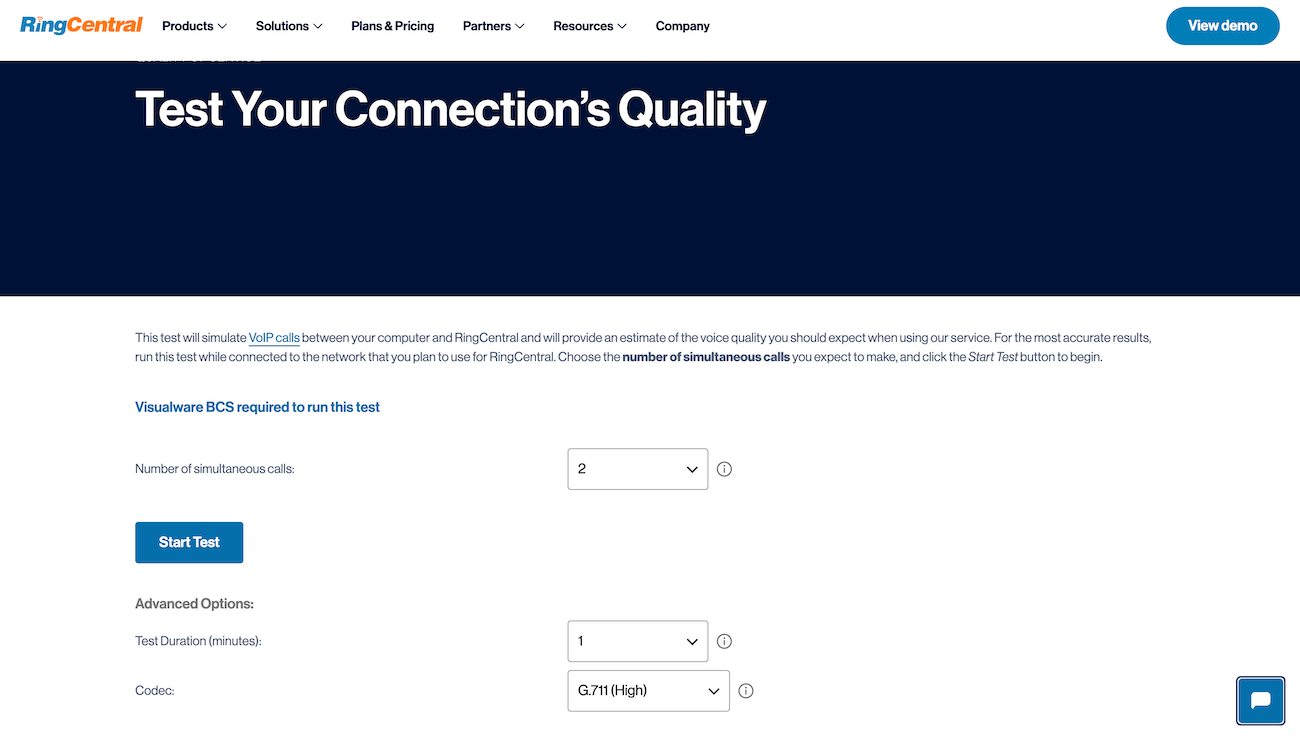
RingCentral’s quality of service test is one of the best free options I’ve seen.

Screenshot of RingCentral’s quality of service test page, with a button to start the test.
Test the quality of your VoIP network with RingCentral’s free online test. Image: Ringcentral.com

The best part about this test is that it gives you MOS. It also measures packet loss, latency, and jitter in your audit summary.

Another standout of RingCentral’s test is the ability to adjust your codec. You can also test up to 50 simultaneous calls and run the test for up to five minutes — the longer you test, the better chance you have of finding an issue.

Once the test is finished, it does a good job of explaining what all the numbers mean and whether or not your connection passes.

It’s also about as easy as it gets to run. All you have to do is select your preferred number of concurrent calls, adjust the duration, and tweak the codec if you want.

While RingCentral’s is one of the most detailed free options, there are others you can use to validate your results if you’d like.

There are other VoIP quality tests on the market that you can use, and it might be a good idea to try multiple to see if you get consistent results across the board. Here are some others worth checking out:

Overall, RingCentral’s is the most detailed, but these other free VoIP quality tests can give you more data points to ensure accuracy.

SEE: Learn more about our favorite VoIP providers: RingCentral review | Nextiva review | Ooma review | 8×8 review.

Network monitoring software (paid with a free trial)

Network monitoring software is typically used by IT network administrators to ensure their network is running smoothly. It’s also useful for identifying issues with various components (routers, servers, firewalls, switches, etc.).

You can also use them for testing VoIP network quality, and they provide far more detailed information than any of the free tools out there.

SolarWinds VoIP network quality manager is one of the best. Instead of one-off tests every now and then, it runs continuously in the background.

SolarWinds’ VoIP and network quality manager landing page with a video demo of how it works.
Start your free trial for deeper insight into your VoIP network. Image: Solarwinds.com

Although SolarWinds isn’t free, there is a 30-day free trial. You can test your network for a full month to see how its performance changes over time. From there, you can decide if you want to keep using it.

Beyond basic VoIP quality stats, it also provides WAN performance metrics. It also provides contextual information related to performance issues.

For example, you can see the specific IP addresses of devices that are causing jitter, latency, or packet loss. This will help you determine if call quality issues are related to hardware on your network or something else.

The software does a whole lot more than that, but it’s a great alternative if you need real-time data or more data points to understand and improve your MOS.

Posted on

Next-gen Apple TV 4K tipped to land in 2025 with a Wi-Fi surprise

The next Apple TV could land in 2025 with a custom Wi-Fi chip It would replace the existing chip, which is made by Broadcomm It’s a risky move, but could bring big benefits to your devices The third-generation Apple TV 4K landed over two years ago, but a successor is finally in the works according to new rumors – and it’s likely to benefit from a new Apple-made Wi-Fi and Bluetooth chip. The new report from Bloomberg journalist Mark Gurman suggests that Apple is on the brink of launching its own combined Wi-Fi and Bluetooth chip, replacing those made by Broadcom that can be found in many Apple devices today. This chip will first find its way into the Apple TV 4K set-top box and the HomePod mini, Gurman claims, which will apparently both launch at some point in 2025. This type of component is vital to the Apple TV. Wi-Fi allows you to connect the set-top box to the internet in order to download shows, play games, and more. The Bluetooth connection, meanwhile, lets you pair accessories such as remotes and controllers. If successful, the new chip will enable Apple’s smart home devices to “work more closely together and potentially synchronize data more quickly,” Gurman believes. What other new features could a next-gen Apple TV get? Previous rumors have pointed to an upgraded processor like the A17 Pro (which it’d need for Apple Intelligence features). Respected analysts like Ming-Chi Kuo have also previously suggested that a new Apple TV could also hit a lower price point than the current 64GB model’s $129 / £149 / AU$219 tag. More outlandish rumors in April suggested that Apple could be planning to give a future Apple TV a built-in camera for gesture controls. That would certainly make losing its remote less annoying, but those rumors (also from Bloomberg’s Mark Gurman) didn’t specify whether or not the tech might be for the next Apple TV or a future version. Full steam ahead (Image credit: Future) The Apple TV and the HomePod mini are not the only devices set for this new chip. Gurman says it will also come to the iPhone in 2025 and the iPad and the Mac in 2026. Apple is making a major push into the smart home arena and will launch new products next year, Gurman says, including a home hub with a built-in display and a home security camera, so it makes sense for it to debut a new chip for these products in the coming months. Sign up for breaking news, reviews, opinion, top tech deals, and more. Apple has long sought more control over the components that go into its devices. This mindset contributed to its drive to develop the chips that became known as Apple silicon, and it’s behind the company’s long-rumored switch away from Qualcomm modems in its iPhones. But the chip will bring another benefit, Gurman believes: it will be able to power “thinner iPhones and wearable technology” made by Apple. That suggests that the slimline iPhone 17 Air rumored for 2025 could be a direct beneficiary of Apple’s own chip. It’s not without its risks, though. As with the move away from Qualcomm modems, Apple will have to rely on its own largely untested technology for a critical component in its devices. The iPhone 4’s Antennagate provides ample warnings of what can happen when the wireless technology in people’s devices is disrupted. But that’s unlikely to slow Apple down. With new devices powered by Apple’s wireless chips just around the corner, we won’t have long to wait to see if they can pass muster. You might also like

Posted on

Greenland Glacier Outburst Flood Releases 3,000 Billion Litres of Meltwater

A major glacial lake outburst flood, among the largest ever recorded, has been documented in East Greenland, releasing more than 3,000 billion litres of meltwater, as per reports. The event, observed by researchers from the University of Copenhagen’s Niels Bohr Institute, took place between September 23 and October 11 and was caused by the sudden release of Catalina Lake into the Scoresby Sound fjord. This marks the first time such an event has been monitored in real-time, according to reports.

Details of the Outburst

Reports indicate that the flood occurred as meltwater from Catalina Lake, blocked by the Edward Bailey Glacier for over two decades, carved a 25-kilometre-long tunnel under the ice. This process led to a dramatic drop in the lake’s water level by 154 metres. The flood released a volume of water equivalent to three times Denmark’s annual consumption, making it one of the top three largest documented events of its kind.

Dr Aslak Grinsted, a climate researcher from the University of Copenhagen, explained to phys.org that the outburst floods, driven by climate change, are becoming increasingly common. Satellite imagery was used to measure the water volumes, overcoming previous challenges posed by polar night and cloud cover.

Implications of Glacial Floods

Sources highlight that such floods pose significant risks to millions globally, especially in densely populated regions like the Himalayas. A recent study estimates that 15 million people live in areas vulnerable to these catastrophic events. Greenland’s sparse population meant there were no casualties in this case, but scientists stress the importance of monitoring these phenomena as the ice sheet continues to retreat.

Energy Potential of Glacial Floods

Dr Grinsted also noted, as reported, that the energy released during the event matched the output of the largest nuclear power plant operating at full capacity for 22 days. While harnessing this energy could offer renewable solutions, logistical challenges in remote areas like Greenland remain a barrier.

Posted on

Samsung Galaxy Tab S10 Ultra Review: Fueling a Niche

Samsung has been launching a new iteration of its oversized Galaxy Tab S Ultra for three years. These tablets are large and heavy, but they also have one of the best mobile AMOLED displays you can get your hands on. And these unique characteristics make it appealing to a very niche market. If you are browsing for a large tablet, you are either looking to use it as a second screen or as a sketchpad. It’s too large even for a “light” productivity device, and when you pair it with its two keyboard options, it is also quite expensive. I have been using the Samsung Galaxy Tab S10 Ultra for a few weeks, and I’m not too convinced about why anyone should invest in one when a Galaxy Tab S10+ exists.

Samsung Galaxy Tab S10 Ultra Design: Built for your table

  • Dimensions – 208.6×326.4×5.4mm
  • Weight – 718 grams (Wi-Fi), 723 grams (5G)
  • Durability – IP68 dust and water

Laid flat on my large work desk, the Samsung Galaxy Tab S10 Ultra still feels substantial. It’s even bigger than my daily driver, an Apple MacBook Air with a 13.3-inch display. Now, Samsung could have attempted to make it feel lighter. But I’m sure there’s no way to make a tablet with a 14.6-inch display feel any lighter unless you go with titanium instead of Armour Aluminium or chop down the size (or change aspect ratio) of its display. Apple’s 13-inch iPad Pro (2024) weighs a lot lighter at 582g, which is still manageable.

samsung galaxy tab s10 ultra review performance speakers gadgets 360 SamsungGalaxyTabS10Ultra Samsung

The Samsung Galaxy Tab S10 Ultra has four speakers, two on either side (when held horizontally)

Design-wise, things mostly remain the same. Samsung has managed to make its new Ultra tablet 0.5mm thicker and 14 grams lighter than the previous model. Indeed, these are minor gains and given that its overall design has not changed, I don’t see any reason for someone who owns the Tab S9 Ultra to upgrade to the new model.

The tablet is available in two storage variants. The 12GB RAM + 512GB storage variant is priced at Rs. 1,08,999 for the Wi-Fi model, while the 5G model is priced at Rs. 1,22,999. The Wi-Fi-only 512GB storage variant is available at Rs. 1,19,999, while the 5G model is available at Rs. 1,33,999.

samsung galaxy tab s10 ultra review design camera protrusion gadgets 360 SamsungGalaxyTabS10Ultra Samsung

The only protrusions on the flat and minimalist design are the two rear-facing cameras

Given that this tablet was expected to be heavy, Samsung should have gone all out and engineered a Microsoft Surface-like kick-stand into it. This could have made it more attractive to the creative crowd as a tiltable canvas for artists.

When you purchase a Samsung Galaxy Tab S10 Ultra, all you get is the tablet, a charging cable and an S Pen. This is a bit more than what you get with an Apple iPad Pro, if we are being honest. However, Apple does provide the essential charger in the box. And since the Tab S10 Ultra is too heavy to hold, you will need to purchase the optional Smart Book Cover (around Rs. 6,999) to make it stand upright when watching movies or for work. At launch, Samsung also announced two keyboard accessories.

samsung galaxy tab s10 ultra review design size gadgets 360 SamsungGalaxyTabS10Ultra Samsung

The Samsung Galaxy Tab S10 Ultra versus the Apple MacBook Air M1

There’s an InboxBook Cover Keyboard, a single-piece cover with a built-in keyboard. This cover lacks a trackpad and so isn’t advisable for productivity applications. The second cover, called Book Cover Keyboard Slim, consists of two pieces, one for holding up the tablet and the keyboard half, which attaches to the three flat pins at the bottom (when held horizontally). This one does come with a trackpad but is also priced higher at Rs. 26,999. The downside is the overall weight when the two are put together, which should be around 1,378 grams (or 1.3 kg). So, you might as well grab a Galaxy Book 4 360 instead.

Samsung Galaxy Tab S10 Ultra Display: Fantastic!

  • Display – 14.6-inch, 2,960×1,848, 16:10 ratio
  • Display type – AMOLED, 120Hz,
  • Display protection – Glass with anti-reflective coating

It may seem like the same display used in the older Tab S9 Ultra, but Samsung has bumped its brightness to 930 nits, making it sufficiently bright outdoors. The anti-reflective coating is the star of the show indeed, and it effectively reduces reflections both indoors and even outdoors.

samsung galaxy tab s10 ultra review dex mode mock gadgets 360 SamsungGalaxyTabS10Ultra Samsung

The large display offers good clarity thanks to its anti-reflective coating, as seen in this mock setup

Colours look natural when viewed with the default Vivid Screen mode. Samsung only lets you choose between an energy-saving 60Hz or a smoother 120Hz (adaptive) refresh rate. Given the size of the display, I also wished that Samsung included the ability to run the display at a specific resolution (like on its Galaxy smartphones), which could have helped extend its battery life even further.

Samsung Galaxy Tab S10 Ultra Software: Nicely done

  • Software – One UI 6.1.1
  • Version – Android 14
  • Latest security patch – 1 November, 2024

It’s disappointing to see such an expensive tablet running Android 14, but knowing Samsung, an update must be on the way. We have had a glimpse of One UI 7, which is expected to bring many changes, and we have also witnessed how well Samsung has handled its Galaxy AI offering on its smartphones.

Things are not too different on the tablet, but just a bit more S Pen-friendly. I like the ability to doodle with a stylus and create AI images from my basic sketches. The results, too, are very impressive. The Notes app is also interesting on the tablet, which gets plenty of AI enhancements for those who love hand-written notes. The Sketch to Image basically lets you create custom images for your notes, while Galaxy AI can format, summarise, spell check, translate and even transcribe a recording into a note. Covers for these notes can also be AI-generated.

samsung galaxy tab s10 ultra review software ai notes gadgets 360 SamsungGalaxyTabS10Ultra Samsung

The Notes app takes good advantage of the S Pen, Galaxy AI and the large display

Given the sheer size of its display, the tablet is best enjoyed in Dex Mode, which works well, letting you open multiple apps in Windows, which can then be resized as per your requirements. The good part is that the system handles it well and does not slow down despite opening 8-10 apps, one of which had video playing while the Chrome browser app had several tabs open.

This sure sounds like a fun, productive setup, but it literally is that and nothing beyond it. This is because neither Chrome nor Samsung Internet is a desktop-class browser that will scale apps perfectly like on a laptop or even let you install any plugins. Samsung Internet only has a handful of them. So, I would not recommend opening any critical web pages on this tablet.

samsung galaxy tab s10 ultra review software multitasking gadgets 360 SamsungGalaxyTabS10Ultra Samsung

Even when not in Dex mode, you can run several apps (including a game). Be sure to use a controller when you do so.

Samsung’s Dex appears like a solid solution to Android’s limited selection of tablet-friendly apps, letting you change their form on the fly. However, my experience with using apps like Slack was frustrating. It’s an “Android problem” since apps that are available for download on tablets are rarely designed for tablet use. So most apps still lack a basic split-screen mode like on Apple’s iPads, leaving you reading through messages that stretch from one end to the other end of that super wide 16:10 aspect ratio display.

Samsung Galaxy Tab S10 Ultra Performance: Impressive

  • Processor – Mediatek Dimensity 9300+ (4 nm)
  • RAM – 12GB
  • Storage – 256/512GB (MicroSD up to 1.5TB)

As you can tell from the table below, the performance was quite good. It’s not going to beat a Snapdragon 8 Elite smartphone, but it all seems very sufficient, given that One UI 6 runs smoothly without any hiccups.

Benchmarks Galaxy Tab S10 Ultra OnePlus Pad 2
AnTuTu v10 18,74,172 15,64,773
PCMark Work 3.0 16,145 11,625
Single 2,115 929
Multi 7,058 4,536
GFXB T-rex 120 50
GFXB Manhattan 3.1 106 50
GFXB Car Chase 68 46
3DM Slingshot Extreme OpenGL Maxed Out Maxed Out
3DM Slingshot Maxed Out Maxed Out
3DM Wild Life Maxed Out Maxed Out
3DM Wild Life Unlimited 18,163 17,615

Most of the Galaxy Tab S10 Ultra’s performance is hindered by its sheer size. I would have loved to play AAA mobile titles on it, but I stuck to casual titles. I used a controller (gamepad) to play a majority of games as the tablet was uncomfortably large and heavy to hold up when playing any touchscreen games. I did try out Asphalt Legends Unite, with its graphics settings maxed out, and it worked smoothly with gorgeous graphics. The tablet barely warmed up, even during extended sessions.

samsung galaxy tab s10 ultra review software dex mode gadgets 360 SamsungGalaxyTabS10Ultra Samsung

Samsung’s Dex mode literally turns the tablet into a PC-like desktop for running multiple Android apps

When using it for work with a Bluetooth keyboard and a mouse connected, everything worked just fine. So, you can use the Galaxy Tab S10 Ultra for light productivity work like sending emails working on Google Docs, Sheets or Microsoft Office 365 apps, provided they have been designed to take advantage of the large display.

The quad-speaker setup is loud and very clear. The speakers are loud enough to be used in outdoor environments and work even better when the content you are viewing supports spatial audio.

Samsung Galaxy Tab S10 Ultra Cameras: The usual

  • Primary camera – 13-megapixel, f/2.0, AF
  • Ultrawide – 8-megapixel, f/2.2, FF
  • Selfie cameras – 12-megapixel, f/2.2 (wide), 12-megapixel, f/2.2 (ultrawide)

Image quality from the rear-facing cameras is average for a tablet, which means they cannot compete even with budget smartphones launched in 2024. The resolved details and dynamic range are quite low, so photos from both come out quite soft and lack detail.

Samsung Galaxy Tab S10 Ultra camera samples: Top: Primary camera, Center: Ultrawide camera, Bottom: Primary camera (Night mode) (Tap images to expand)

The camera system does not have auto night mode, so you will have to switch to the dedicated Night mode manually. The results from this mode are a lot better but still decent at best. Video recording quality is limited to 30fps and maxes out at UHD (4K). The quality is decent at best. Overall, the rear cameras are better suited for more tablet-like duties like document scanning.

Samsung Galaxy Tab S10 Ultra selfie camera samples. Top: Primary selfie camera, bottom: ultrawide selfie camera (Tap to expand images)

The front-facing cameras are pretty good. The images from the ultrawide camera come out a bit soft; the primary camera captures good photos and videos for a fixed focus unit. And so, this is a good camera when you are on a video call or a conference call, provided there’s good ambient light.

Samsung Galaxy Tab S10 Ultra Battery: Good but not great

  • Battery capacity – 11,200mAh
  • Wired charging – 45W
  • Charger provided – No

With work or light productivity usage, the tablet lasts a good two days (9 hours each) on a single charge. With casual use, when viewing videos or when used as a media consumption device, the tablet lasts 2-3 days before it needs to be charged. However, playing 3D games or watching HDR content drains its battery much faster. In our video loop battery test, the Galaxy Tab S10 Ultra managed 10 hours and 25 minutes, which seems a bit low considering its AMOLED panel. These figures are a bit low given that the OnePlus Pad 2, with a smaller 11-inch LCD panel, managed 15 hours and 28 minutes in the same test.

Since Samsung does not provide a charger in the box, I had to resort to a 100W GaN charger to charge the tablet. As expected, the tablet is extremely slow to charge its large battery, managing just 13 percent in 30 minutes and 26 percent in an hour, touching a fully charged state in exactly 4 hours. This is a bit too slow, even for a tablet. Samsung recommends purchasing its 45W charger, which could perform better.

Samsung Galaxy Tab S10 Ultra Verdict

With its Galaxy Tab S10 Ultra, Samsung is fueling a niche. I can see a very small set of buyers going in for one, including the creative crowd looking for a quality display with the accompanying S Pen stylus.

The smaller Samsung Galaxy Tab S10+ (Rs. 90,999 onwards) is definitely a smarter choice for the average consumer unless you are looking for an expansive touchscreen display (powered by Android) for your desktop. And if you are fine with an LCD panel, then Samsung’s Galaxy Tab S9 FE+ (Rs. 54,999 onwards) is a sensible option. Of course, there’s also the OnePlus Pad 2 (Review), which offers immense value, faster charging and great software at Rs. 39,999.

Posted on

Exact Steps to Find Your Network Security Key On All Devices

Confused about network security keys? You’re not alone. This guide includes step-by-step instructions on how to find your network key for the four most popular digital devices.

Here’s a quick summary:

  • iOS: Open the Settings app, tap on Wi-Fi, select your connected network, and find the Password field.
  • Android: Open the Settings app, tap on Network & Internet, go to Internet, tap on your connected network, choose Share, and view the passwords that show up.
  • Mac: Use the Keychain Access app, find your current network, double-click on it, check the Show password box, and authenticate.
  • Windows PC: Go to Settings, then to Network & Internet, then to Wi-Fi. Access the properties of your wireless network connection by clicking on the second row starting from the top, and find the network security key by scrolling down on the network’s window.

Keep reading if you’d like more detailed instructions on where to go, along with tips for keeping your network secure.

Find a router or modem network security key

A network security key is most commonly known as a Wi-Fi password. If you’re trying to find the network security key on your router or modem, you’ll probably need to dive into your device’s settings. The steps will vary slightly depending on your router model and firmware, but here’s a basic guide.

Just a heads-up: your security key might go by the name of WEP key, Wireless Security Key Password, or something similar. Keep an eye out for those variations.

Step 1: Identify your router’s IP address

  1. Open a web browser on a device connected to your network.
  2. In the address bar, enter one of the following standard router IP addresses: 192.168.0.1, 192.168.1.1, or 192.168.1.254.
  3. Press Enter to access the router’s login page.

Step 2: Log in to your router

  1. Enter the username and password for your router. If you need to change it, you can find the default login credentials on the router or the user manual. If you use a good Internet Service Provider, it’s easy to find guides and videos online for more tips.
  2. Note that some routers may not require a username, and the password could be left blank or set as admin. If you can’t find your password, do the same but connect to your modem via an Ethernet cable instead of Wi-Fi.

Step 3: Navigate to the wireless settings

  1. Once logged in, look for a section related to wireless settings or Wi-Fi configuration.
  2. The exact location can vary depending on the router’s interface, but it is typically found under Wireless, Wireless Settings, or Wi-Fi and Wi-Fi Setup.

Step 4: Find the network security key

  1. Look for a subsection within the wireless settings that mentions security or encryption.
  2. Standard options include Security, Wireless Security, or Encryption.
  3. Within this section, you should find the network security key associated with your Wi-Fi network.
  4. It might be labeled as Key, Network Key, Passphrase, Password, or similar terms.

Step 5: Note any variations

  1. As mentioned earlier, the terminology used for the network security key can vary. Look for alternative labels or terms that indicate the same information.
  2. Make note of any variations you come across during the search, as they may help you locate the network security key more easily.

Now, let’s review each device type in detail.

iOS network security key

For iOS, follow these steps to find your network security key:

  • Access settings: Open the Settings app on your iOS device, located on your home screen.
  • Navigate to Wi-Fi: Within the Settings menu, tap on Wi-Fi.
  • Select the Wi-Fi network: Select the desired network by tapping its name.
  • Access network details: Look for the small circled i icon next to the chosen network, and tap on it.
  • Reveal the network key: You’ll notice the passphrase is hidden in gray bullet characters, like • • • • •. Tap on it, authenticate, and the network security will show up.

Android network security key

  • Settings: Open the Settings app on your Android device. You can typically find this app on your home screen or in the app drawer.
  • Network & Internet: Access the first item on the list, called Network & Internet, and then tap on Internet.
  • Network selection: Long-press the Wi-Fi network name you’re interested in This action will usually reveal additional options related to that network. You can also simply tap it and access an additional screen.
  • Sharing options: Choose Share. The specific wording may vary depending on your device, but search for an option to share or display network details. You might need to authenticate.
  • Key sharing methods: Your key will show up as a QR code and a small written line. You can share either. Some Android devices also allow sharing it with nearby technology.

Note: Sharing via a QR code allows other devices to connect instantly without typing.

Keep in mind these variations:

Some Android users report that their menu option is called Internet and Network — the reverse of Network & Internet. Also, older Androids might reveal the key directly after long-pressing the network name. Finally, seek options like Show Password or Network Key.

Mac network security key

Obtaining your Network Security Key on macOS is not as straightforward as iOS, Android, or Windows. macOS Ventura, the 2022 release, incorporated a feature to make Wi-Fi passwords easier to check, but other versions like Monterey don’t have it. Fortunately, we’ve found a workaround for either situation.

To find your network security key on macOS Ventura, do this:

  1. System settings: Click the Apple icon in the top-left corner and click on System Settings, which is called System Preferences in older versions.
  2. Network: Use the search bar to find Network, access it, and then click Wi-Fi on the right.
  3. Advanced settings: Scroll down and click Advanced to open the list of known networks.
  4. Copy password: Click the More button, which you’ll recognize as three dots inside a circle right next to the network name, then choose Copy Password.
  5. See the network security key: Paste the password in a Notes document or your browser.

If you have an older MacOS version, you’ll need the Keychain Access app. To find your network security key on macOS Monterey or older versions, do this:

  1. Open Keychain Access: Use the search bar at the top of the screen to find Keychain Access. Don’t mix it up with Keychain, which is a separate item.
  2. Find your current Wi-Fi network: Use the search bar inside the new window to find your existing Wi-Fi network.
  3. Access your Wi-Fi network specs: Once you find it, click on it or use the i icon.
  4. Show password: Check the Show Password box, authenticate, and obtain the network security key.

Here are some variations you might encounter:

Older Mac versions may have slightly different Network Preferences navigation. Your device might switch between System Preferences and System Settings. Also, look for keywords like Security and Wireless Password. Your OS could be a one-off case and you could find the network security key more easily than how we described it.

Windows network security key

  • Taskbar options: Right-click the Wi-Fi icon in your Windows taskbar. The taskbar is typically located at the bottom of your screen.
  • Network settings: Choose Network Settings from the pop-up menu by clicking on the > sign next to the Wi-Fi logo. This action opens the list of current Wi-Fi networks.
  • Network selection: Click Properties next to your desired Wi-Fi network.
  • Scroll down on the network page: Within that window, scroll down until you see the View Wi-Fi Security Key.
  • Password display: Click on View. A pop-up will give you the password.

Furthermore, if you need help finding the key on Windows 10 and later, go to Control Panel > Network and Sharing Center > Change adapter settings, right-click your Wi-Fi adapter, choose Status, then Wireless Properties, and finally Security to uncover the key.

Here are a couple more variations to note:

The wording in Network Settings and Security tab layout may vary based on your Windows version. Also, keywords like Security and Network Password will guide you.

I’m getting the network security key mismatch error

If you are seeing the “Network Security Key Mismatch” error, don’t worry, it is usually a pretty easy fix. Let’s look at the most common reasons for a network security key mismatch, and how to solve each one:

  • Typing errors: You might be simply punching in the wrong password. Check for inadvertent spaces, missing characters, or incorrectly placed symbols. Keep in mind that the capitalization of characters matters for many network keys. Is the Caps Lock key toggled on or off?
  • Concealed characters: Some devices mask the key with asterisks or dots. Look for options like Show Password or uncheck Hide characters to reveal the actual key and ensure accurate input.
  • Outdated security: Older networks using WEP security may have shorter, hex-coded keys with the letters A-F and 0-9. Confirm that you’re entering the key in the correct format.
  • Network changes: If your router has been modified or updated, network names and keys may have changed. Double-check the latest information with your internet service provider or network administrator.
  • Signal interference: Wireless signals can be inconsistent. Try moving closer to the router, restarting your device, or temporarily disabling antivirus software.
  • Device variations: Different devices handle network keys differently. Check your device’s Wi-Fi settings for hidden options or variations.

Alternative steps to address the mismatch error

If none of the easy fixes worked, follow these simple steps to walk the error back to its source:

  • Verify the key: Confirm for typos, hidden characters, and format requirements. Make sure you’re using the correct key for the specific network.
  • Restart everything: Perform a quick reboot of your router and device. A fresh start can sometimes resolve minor glitches.
  • Forget and reconnect: Disconnect from the network on your device and then reconnect, entering the key carefully again.
  • Update drivers: Outdated device drivers can lead to connectivity issues. Check for and install any available updates.
  • Check the user manual: Your router and device manuals may contain troubleshooting insights. Take a look for additional guidance.
  • Seek assistance: If all else fails, reach out to your internet service provider or network administrator.

Where do I find my hotspot security key?

Let’s see how to connect to a hotspot. Hotspots are the wireless networks you can start up with your mobile phone. Sometimes, data plans don’t allow you to set up hotspots, but in most other cases turning a hotspot on is fairly easy.

Step 1: Open the settings menu on your device

For iOS and Android devices, go to Settings.

Step 2: Look for the Hotspot or Tethering option

  • On iOS devices, it may be called Personal Hotspot.
  • On Android devices, it can be found under Network & Internet.

Step 3: Access the hotspot settings

Tap on the Hotspot or Tethering option to open the settings.

Step 4: Find the security key

  • Look for the Password or Security Key field in the hotspot settings.
  • The security key may be labeled as Wi-Fi password, Hotspot password, or similar terms.
  • On some Android devices, the password might not show up on this step. Now that you’ve turned your Hotspot on, expand the Quick Access Menu — the screen you access by sliding down from the top — and tap the Hotspot icon. You’ll be sent to a screen where you can tap and check on the password.

Step 5: Learn your own security key

  • The security key is typically a combination of letters, numbers, or both.
  • Learn it and use your data plan to connect to other devices via your hotspot.

Remember to keep your hotspot security key confidential and only share it with trusted individuals. It’s usually only used by those who set it up to avoid hefty data plan bills.

How to avoid network security key problems

Use a strong key

Craft a unique password with a mix of upper and lowercase letters, numbers, and special characters. Aim for at least 12 characters for optimal strength. And try to remember it — don’t write it down.

Don’t use a network security key that’s identical to another password or security key you use for something else. Reusing passwords is a major security risk. Learn more about how to create a secure password or security key.

Share your key with as few people as possible

Treat your code like the precious resource it is. Only share it with trusted individuals who absolutely need it. Remember that anyone with it can access your network or could change it behind the scenes.

Rotate keys regularly

Consider changing it every six months to a year, especially if you suspect a breach in your company or have shared it with a neighbor affected by a power-out. I know, changing passwords is a huge headache, but it’s a critical part of keeping your home or business network secure.

Enhance network security

Upgrade your wireless network security protocol to WPA3 whenever possible. It offers significant encryption advancements compared to the older WPA2, making your network tougher to crack.

Create a separate guest network with a different key for temporary users. This keeps your primary network safe from potential vulnerabilities introduced by unknown devices.

If it is not already, enable your router’s firewall to act as a digital bouncer, filtering incoming and outgoing traffic and keeping away unwanted intruders.

SEE: Learn more about what a firewall does to protect your home network.

When changing isn’t necessary

If you have a rock-solid security key and haven’t shared it with anyone untrusted, there’s no need to change it just for the sake of it. Consistency can sometimes be your best friend.

Changing your key can sometimes cause compatibility issues with older devices that haven’t been updated with the new password. Assess the potential downsides before making a hasty switch.