
Posted on

How to Use LastPass Password Manager

LastPass’ history of data breaches makes it hard to recommend as a viable password manager in 2025. However, for those who wish to try LastPass, this article shows you how to set it up and maximize its available features.

How to set up and use LastPass

1. Choose a LastPass subscription

LastPass has two categories for its subscriptions: Single Users & Families and Business.
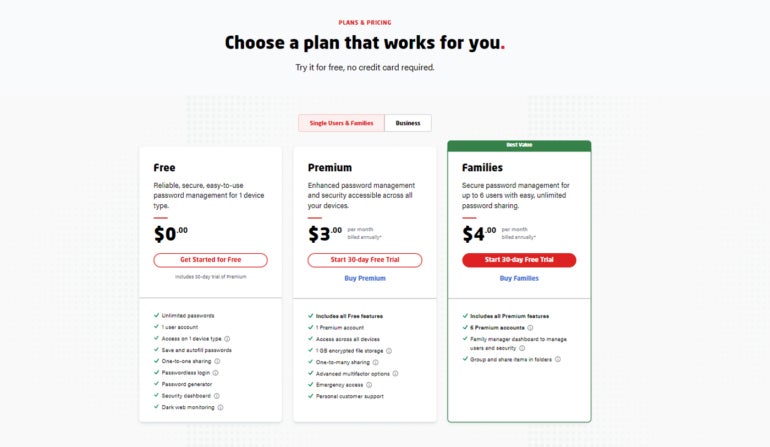
LastPass Single Users & Families plans.
LastPass Single Users & Families plans. Image: LastPass

For the Single Users & Families plans, you can select between Free, Premium, and Families. If you only need a basic password manager, LastPass Free allows for unlimited password storage and comes with a password generator.

However, with the free version, you miss out on important features such as advanced multifactor options, emergency access, and unlimited device access that are only offered with the Premium plan.

If you’re a group or a family that wants a centralized password management solution, LastPass Families may be better for you as it covers up to six users.
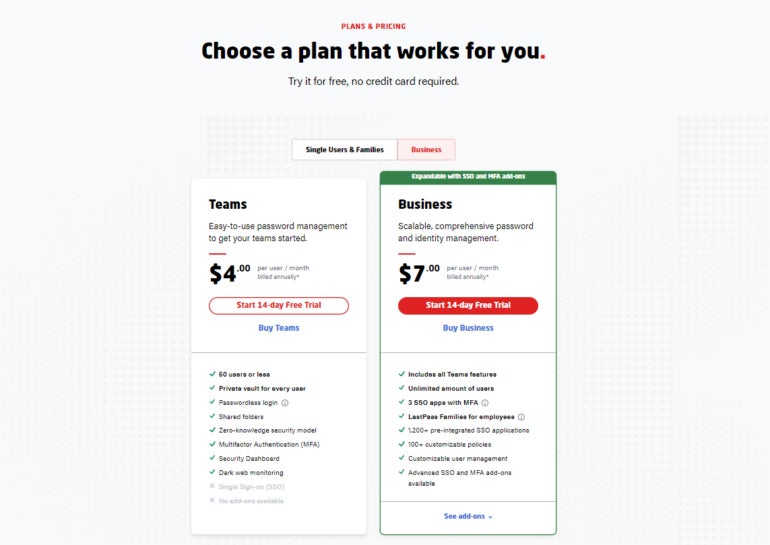
LastPass Business.
LastPass Business. Image: LastPass

Businesses can opt for either LastPass Teams or LastPass Business. Teams covers up to 50 users, while Business is tailored toward larger organizations. These two plans provide more business-centered features, such as shared folders and an administrative console.

Fortunately, LastPass offers generous free trials for both categories. In particular, LastPass Premium and Families has a 30-day trial, while LastPass Teams and Business has a 14-day trial.

I recommend going for one of these free trials, depending on your needs. The good news is that LastPass doesn’t require users to provide any payment information to access any of these free trials. For this article, I used LastPass Premium’s 30-day free trial.

To access one of the free trials, simply click the “Try” button below your subscription of choice.

2. Set up the web app and the browser extension

Upon selecting a plan, you’ll be redirected to create your LastPass account. Here, LastPass will ask you to provide an email address and your Master Password.
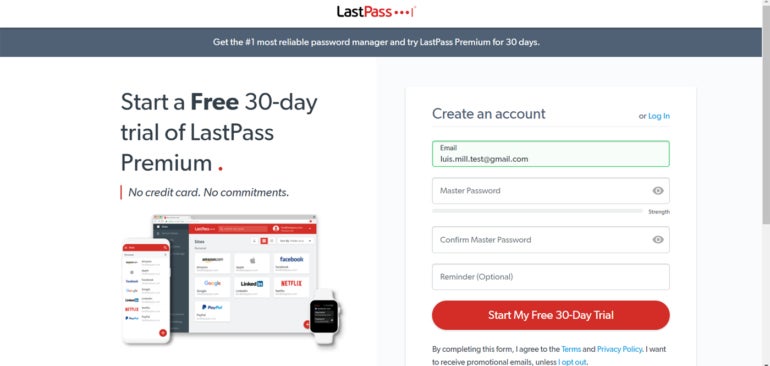
Creating a LastPass account.
Creating a LastPass account. Image: LastPass

In theory, your master password is going to be the only password you’ll have to create on your own. It’s also arguably your most important password, as it serves as the key that unlocks your vault, which contains all your other passwords and credentials. Thus, it’s crucial that you remember your master password.

After you’ve finished creating your account, LastPass will ask you to install its browser extension. This is the main way you’ll interact with the service. I use Google Chrome, so LastPass redirected me to the Chrome Web Store.
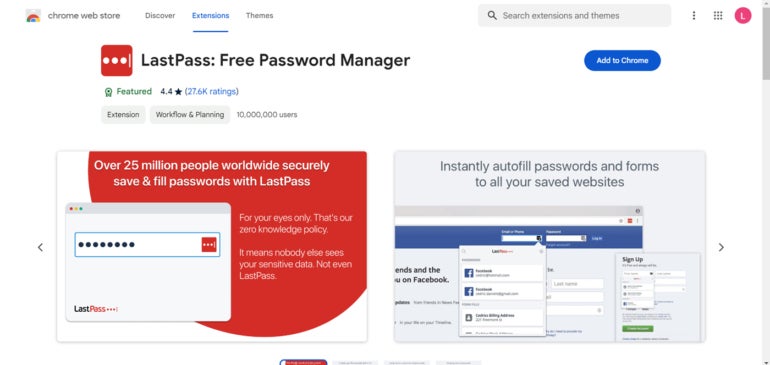
LastPass Chrome browser extension.
LastPass Chrome browser extension. Image: Google

Once you’ve installed the browser extension, you can access LastPass’ web vault application. Before you do this, I recommend you pin the LastPass extension to your browser’s toolbar for easy access.

Now that you have the extension up and running, it’s time to access your LastPass web vault. To access it, go to the official LastPass website and click Log In. From there, enter your email and master password and you will be led to the LastPass web vault application.
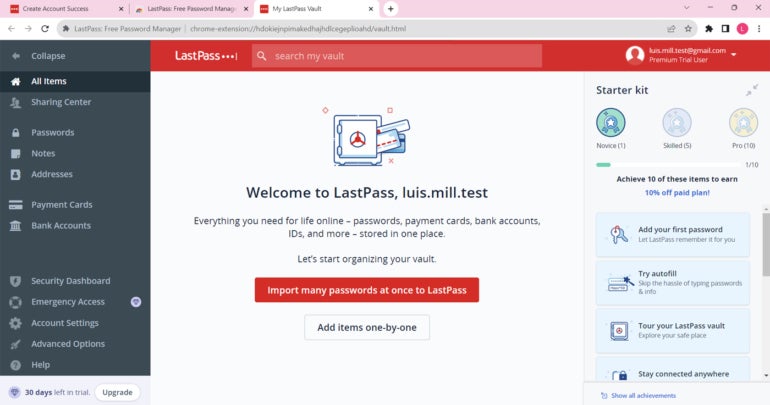
LastPass web vault.
LastPass web vault. Image: Luis Millares

Your LastPass vault is where all your passwords, logins and other credentials will be stored.

3. Use LastPass

The main reason to use a password manager is to organize and secure your passwords. To illustrate how to do this, I’ve made a new account on LinkedIn.

On LinkedIn’s signup page, you will see that there’s a LastPass icon on the username and password fields.
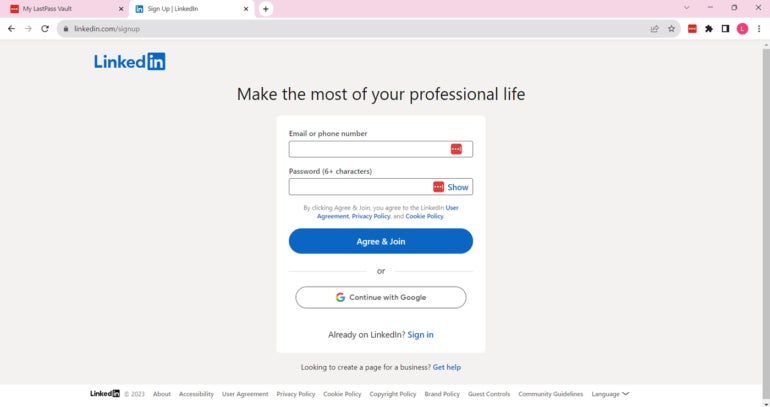
Creating a LinkedIn account.
Creating a LinkedIn account. Image: Luis Millares

Clicking on the LastPass icon in the password field will bring up LastPass’ password generator. Here, LastPass automatically generates a random password for your new login.
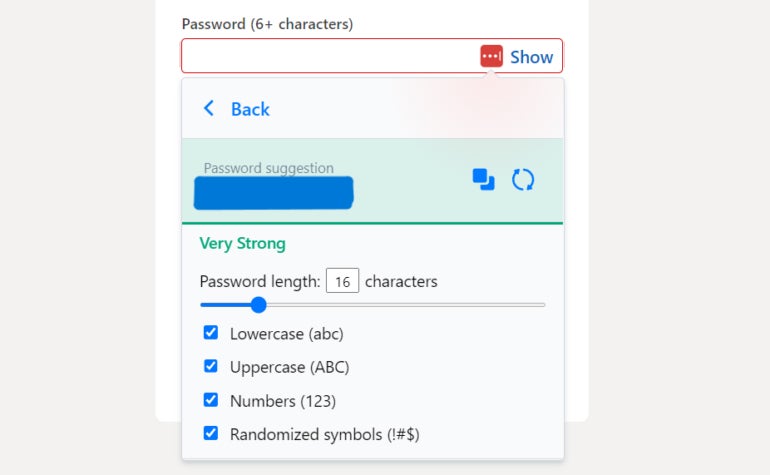
LastPass password generator.
LastPass password generator. Image: Luis Millares

At default, LastPass will generate a 16-character password — which you can configure to have uppercase and lowercase letters, numbers, and symbols. LastPass allows you to create a password with as many as 99 characters. In this case, I selected the first suggestion from LastPass’ password generator.

Clicking on the generated password will prompt LastPass to ask you if you want to save the new login. Click “Add password,” and there you go — you’ve just created and saved your very first LastPass login.
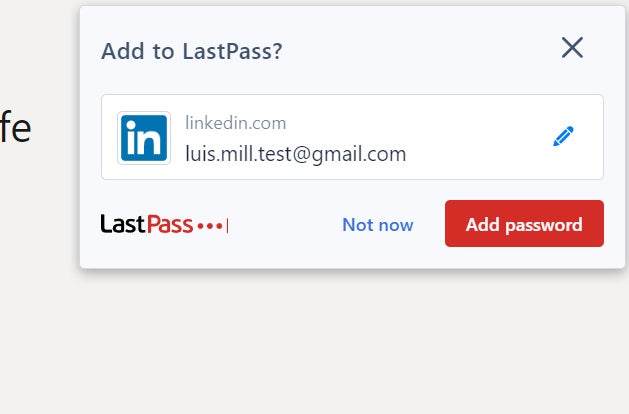
LastPass saving new login.
LastPass saving new login. Image: Luis Millares

This login can now be found within your vault and LastPass will automatically be filled in the next time you’re on LinkedIn’s login page.

With that, we’ve just saved our very first login using LastPass!

SEE: IT Leader’s Guide to Cybersecurity Awareness Training (TechRepublic Premium)

LastPass frequently asked questions (FAQs)

Is LastPass no longer safe?

Due to its recent data breaches, I don’t consider LastPass a safe password manager to use in 2025. For context, LastPass was involved in two data breaches in 2022, where the threat actor gained unauthorized access to encrypted customer data.

While the password manager service has since implemented changes to bolster its security posture, there’s simply no reason to put your data at risk. This is especially true given there are other top-tier password managers that have not been hacked or involved in similar breaches.

Does LastPass have a free version?

Yes, LastPass has a free version but has limited features compared to its paid counterpart. On LastPass Free, you can only access your password vault while using one device type at a time. This means you can only view your passwords on a computer or a mobile device, not both at the same time.

You also don’t get LastPass’ One to Many Sharing feature (which allows login detail sharing with multiple people), encrypted file storage, advanced multi-factor authentication, and emergency access. All these features are available on any of LastPass’ paid plans.

Check out LastPass Free vs Premium, for a more in-depth comparison between the two.

How to add LastPass to Chrome?

To add LastPass to Chrome, visit the Chrome Web Store, search for LastPass, and click on “Add to Chrome.”

From there, LastPass will provide you steps on how to install and integrate their service to your Chrome browser. You can also go to the LastPass Download page and download the browser extension from there.

What operating systems does LastPass support?

LastPass supports Windows, Mac, and Linux operating systems via their browser extensions. Specifically, it has browser extensions for Chrome, Safari, Firefox, Microsoft Edge, and Opera.

It also offers dedicated mobile apps for both iOS and Android.

What we think of LastPass

In our full review, LastPass received a rating of 3.4 out of 5 stars. We couldn’t recommend LastPass because of its 2022 data breaches, particularly since a password manager’s main purpose is to protect user data.

While its free version and wide range of multifactor authentication options are enticing, there are a number of LastPass alternatives that we feel are better investments for your money — and data.

If you want to learn more, read our full review of LastPass or check out our Keeper vs LastPass comparison.

This article was originally published in December 2023. It was updated by Luis Millares in March 2025.
Posted on

KeePass Review (2025): Features, Pricing, and Security

KeePass fast facts

Our rating: 3.0 stars out of 5
Pricing: Free
Key features

  • Downloadable user-generated plugins.
  • Open-source.
  • Completely free.

KeePass is a free and open-source password manager that’s been around for over 20 years. Since its release in 2003, the password manager’s ability to add user-generated plugins and extensions has made it a popular option for enthusiasts and more technical users.

While KeePass offers decent and secure password storage, its dated design, lack of traditional password capture and replay, and unintuitive application make it hard to recommend against more modern password managers.

KeePass pricing

KeePass is a completely free password manager that doesn’t have any paid tiers. This is in contrast to competitors like NordPass and Dashlane which have paid plans and have free versions, but with inherent limitations. For example, Dashlane’s free version only allows for a maximum of 25 passwords. However, you can avail of their paid plan to get unlimited password storage.

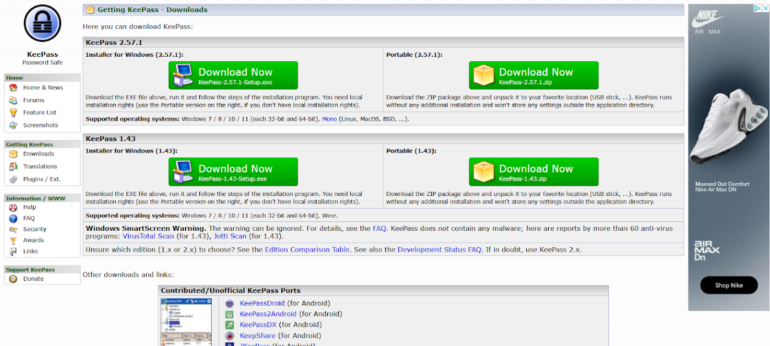
KeePass desktop app available for free.
Image: KeePass

One big difference between KeePass and other password managers is that a lot of features aren’t included out of the box. Instead, users can customize their KeePass client’s feature set via downloadable plugins from the password manager’s site. Plugins are available for capabilities such as importing and exporting passwords, data backups and auto typing.

Is KeePass safe?

Yes, KeePass is a safe and secure password manager. It utilizes the industry standard AES-256 encryption for its database and user vaults. It’s also open-source, allowing the public to verify its source code for possible vulnerabilities or potential security holes.

This is a big feature for privacy enthusiasts, especially those who value transparency, as it lets the users and experts collaborate with KeePass in keeping it secure to use.

Encryption-wise, I like that KeePass encrypts the whole database, which means that not only are passwords encrypted but also other items such as usernames and notes.

As of March 2025, KeePass had not been involved in any data breach. The password manager has been audited in the European Commission’s Free and Open Source Software Auditing (EU-FOSSA 1) project, which showed that it had zero security issues.

KeePass also shares that it is the recommended password manager in the BSI Cyber Security Recommendations BSI-CS 003 2.0 by the German Federal Office for Information Security and is on the list for recommended free software for French public agencies.

To me, these recommendations from government agencies hold a lot of weight since they handle highly sensitive and public data.

Key features of KeePass

Aside from password storage and password generation, KeePass comes with a few key features that make it unique compared to other password managers.

Library of plugins and extensions

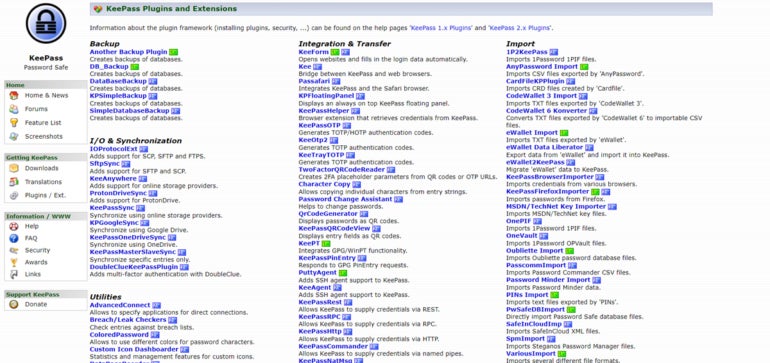
KeePass Plugins.
KeePass Plugins. Image: KeePass

One of KeePass’ biggest selling points is the ability to download and add plugins for each user’s KeePass client. These plugins add more features or modify existing functionality, such as letting users import or export different file formats, changing the KeePass user interface, or adding autofill capabilities.

Right now, there are more than 180 downloadable plugins on the KeePass website. This is perfect for users who value being able to customize their password manager and its feature set.

For me, I prefer a password management solution that already comes with dedicated features, without having to worry about adding them after the initial installation. If you’re like me on this, 1Password or NordPass are password managers with a variety of features already baked in.

Local-device password management

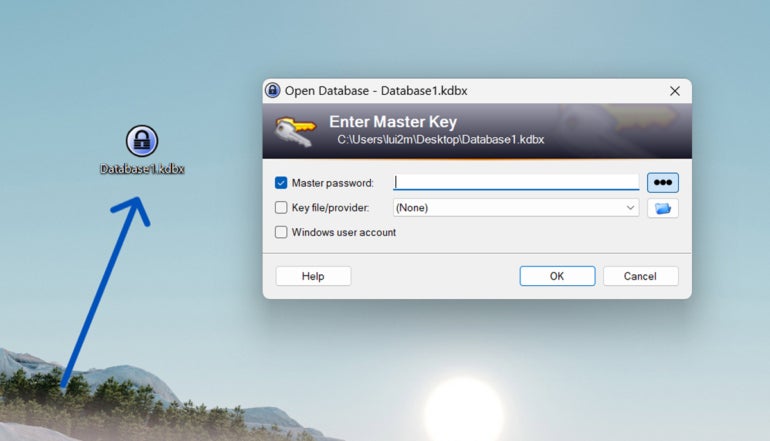
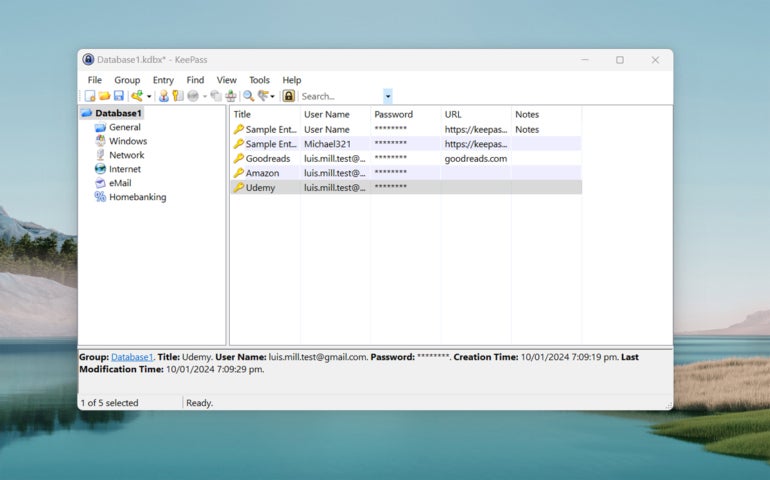
A KeePass database saved on my desktop.
A KeePass database saved on my desktop. Image: Lui Millares

Another standout feature from KeePass is that it is a completely local password management system. This means that all your passwords and stored credentials are encrypted locally on your computer or device of choice. This is in contrast to other password managers that store passwords in the cloud, like 1Password or LastPass.

If you’re paranoid about cloud-based password managers possibly being involved in a data breach and leaking your data, KeePass can be a great solution since everything is stored locally. You can read our LastPass review to learn more about how data breaches can affect a password management solution.

On the flip side, KeePass’ all-local implementation can be a disadvantage since you won’t have the convenience of easy access to your passwords on multiple devices through the cloud.

Auto-Type functionality

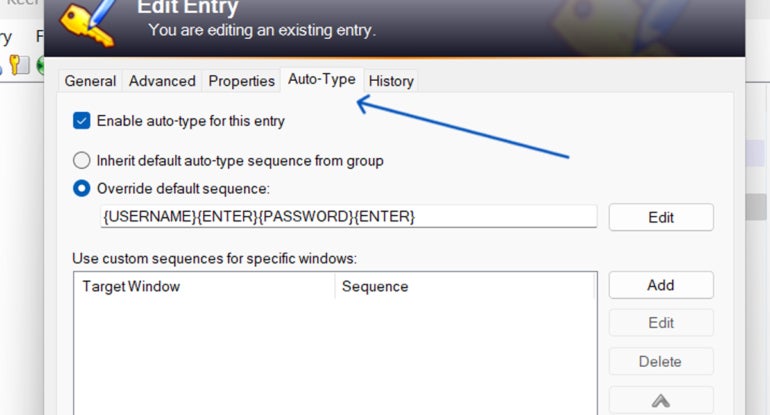
Unlike most modern password managers, KeePass doesn’t have a conventional autofill feature. What it does have is Auto-Type — a global auto-type hotkey which automatically types out credentials in your chosen account pages.

Auto-Type tab.
Auto-Type via KeePass. Image: Luis Millares

Auto-Type works by having KeePass open in the background, switching to the website, and KeePass automatically typing out your login credentials after you hit a particular keyboard shortcut. This is opposed to other password managers that automatically fill out the username and password fields via a browser extension or through a clickable pop-up.

While seeing KeePass automatically type out my password was cool at first, I did find it really finicky to use after a few times. Because I had to manually set the sequence in which the login credentials are to be typed, i.e. if the username or password goes first, there were times that KeePass couldn’t type my details in the proper fields.

Despite Auto-Type being a unique party trick that I haven’t encountered on other password managers, I honestly found manually copying and pasting from the KeePass client to be a better alternative.

KeePass authentication and security options

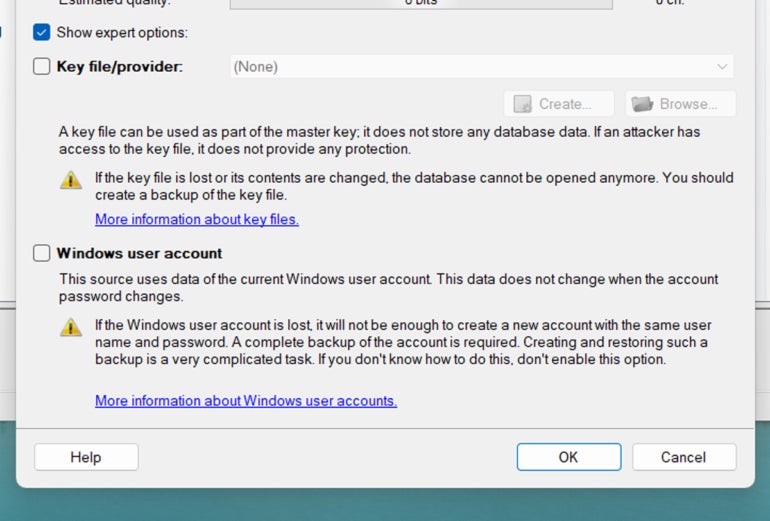
KeePass comes with two main multi-factor authentication (MFA) options: key file and linking a Windows user account. A key file is a file that you can save either on your computer, USB flash drive, or any other device, which acts as an additional requirement in tandem with your master password to access your database.

Authentication options.
Authentication options. Image: Luis Millares

You can set your KeePass vault or database to only open if you’re logged into a specific Windows user account. I would have preferred it if KeePass had more MFA options like 1Password’s fingerprint verification or NordPass’ authenticator app integration.

While you can download two-factor authentication (2FA) or One-Time Password (OTP) plugins, I think having these authentication options baked within the app itself is more user-friendly. This saves users the time of having to pick which plugin is the best, especially since most competitors have these readily available once installed.

For security options, I like that KeePass has a timer for whenever you copy passwords off your database. At default, KeePass automatically removes any copied credential from the clipboard after 12 seconds.

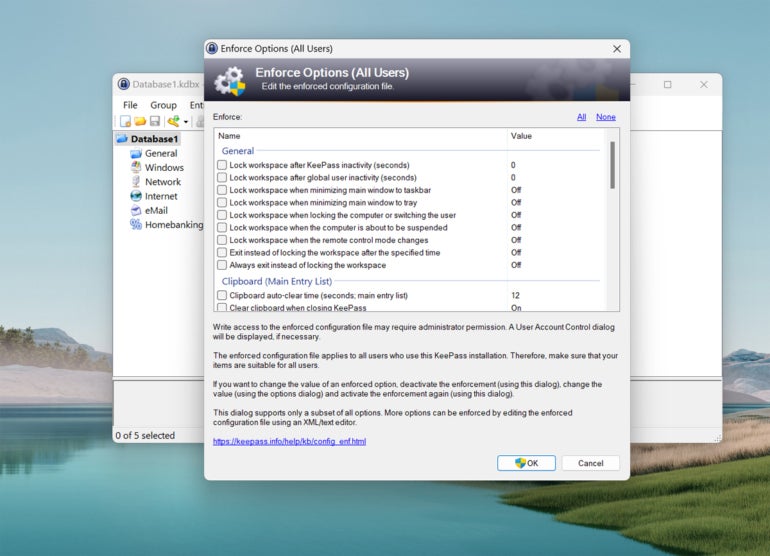
There are also different Enforce Options that let you set whether you want your KeePass database to automatically lock after inactivity or have KeePass warn you whenever a key transformation setting is weak.

Enforce options.
Enforce options. Image: Luis Millares

KeePass interface and performance

KeePass’ desktop user interface (UI) falls flat in both design and ease of use. Its design is dated and looks a bit like legacy-Windows applications from the 2000s. I prefer password managers with a sleek and modern UI.

KeePass main dashboard.
KeePass main dashboard. Image: Luis Millares

KeePass’ application is also not the easiest password manager to use and learn. Once I installed the application, I got a blank dashboard with no included guide. There wasn’t a clear tutorial on how to save my first password or use any of KeePass’ features.

Fortunately, there are video tutorials, guides, and forum posts online that outline how to use KeePass. However, I don’t think the password manager needs to sacrifice ease-of-use to get to their goal of customizability.

In terms of performance, I had no trouble adding new password entries inside the KeePass app. The included password generator also worked without any issue and I like that there’s no limit to password characters.

It’s unfortunate that KeePass doesn’t have traditional autofill and password capture and replay functionality. Without any plugins, you have to manually input login credentials to save new usernames and passwords. This adds an extra step to the process compared to something like Keeper’s KeeperFill feature that automatically saves and fills in new logins upon creation.

KeePass mobile app

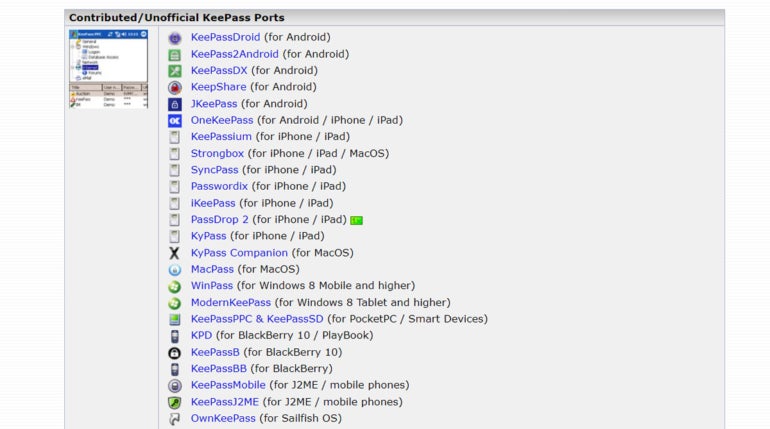
KeePass doesn’t have its own proprietary iOS or Android mobile application. However, it recognizes user-generated mobile ports of its service.

KeePass ports list.
KeePass ports list. Image: KeePass

This provides users a ton of options in terms of KeePass mobile applications. However, this means that there’s no assurance that a given mobile app will be supported long-term. Each mobile port will also have varying levels of quality, so your mileage may vary.

KeePass pros

  • Completely free password manager.
  • Open source and secure.
  • Highly customizable.
  • Downloadable user-generated plugins.

KeePass cons

  • Hard to learn and not user-friendly.
  • No autofill feature included.
  • Auto-Type is a bit clunky.
  • Multi-factor authentication options are separate downloads.
  • Design looks a bit dated.
  • No official mobile app.

SEE: Penetration Testing and Scanning Policy (TechRepublic Premium)

Who is KeePass for?

KeePass is for users who want a password manager they can personalize. With its large library of downloadable plugins and extensions, KeePass can be a very powerful tool for those willing to take the time to maximize its capabilities.

It’s also a good pick for individual users who are wary of cloud-based password managers and want a secure way to store their passwords locally.

However, its less than friendly user interface, clunky auto-type feature, and lack of traditional password capture and replay make it hard to recommend against other top password managers in the market. Its locally-stored password storage also makes it hard

KeePass alternatives

If you find that KeePass isn’t a good fit, I’ve listed three alternative password managers that are worth a try.

Bitwarden icon.
Image: Bitwarden

Bitwarden

If you want a cloud-based password manager with a generous free version, check out Bitwarden. Bitwarden’s free version allows for unlimited password storage and access on an unlimited number of devices. You also get strong zero-knowledge encryption and affordable pricing on its paid plans across the board.

Check out our full Bitwarden review.

NordPass icon.
Image: NordPass

NordPass

NordPass is an all-around password manager that doesn’t have many faults. It has an intuitive user interface, plans for both single users and business, and has independently audited applications. It also utilizes the secure and more modern XChaCha20 encryption algorithm.

Check out our full NordPass review.

1Password icon.
Image: 1Password

1Password

For avid travelers, 1Password can be a great pick. It comes with a handy Travel Mode feature that lets users hide select vaults whenever they travel. This is on top of its sleek desktop UI and strong AES-256 encryption. 1Password also provides 14-day free trials across all its plans that let you test their service.

Check out our full 1Password review.

Review methodology

My review of KeePass involved a detailed analysis of its security features and real-world performance. I used KeePass on a Windows laptop for testing and for hands-on experience.

I rated KeePass on everything from its password management features to its ease of use based on an internal algorithm to get a rating of 3.0 out of 5 stars. The scoring was based both on KeePass on its own and in relation to other password managers.

This article was originally published in January 2024. It was updated by Luis Millares in March 2025.
Posted on

NordPass vs Bitwarden: Which Is Safer and Easier to Use in 2025?

Just about every online service requires visitors to create an account, and that typically means more passwords than you can possibly remember. With repetitive passwords considered a poor security practice, using password managers becomes imperative as they help to generate and store complex, unique passwords for each of your accounts.

Among the top password managers on the market are NordPass and Bitwarden. While NordPass is notable for its quality encryption and VPN integration, Bitwarden’s open-source and self-hosting options make it a worthy alternative. But how do you determine which to use? Let’s find out.

  • NordPass: Best for ease of use and suite of security programs with the Nord Security family of software.
  • Bitwarden: Best for open source password management and generous free version.

NordPass vs Bitwarden: Comparison table

The table below holds a summary of how both password managers stack up against each other.

NordPass Bitwarden
Our rating 4.6 stars out of 5 4.6 stars out of of 5
Native authenticator app Yes Yes
Open source No Yes
Encryption Uses XChaCha20 encryption Uses 256-bit AES encryption
Password autofill Yes Yes
Command Line Interface No Yes
Free plan available Yes, (for one device) Yes (can be used on multiple devices)
Built-in VPN Yes No
Starting price Paid plan starts at $1.69 per month for one year Price starts at $0.83 per month; $10 billed annually
Free trial Yes. Offers 30-day NordPass Premium trial and 14-day NordPass Business trial Yes. Offers 7-day free trial for most plans
Visit NordPass Visit Bitwarden

NordPass and Bitwarden: Pricing

NordPass pricing

NordPass offers two subscription tiers: Personal and Business. All of NordPass’ premium plans have a 30-day money-back guarantee and the Free plan includes a 30-day Premium free trial you can avail of as well. Meanwhile, NordPass also offers a 14-day free trial of its Business subscription.

Personal:

Free plan Premium plan Family plan
1-year plan Free $1.69 per month $3.69 per month
2-year plan Free $1.29 per month $2.79 per month
Feature differences Autosave and autofill; secure storage; one user per session All Free features plus access on multiple devices, password health, data breach scanner, and file attachments All Premium features for six user accounts

Business:

Teams plan Business plan Enterprise plan
1-year plan $1.99 per user, per month $3.99 per user, per month $5.99 per user, per month
2-year plan $1.79 per user, per month $3.59 per user, per month $5.39 per user, per month
Users Up to 10 users only From 5 to up to 250 users Unlimited users
Feature differences Company-wide settings and Google Workspace SSO All Teams features plus Security Dashboard, Shared Folders All Business features plus SSO with Entra ID / MS ADFS / Okta, User and Group Provisioning, Sharing Hub

Bitwarden pricing

Bitwarden also offers a variety of plans under their Personal and Business tiers. Bitwarden has a seven-day free trial for its Families plan and a seven-day trial for its Teams subscription on the business side.

Below is an overview of pricing and feature differences for both.

Personal:

Free plan Premium Families
Free $0.83 / $10 billed annually $3.33 per month
Unlimited devices, passkey management, unlimited password storage All Free features plus integrated authenticator, emergency access, security reports, and file attachments Up to 6 users; All Premium features plus unlimited sharing and collections, organization storage

Business:

Teams plan Enterprise plan Custom plan
$4 per month, per user $6 per month, per user Contact Sales for price quote
Secure data sharing, event log monitoring, SCIM support, Directory integration All Teams features plus Custom Roles, Passwordless SSO, Free Families Plan for all users, Self-host option, Enterprise policies Depends on your customized requirements

NordPass vs Bitwarden: Feature Comparison

When it comes to features, both NordPass and Bitwarden offer solutions for security, password sharing, encryption, and more. I’ve included their standout features below:

Authentication

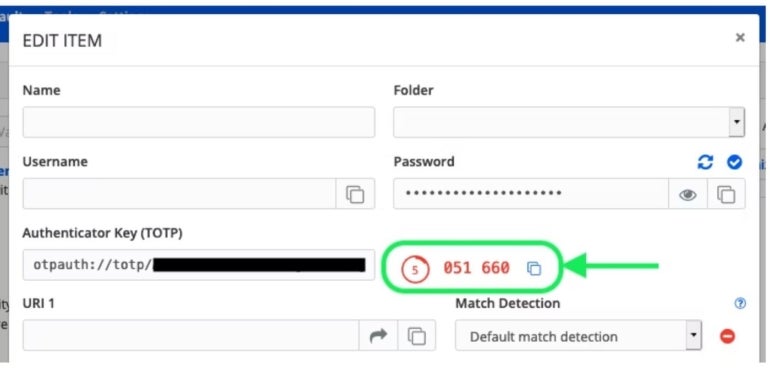
Both NordPass and Bitwarden offer two-factor authentication (2FA) solutions to add an extra layer of protection for your accounts. NordPass Authenticator uses biometric, possession and knowledge-based authentication methods. Its time-based one-time passwords (TOTPs) expire every 30 seconds and serve as the second login factor you input alongside your password. The Authenticator also comes with QR code scanning and manual key entry options for easy setup.

Bitwarden’s Authenticator also utilizes TOTPs for secure logins and offers options for QR code setup and manual key entry. Everyone can store authenticator keys in Bitwarden, but generating the codes requires a premium account or membership in a paid subscription such as a Families, Teams, or Enterprise plan..

Bitwarden Authenticator.
Bitwarden Authenticator. Image: Bitwarden

Password import and export

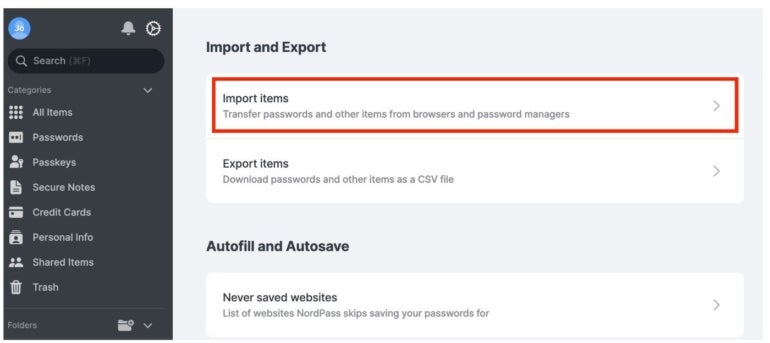
You can import your saved passwords from other password managers like 1Password and LastPass using NordPass on desktop devices or import passwords from browsers using the Android app. Note: To import files into NordPass, you need to organize the CSV file accordingly.

NordPass password import.
NordPass password import. Image: NordPass

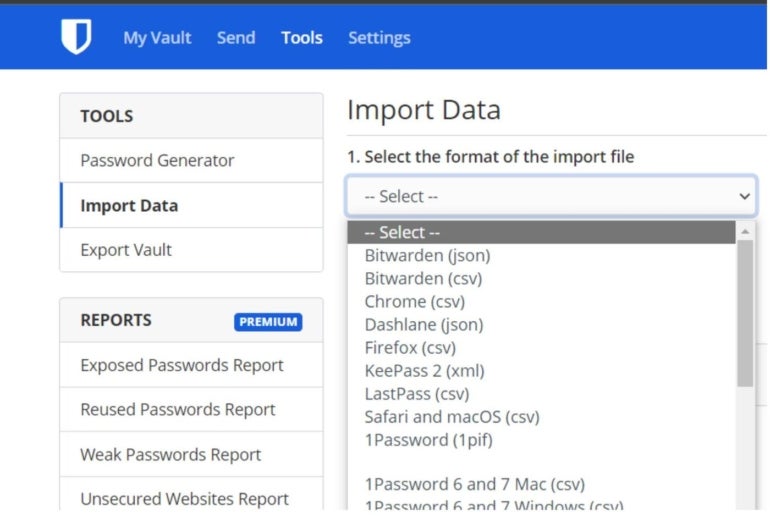
Bitwarden also supports importing and exporting data via its Password Safe in CSV. Data must be imported to Bitwarden from the web vault or Command Line Interface (CLI). In my testing, I found that importing data into the Bitwarden vault does not check for duplicates, so this should be done carefully.

Bitwarden password import dashboard.
Bitwarden password import dashboard. Image: Bitwarden

Password sharing

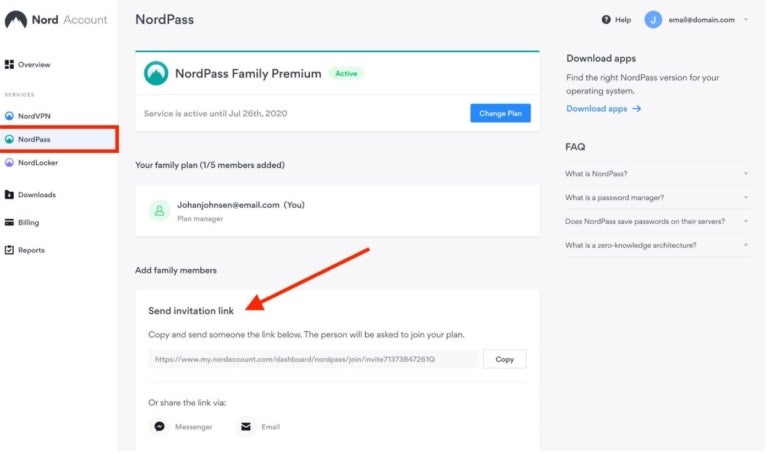
NordPass offers secure password sharing across most of its plans. You can send passwords securely via the NordPass app, or you can use NordPass Sharer, which allows you to safely share passwords or other vital information via a secure link. This secure one-time link is valid for 24 hours, or once opened.

Sharing invitation link on NordPass.
Sharing invitation link on NordPass. Image: NordPass

Bitwarden offers two methods for sharing passwords: Bitwarden Organizations for sharing very sensitive information like business accounts, where you create collections and share them with users within your organization, controlling access levels; and Bitwarden Send for less sensitive information like sharing a streaming service account, where you share usernames, passwords and notes. Using this method allows you to control access duration and the number of times your shared item can be accessed.

Security features

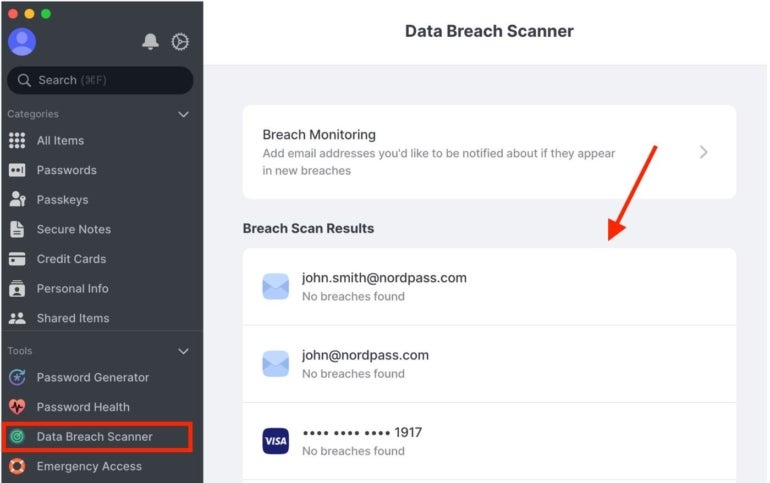
NordPass offers multi-factor authentication, which acts as an additional layer of security and prevents unauthorized users from accessing your accounts. It also uses advanced encryption algorithms like XChaCha20 to ensure the security of your vault. Additionally, with NordPass Enterprise, you can take advantage of other security features such as Single Sign-on (SSO), Data Breach Scanner, Password Health, and Secure Item Sharing.

NordPass Data Breach Scanner.
NordPass Data Breach Scanner. Image: NordPass

Bitwarden offers open-source security and utilizes the following key security measures to protect user data: AES-CBC 256-bit encryption, PBKDF2 SHA-256, and salted hashing. All cryptography keys are generated and managed by Bitwarden on your devices, and all encryption is done locally. Bitwarden also has vault health reports, offers SSO for Enterprise users and a two-step login using YubiKey OTP, Duo, FIDO2 WebAuthn, Email, and the Authentication app.

Automatic device sync

NordPass can automatically back up and sync your credentials and files. This allows you to access your data in the vault from anywhere — whether it’s the app on your phone or a browser extension.

With Bitwarden, items owned by you in the web vault will always remain in sync. Items owned by an organization will sync across users and client applications every 30 minutes. Other Bitwarden apps — such as browser extensions, mobile apps, desktop apps, and CLI — will sync automatically at login and regularly when unlocked.

NordPass pros and cons

Pros

  • Data Breach Scanner available.
  • Viable encryption option.
  • Offers a free plan.
  • Free trials for most plans.
  • Secure password sharing.
  • Live chat support.

Cons

  • Only one device is supported on the free version.
  • The free tier has very limited features.

Bitwarden pros and cons

Pros

  • It’s open source.
  • Supports both graphical and command-line interfaces.
  • One free account can run on multiple devices, although with limited features.
  • Advanced two-step login.
  • It can be self-hosted or cloud-based.

Cons

  • SSO integration and admin password reset are not available in some plans
  • Desktop UI requires improvement.
  • Only offers a 7-day free trial.

Should your organization use NordPass or Bitwarden?

Choosing between NordPass and Bitwarden depends on your priorities. NordPass offers seamless integration with other Nord products like NordVPN and NordLocker, ensuring a unified security ecosystem for an organizational setting. The interface is user-friendly and simple, and it can integrate with many popular apps and browser extensions. NordPass’ shared folders allow users to securely share information and sensitive data stored in their vaults, making it easier for team collaboration; plus, it includes a data breach scanner on the dashboard for easy password breach scans.

Bitwarden is an open-source security password manager, prioritizing transparency, strong security, and customization for budget-conscious individuals or enterprises. It allows self-hosting for advanced users, and it integrates very well with SSO providers like Azure Active Directory and Okta to streamline the log-in process for various team members in an organization.

The pricing for both NordPass and Bitwarden are fairly similar, but Bitwarden offers more flexibility. Its free version offers more features and supports unlimited device connections, unlike NordPass, whose free version supports only one device.

SEE: Penetration Testing and Scanning Policy (TechRepublic Premium)

Methodology

I evaluated NordPass and Bitwarden by assessing their user interfaces, security features, and ease of use. For real-life experience, I installed the free versions of each app on my Android, Windows devices, and Chrome browser. This approach helped me test features like password generation, autofill, responsiveness, lengths of passwords, and cross-platform functionality. Both scored well on these benchmarks; however, I noticed that NordPass was faster with its prompts but found it easier to use Bitwarden on my Chrome browser. My assessment also showed that users can generate random strings of digits, letters, and symbols of up to 128 characters on Bitwarden compared to NordPass’ 60 characters.

The products’ sites were also taken into account to provide a comprehensive overview of pricing.

Check out our full reviews of NordPass and Bitwarden

This article was originally published in December 2023. It was updated by Luis Millares in February 2025.
Posted on

How to Use NordPass: A Step-by-Step Guide

NordPass, Nord Security’s password manager, is an intuitive application offering reliable password storage and protection.

In this article, we walk you through how to set up and use NordPass. We also answer some frequently asked questions about NordPass and its features.

How to set up and use NordPass

1. Choosing a NordPass subscription

NordPass has two subscription tiers: Personal and Business. Its Personal plans are for individual consumers, while NordPass Business is for businesses and organizations.

In our hands-on review, NordPass received a score of 4.6 out of 5 stars. Check out our full NordPass review here.

NordPass Personal plans
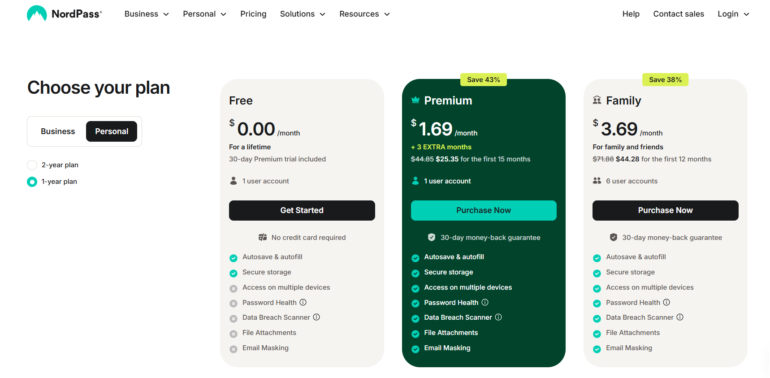
NordPass Personal plans. Image: NordPass

Within the Personal tier, NordPass has three plan options: Free, Premium, and Family. The Premium one-year subscription costs $1.69 per month for one user, and the Family plan is $3.69 per month per user for up to six users.

NordPass’ Free version is free forever; however, it only allows for one-device log-in, and lacks important features such as a dark web monitor and password health scanner.

NordPass Business plans
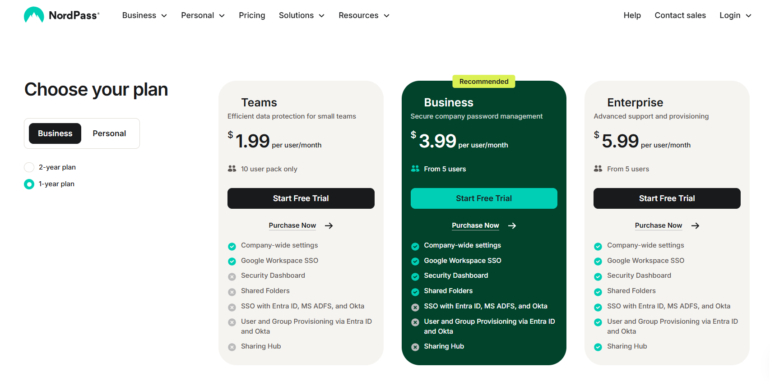
NordPass Business plans. Image: NordPass

Meanwhile, NordPass Business is split into Teams, Business, and Enterprise plans. The Teams one-year subscription costs $1.99 per user, per month for up to 10 people. NordPass Business provides protection for five users and up at $3.99 per user, per month. And, a one-year Enterprise subscription can protect the same five users and up at $5.99 per user, per month.

Customers can opt for a two-year plan, which offers more affordable monthly rates.

I highly recommend trialing out a plan before purchasing a subscription. A 30-day free trial is available for the Premium plan, and both Teams and Business have a 14-day free trial. Neither require a credit card to access.

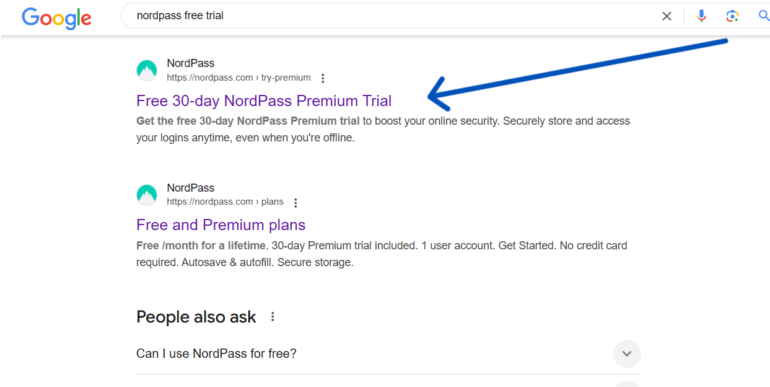
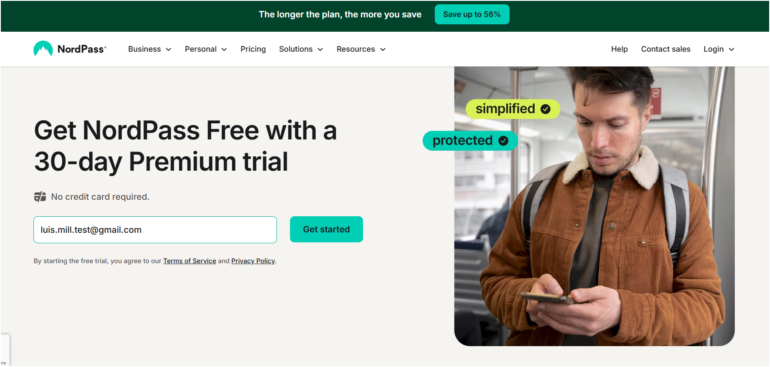
For those interested in trying NordPass’ free trial for its consumer version, I recommend searching “nordpass free trial” on Google as the easiest way to access it. I’ve found that NordPass tends to update or change their webpages every now and then, so looking it up directly via Google will be the fastest way to avail of the trial.

Looking up NordPass’ free trial on Google
Looking up NordPass’ free trial on Google. Image: Luis Millares

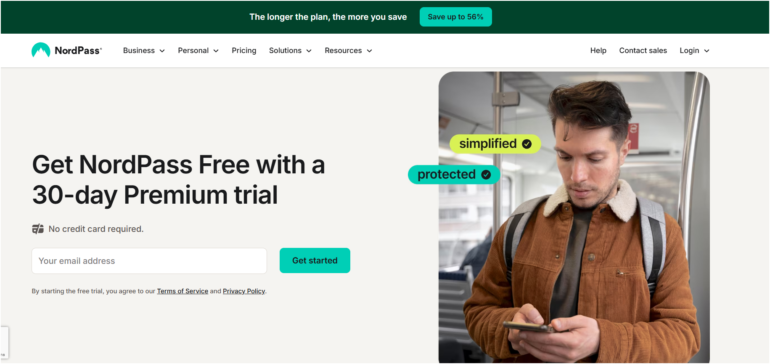
From there, you’ll see a page titled, “Free 30-day NordPass Premium Trial.” Clicking this will lead you directly to the free trial page, where you can enter your email address and start the trial.

NordPass’ free trial page
NordPass’ free trial page. Image: NordPass

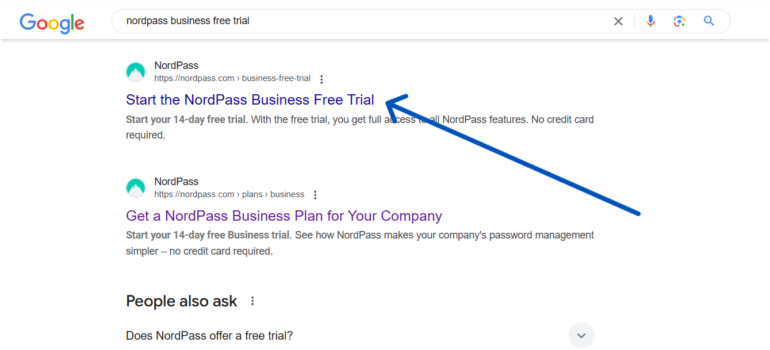
If you’re interested in accessing one of the 14-day free trials for NordPass Business, repeat our previous steps and simply search “nordpass free trial business” on Google this time around.

Looking for NordPass business trial
Looking for NordPass business trial. Image: Luis Millares

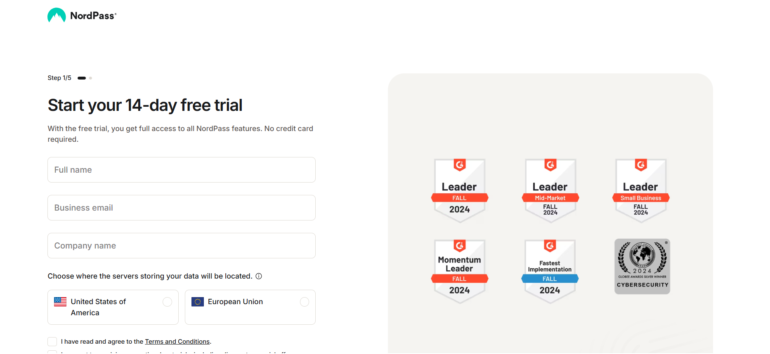
Clicking on the link will lead you to a sign-up page, where NordPass will ask you to enter your business email, company name, and other information.

NordPass Business trial sign-up
NordPass Business trial sign-up. Image: NordPass

2. Setting up the web app and browser extension

Going back, let’s select the NordPass Premium free trial to give you a quick look on how to use NordPass. At the NordPass free trial page, NordPass will ask you to provide an email address. I’ve put my test account below:

Providing my email for NordPass trial
Providing my email for NordPass trial. Image: Luis Millares

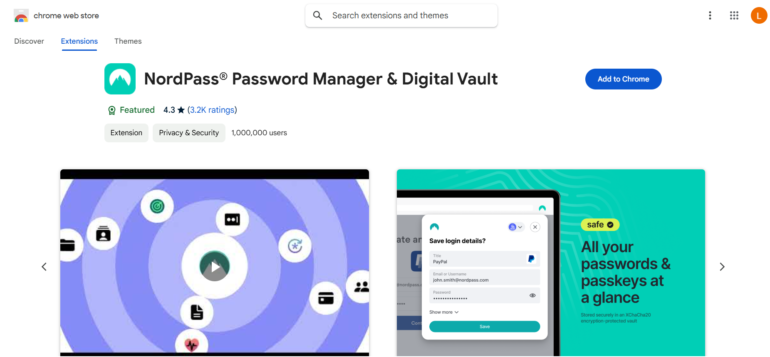
After providing my email, I was redirected to NordPass’ browser extension page on the Chrome Web Store. I downloaded the extension, and it installed automatically.

NordPass on the Chrome Web Store
NordPass on the Chrome Web Store. Image: NordPass

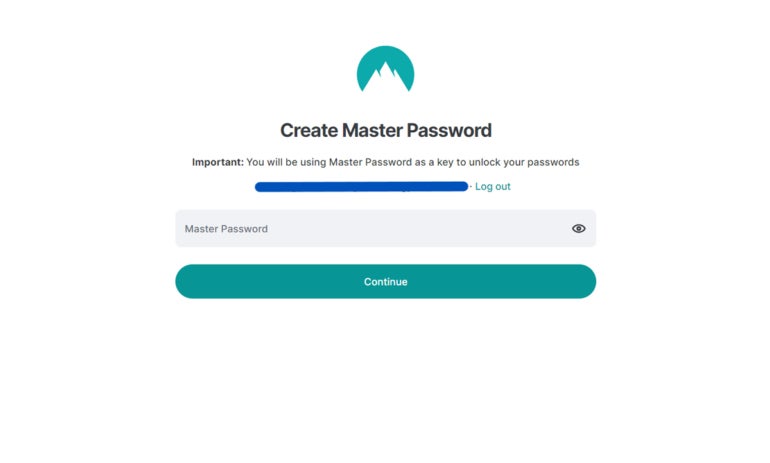
After installation, NordPass asked me to either log in or create an account. I chose “Create Account” and provided my email address. From there, NordPass asked me to create a Master Password. The master password is the only password you’ll have to create on your own as NordPass has a built-in password generator which you can use to create more secure, randomized passwords.

NordPass Master Password.
NordPass Master Password. Image: Luis Millares

The master password serves as the key to your encrypted password vault and stored passwords. NordPass requires all master passwords to be at least 9 characters or more and to have at least one special character.

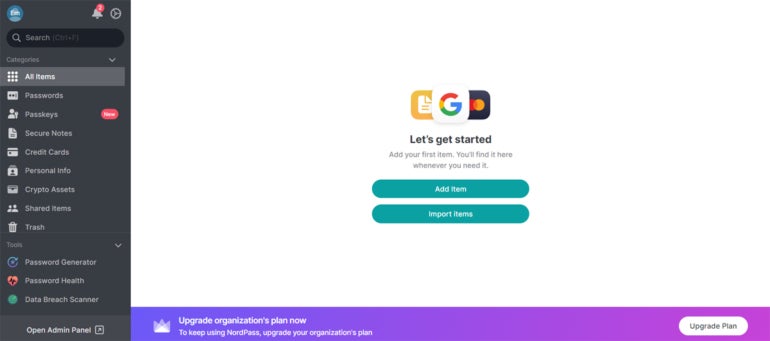
After I provided my master password, I was directed to the main dashboard to begin storing and managing my passwords.

NordPass main dashboard.
NordPass main dashboard. Image: Luis Millares

3. Using NordPass

The easiest way to save your first login is to create and save a new account online. To demonstrate this, I’ll create a new account on Udemy.

On Udemy’s account creation page, the NordPass logo appeared in the password field.

NordPass logo on password field.
NordPass logo on password field. Image: Luis Millares

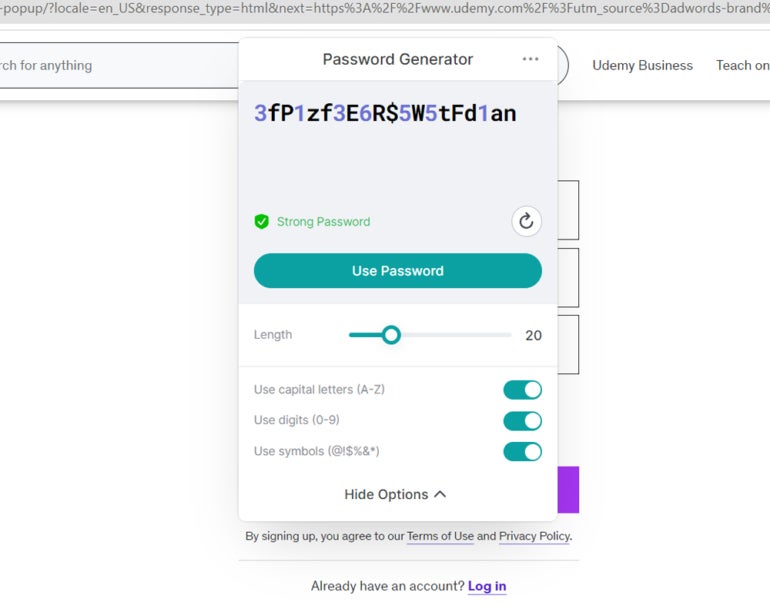
When I clicked on the logo, NordPass’ password generator popped up.

NordPass password generator.
NordPass password generator. Image: Luis Millares

It automatically generated a randomized password for my Udemy account. By default, NordPass creates a 20-character-long password, but you can have it generate a password that’s 60 characters long. You can also have it create a password phrase, which has been said is more secure.

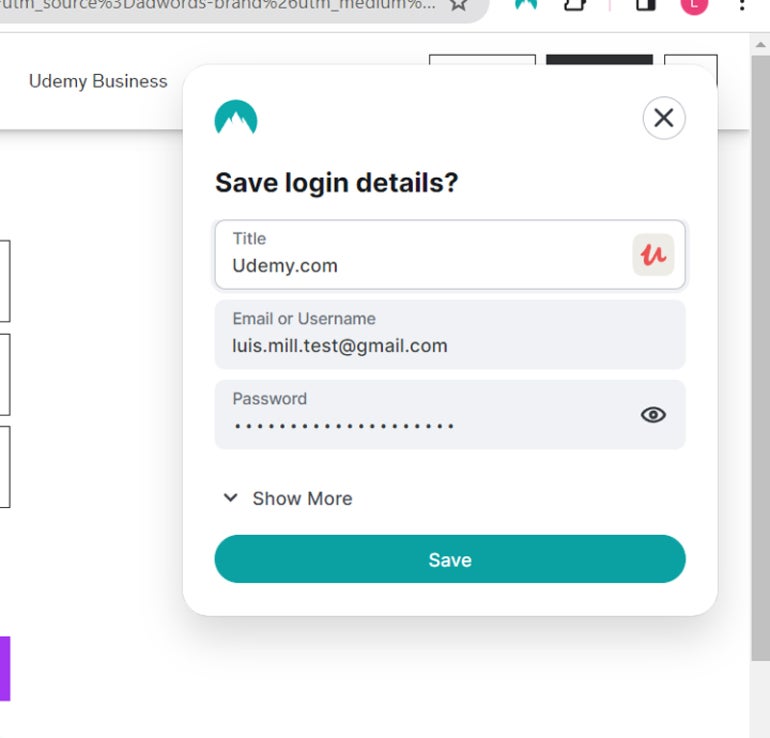
Saving a new login.
Saving a new login. Image: Luis Millares

After the password was generated, NordPass prompted me to save the Udemy account details to my NordPass vault.

NordPass Frequently Asked Questions (FAQs)

Is NordPass free?

Yes, but only for the consumer NordPass solution, not NordPass Business. NordPass’ free version doesn’t have key features such as dark web scanning, the ability to share items, and emergency access. And, it only allows a single-device login per account.

How do I import passwords to NordPass?

To import your passwords to NordPass, go to the Settings menu, navigate to the Import and Export section, and click “Import items.” NordPass lets you import passwords from a CSV file, browsers, and other popular password managers.

What if NordPass isn’t working?

If you encounter any problems with NordPass, you can visit their official support page or access their 24/7 live chat support. You can also send a message to their support email for more assistance.

Is NordPass the same as NordVPN?

No, they are two different services. While they are both from security software provider Nord Security, NordPass is a password manager and NordVPN is a virtual private network service.

What operating systems does NordPass support?

In terms of browsers, NordPass is available on Google Chrome, Mozilla Firefox, Opera, Edge, and Safari. This includes browsers for both desktop and mobile.

For its desktop application, NordPass supports Windows (10 and up), macOS (11 and up), Linux, Chrome OS (web vault only), Android (9.0 and up), and iOS (15.0 and up).

Is NordPass available for iPhone or Android?

Yes, NordPass has apps for both iOS and Android. You can also access NordPass on your smartphone via a supported mobile browser.

What we think of NordPass

In our full review, NordPass received a rating of 4.6 out of 5 stars. We highlighted its affordable pricing, easy-to-use application, and useful business features — all of which make it one of the best password managers available today.

While its free version is limited to only one device, the all-around user experience and security you get with NordPass make a premium subscription worth the spend.

If you want to learn more, read our full review and analysis of NordPass and check out our NordPass vs 1Password comparison.

Posted on

Global Pressure Mounts for Apple as Brazilian Court Demands iOS Sideloading Within 90 Days

A Brazilian court has dealt a major blow to Apple’s tightly controlled ecosystem, ordering the tech giant to allow sideloading on iOS within 90 days. The ruling follows similar mandates in the EU, signaling a global push for more open digital marketplaces.

With Apple commanding nearly 60% of the U.S. mobile market and over 62% in Japan, the decision could set off a domino effect worldwide.

How does sideloading affect iOS users?

Sideloading occurs when a mobile smartphone user downloads an app from a source other than the official App Store. In this case, the App Store remains the sole distribution channel — a model that Apple is determined to protect.

It’s clear why Apple wants to restrict third-party apps. According to StatCounter, the tech giant accounts for less than 30% of the global OS market share as of February 2025. Forcing users to download apps from the App Store is a surefire way to keep them in the iOS ecosystem.
However, users do receive some benefit from downloading apps exclusively from the App Store. Since all apps undergo a screening process, users know they’re receiving authentic software that isn’t going to harm their device. If they ever do experience an issue, technical support is usually available.

These safeguards don’t necessarily extend to apps that are downloaded from developer websites or other sources, but many users still want the freedom to choose. Despite already making similar accommodations in other regions, Apple insists that sideloading will have a negative impact on all iOS users.

Judge Pablo Zuniga, who overturned an injunction that would have given Apple more time to consider their next move, said that Apple “has already complied with similar obligations in other countries, without demonstrating a significant impact or irreparable damage to its business model.”

What does this mean for other countries?

If the ruling stands, similar legal battles could emerge worldwide. With the European Union already setting a precedent, and Brazil potentially following suit, other countries may soon join the movement. While the case in Brazil could be a major catalyst for a future disruption in the iOS ecosystem, it’s still too early to tell.

Following the latest ruling, Apple now has 90 days to remove all restrictions on sideloading for all Brazilian iOS users. As expected, the company plans to appeal the decision.

This article was written by TechnologyAdvice contributing writer J.R. Johnivan.

Posted on

Will Your Network Traffic Analysis Spot Today’s Threats?

Network traffic analysis (NTA) is the practice of monitoring and interpreting the data flowing across your network to ensure performance, reliability, and security. Companies rely on a mix of tools — ranging from packet sniffers and flow analysis software to advanced NDR systems — to gain visibility into their network’s behavior.

This guide explores the types of NTA solutions available, the key features that provide visibility and control over your network, and where related technologies like NDR tools fit into a modern, secure network strategy.

But first, I want to start with a few red flags that tell you network traffic is hiding performance bottlenecks, sophisticated cyber threats, or both. Relying on yesterday’s tools can mean missing critical warning signs.

Seven signs you should revamp network traffic analysis

Ideally, network traffic analysis (NTA) gives administrators a clear, real-time view of how data moves across their network. It helps them spot performance issues, track resource use, and identify potential security threats before they become serious problems.

When NTA tools and strategy leave critical blind spots, it will fail to detect performance issues, security threats, or unexpected traffic patterns that could disrupt operations.

Below are some warning signs and scenarios that warrant a review of your current approach and may indicate the need for strategic retooling of your network traffic analysis. Red flags include:

  1. Security incidents or suspicious activity: An uptick in network breaches, unauthorized access, or unusual traffic flows (e.g., data exfiltration attempts or DDoS attacks) indicates that your current strategy may not be adequately monitoring threats or alerting you in real-time.
  2. Unpredictable traffic spikes: If you notice unexpected increases in traffic, such as during off-hours or periods when there should be low activity, it could indicate an issue with how traffic is being managed or even malicious activity. If unpredictable spikes persist, re-evaluate your performance monitoring and threat detection tools to confirm they are giving you full visibility.
  3. Lack of visibility into specific traffic types: If your existing tools or strategy don’t provide clear insight into specific types of traffic — like VoIP, streaming, or encrypted data — it may be time to upgrade to a more sophisticated solution that offers deep packet inspection and greater granularity.
  4. Inconsistent reporting or alerts: If your current system isn’t providing consistent, actionable reports or timely alerts, it’s a sign the network traffic strategy might be outdated or improperly configured. Review your thresholds, detection rules, and alerting policies.
  5. Changes in network infrastructure or traffic demands: As network infrastructure evolves (e.g., shifting to cloud services, remote work, or increased IoT), it’s crucial to ensure that your NTA tools and approach are adapted to these changes, ensuring seamless traffic monitoring and management.


  6. Disconnected network data: If your NTA tools aren’t integrating well across various network segments or systems, it might be hard to get a full picture of network performance or security threats. A unified approach to traffic analysis may be required for better insight.
  7. Compliance or regulatory changes: If new compliance regulations or industry standards (such as GDPR or HIPAA) affect data protection and privacy, it may be necessary to review your NTA strategy to ensure it meets those requirements and avoids potential penalties.

There are other warning signs I haven’t captured here, and new zero-day exploits are emerging everyday.

Taking a proactive approach with NTA is a wise idea. Operating with less than full visibility into your network traffic is asking for trouble — both performance and security are at stake.

After all, once they have access to your network, it only takes two days for attackers to own your data.

What makes improving network traffic analysis so difficult?

As NTA technology evolves, it becomes increasingly powerful and capable of identifying sophisticated threats.

But these enhanced capabilities come with a major caveat: you need some really highly-paid IT resources in-house. The more advanced the tool, the higher the level of experience, expertise, and manpower required to effectively operate and manage it.

A basic network for a single office may be relatively straightforward to implement and monitor with minimal expertise. A large network with cutting-edge NTA platforms requires skilled security professionals who can interpret intricate data, respond to threats quickly, and fine-tune the system to adapt to new attack techniques and ransomware trends.

These factors make powerful NTA solutions more resource-intensive, demanding both skilled personnel and ongoing training to maintain their effectiveness. Organizations must consider not just the technological capabilities of an NTA solution but also the capacity of their team to manage and maximize its potential.

Types of network traffic analysis tools

Network traffic analysis tools are essential for monitoring and optimizing data flow across a network. They help identify bottlenecks, troubleshoot issues, and ensure efficient use of resources. The main categories of network traffic analysis tools are:

  • Packet sniffers: These tools capture and analyze raw network traffic at the packet level. Common tools, like Wireshark, provide deep insights into the types of data being transferred and help identify issues like packet loss or protocol mismatches.
  • Flow analysis tools: Tools such as SolarWinds and NetFlow Analyzer track flow data, which shows how traffic moves through a network in terms of sessions or connections. These tools focus on aggregate data, such as bandwidth usage, which helps in understanding overall network performance.
  • Network performance monitors: These tools, like PRTG Network Monitor, analyze both traffic and overall network health, including latency, throughput, and device status. They provide real-time monitoring and alerting features to track performance trends and detect anomalies.
  • Intrusion Detection Systems (IDS): These tools, such as Zeek and Snort, monitor traffic for signs of suspicious activity, such as unauthorized access or attacks. They focus on the security aspect of network traffic by analyzing patterns and behavior.

Many of the top tools for network traffic analysis combine multiple functionalities into a single platform. Some examples of “all-in-one” tools include SolarWinds NPM and PRTG Network Monitor, which provide comprehensive solutions for both monitoring and analyzing network traffic.

SEE: Check out this SolarWinds NPM review and this PRTG Network Monitor review to learn more about them. 

These platforms typically integrate packet sniffing, flow analysis, performance monitoring, and even security features into one interface, making them highly efficient for organizations that need a broad view of their network performance and security.

On the other end of the spectrum, you will be able to find some free tools that can do some of these jobs — albeit in a limited fashion with many upsells for their paid tool.

One last thing to note: You will still have to implement a separate Network Detection and Response (NDR) solution to effectively harden network security. The “all-in-one” NTA tools have limited NDR capabilities — most organizations use both to guard against Advanced Persistent Threat (APT) attacks.

Key network traffic analysis features

Focus on the features that will help you achieve the core goals of network traffic analysis: increasing visibility, optimizing performance, ensuring security, and maintaining operational efficiency.

These are five of the most important all-around features I think most people will be interested in. They are also features where depth varies from vendor to vendor.

1. Real-time monitoring and alerts

The ability to monitor network traffic in real time and receive alerts about unusual behavior or performance degradation is essential for proactive troubleshooting and immediate response.

Most NTA solutions offer real-time monitoring and alerts — a good solution minimizes alert fatigue by prioritizing actionable insights. Look for tools that provide context-aware alerts with relevant details and allow for customizable thresholds to suit your network’s unique needs.

Another way to reduce false alarms and endless alerts is using an NTA solution with alert correlation and grouping, which can consolidate related notifications. This can help your team stay focused on the right problems instead of being overwhelmed by redundant or low-priority alerts.

2. Automated traffic classification

Many NTA tools can perform basic traffic categorization, such as distinguishing between general data types like HTTP, DNS, or FTP. A more powerful automated traffic classification feature goes beyond basic categorization by offering granular identification of applications, protocols, and data types, ensuring precise resource allocation.

For example, advanced NTA tools can recognize and categorize specific applications, like identifying Microsoft Teams traffic versus general web browsing. This be critical for identifying where spikes in traffic originate, for example, and make it easier to prioritize discrete  resources and improve overall network performance.

3. Detailed reporting and historical data

The ability to generate detailed, customizable reports enables teams to track trends over time, identify recurring issues, and make data-driven decisions for capacity planning or resource allocation. Historical data is particularly valuable for diagnosing intermittent problems and conducting post-incident reviews, offering a clearer picture of what occurred and why.

4.  In-depth visibility and decryption

Don’t let encryption hide malicious activity. Choose an NTA solution that analyzes both encrypted and unencrypted traffic to uncover hidden threats within data tunnels. Also, look for capabilities that go beyond packet headers to analyze protocols, applications, and user behavior to provide detailed insight into network activity. Always pick an NTA that tracks lateral movement to expose adversaries moving through side channels and prevent threats from going undetected within your network.

5. Integration with other network management tools

Integration with other network management solutions, such as network performance monitoring (NPM) and Security Information and Event Management (SIEM) systems, is vital for creating a unified view of your network’s health.

If the goal is to increase visibility, don’t let network tools live in silos.

There are many additional capabilities, from advanced anomaly detection to customizable dashboards, that can help tailor the tool to your network’s unique needs. The key is not just in selecting the right features, but in using them effectively to gain actionable insights into your network’s performance and security.

At the end of the day, the most powerful tool is the expertise of the team using it.

The real value of your NTA solution lies in how well your professionals understand and leverage its features. As you move forward, trust that the combination of advanced technology and your team’s knowledge will provide the insights needed to stay ahead of evolving threats and optimize network performance with confidence.

Posted on

Worried About VoIP Security and Encryption? We Aren’t

Any modern business using a Voice over Internet Protocol (VoIP) phone system knows that maintaining security is essential for confidentiality, customer trust, and regulation compliance.

Industries like healthcare, for example, have strict regulations governing communications, and HIPAA-compliant VoIP providers offer security, privacy, and access management tools to help companies follow these regulations — even when employees access the network from far away places.

Meanwhile, poor encryption and security can also affect your bottom line, as scammers and fraudsters will find ways to exploit weaknesses to commit VoIP fraud on unsecured phone systems. Toll fraud works by hijacking a company’s phone system to make artificial and high-volume long-distance calls. The owner of the system gets charged for these calls (often without noticing), and then fraudsters are given a share of the revenue from colluding carrier services.

Along with toll fraud, there are many other vulnerabilities of VoIP systems — but if you are using one of the best business phone services, your vendor is going to take over the challenging parts of VoIP security and encryption. You just have to promote basic network security at your organization (strong passwords, access control, etc.).

Good providers handle VoIP security and encryption

A hosted VoIP service is a cloud-based communications solution offering secure voice calling and messaging over the internet.

The beauty of these services is that security and encryption come baked in. The VoIP providers update software and firmware, maintain hardware, and help follow regulatory compliance for you.

Of course, fraudsters and scammers are constantly evolving their game, but VoIP providers respond to these attacks in real time and keep your system safe from the latest threats.

With a hosted VoIP service, your employees have individual login credentials to access their VoIP accounts, and all calls your company makes go through the service provider’s network. That means the VoIP provider handles the security and encryption while routing calls, not you.

That also means your business is kept safe no matter where your employees are because a VoIP service lets them access the secure communication network from any softphone. Your employees won’t be tasked with performing any extra security-related tasks either, as VoIP services apply the latest measures across the entire network. Many of the headaches involved with remote work security are now fully off your plate.

What should a secure VoIP provider have?

A good VoIP provider should have robust encryption protocols to keep your data safe while it’s in transit. That way, voice calls and messages are indecipherable until they reach their destination, where only the recipient can decode them.

Similarly, a stateful firewall and/or intrusion detection system helps prevent attacks and unauthorized access. Enhanced login security measures like multi-factor authentication (MFA) and two-factor authentication (2FA), for example, further secure access, and a password-and-token system can also be an effective measure against unwanted infiltration.

The following technologies help VoIP providers secure their networks:

  • Session Border Controllers (SBCs): An SBC acts as the gatekeeper of the network by regulating IP communication flow. SBCs are particularly useful for protection against Denial of Service (DoS) and Distributed DoS (DDoS) attacks.
  • Transport Layer Security (TLS): TLS protocols use cryptography to secure a VoIP network’s signaling and media channels. TLS protocols use a digital handshake to authenticate parties and establish safe communications.
  • Secure Real-Time Transport Protocol (SRTP): SRTP is a media encryption measure that acts like a certificate of authenticity, which can be required before granting media access.

Not every organization requires SBCs, but anyone using a cloud phone system could be the target of a VoIP DDoS attack. Work with your vendor to deploy a future-proof VoIP phone system that follows network security architecture best practices.

The VoIP industry has standards and frameworks in place to guide companies with the best security practices available. In fact, the International Organization for Standardization (ISO) publishes guidelines that cover this sector.

A good provider should have the following accreditations and certifications:

  • PCI Compliance: PCI compliance is an information security standard for card payments. Having this certification facilitates secure payments from major credit cards.
  • ISO/IEC 20071: This Information Security Management System (ISMS) outlines a global set of standards that helps secure business data.
  • ISO/IEC 27002: This Code of Practice for Information Security Controls outlines the controls and best practices for securing information.
  • ISO/IEC 27005: This certification refers to Information Security Risk Management. It provides guidelines for assessing and managing information security risks.
  • ISO/IEC 27017: This establishes protocols for cloud service providers. It helps explicitly secure cloud services and their ecosystems.
  • ISO/IEC 27018: This outlines how to protect personally identifying information (PII) on public clouds.

Secure VoIP providers also need to be aware of their human-layer security. Many scams originate from human error, so a business is only as safe if its staff members are reliable. As such, businesses are vulnerable to social engineering attacks.

Social engineering is the process of manipulating individuals into giving up sensitive information. Rather than relying on technical vulnerabilities, many scammers use human psychology to obtain passwords, login details, and other sensitive information.

Scammers often use phishing techniques to gain trust. This technique involves sending messages and emails that appear legitimate, ultimately leading individuals to give up passwords or new login details after trusting the source’s legitimacy.

VoIP providers can limit opportunities for social engineering by implementing 2FA or MFA as part of IVR authentication workflows. Simply put, the more authentication steps required, the more information a scammer needs to extract, and the more information a scammer needs to extract, the lower their chances of infiltration.

Employee training and awareness are also critical factors in reducing social engineering attacks, as monitoring communication patterns and identifying irregularities can root out social engineering attempts before they gain any traction.

To combat these measures and educate employees even further, Udemy, Coursera, and edX run cybersecurity courses that include modules on social engineering. Similarly, Black Hat and DEFCON include workshops on the relationship between psychology and security.

Self-hosted VoIP security and encryption is a challenge

Some companies choose to host their own VoIP server on their company premises. This comes with some advantages, as creating a self-hosted system from the ground up gives you more options for customization and control.

However, several challenges make hosting a VoIP service impractical for many businesses. These areas include:

  • Cost: Setting up a VoIP system is expensive relative to subscribing to an existing service. A VoIP service provider already has the necessary infrastructure, hardware, and backend up and running.
  • Responsibility: Self-hosting offers customization and control at a cost. With your own VoIP system, you must update software, manage hardware, and troubleshoot technical issues.
  • Scalability: Increasing capacity in your self-hosted VoIP system could require hardware upgrades and other configurations. You can achieve the same capacity increase with a few clicks using a VoIP service.
  • Security and encryption: With a self-hosted VoIP system, security and encryption are your responsibility. For many business owners, this alone is enough to reject self-hosting.

Additionally, self-hosting is often only possible with a dedicated IT team or managed services provider . Without one, your security and encryption probably won’t be as good as a hosted service provider — which has its own team dedicated to running the latest security protocols.

Using a self-hosted VoIP also has complications for remote teams, as you must configure the network for remote access while also maintaining security. This process usually involves a virtual private network (VPN) or other secure remote access methods.

Let the pros handle VoIP security and encryption

VoIP security is complex and constantly evolving, so outsourcing to a VoIP service makes sense for a variety of reasons.

Even the cheapest VoIP phone service providers do the heavy lifting for you, so there’s no need to buy, configure, and maintain costly on-premises VoIP infrastructure that’ll be obsolete in a few years.

Meanwhile, security and encryption are the cornerstones of a good VoIP business, and most VoIP service providers will have better security and encryption than self-hosted solutions in the long run.

So unless you’re in the telecom industry and have major communication security chops, it’s probably best to let the pros handle it.

Posted on

How Smart IVR Unlocks a Better Caller Journey

Smart IVR refers to Interactive Voice Response (IVR) systems that can recognize and respond to human speech. Unlike traditional IVR — which relies on rigid menus and keypad inputs — smart IVR can interpret spoken language, ask clarifying questions, and adapt its responses based on customer needs.

This creates a smoother, faster experience that leaves callers more satisfied and businesses more efficient.

Now — you’ll see terms like “smart IVR,” “intelligent IVR,” “conversational IVR,” and “natural language IVR” that are often used interchangeably. The distinctions usually stem from marketing and branding rather than significant technical differences.

In this post I’ll help cut through the marketing noise to explain what smart IVR is, how it works, and what it can do.

Technically, what is a smart IVR?

For practical purposes, a smart IVR has the following capabilities that go beyond traditional systems:

  • Conversational capabilities: Using Natural Language Processing (NLP) to understand and respond to natural speech.
  • Dynamic routing: Adjusting call flows based on real-time customer inputs and historical data.
  • AI-driven insights: Using data from past conversations and machine learning to improve interactions and refine responses over time.

Supplemental smart IVR features

In addition to core capabilities, some vendors offer supplemental features that enhance the functionality of smart IVR systems. These features can provide additional value and address specific business needs:

  • Customer feedback surveys: Automatically prompt callers to provide feedback after their interaction, offering insights for continuous improvement.
  • Visual IVR: Extend IVR functionality to a smartphone interface, allowing users to navigate visually instead of verbally.
  • Outbound notifications: Proactively reach out to customers with reminders, updates, or alerts via automated calls or messages.
  • Multilingual support: Offer advanced language capabilities for seamless interactions with diverse customer bases.
  • Integration with third-party tools: Connect IVR systems to CRM, helpdesk, or analytics platforms for a unified workflow.

Generally, the best call center software supports all of these capabilities — just bear in mind that some vendors offer built-in solutions whereas others rely on third-party tools to support visual IVR, multilingual support, and other features.

How smart IVR works

When a caller dials in, the system greets them and invites them to describe their needs in their own words. Unlike traditional IVRs, which rely on fixed menus, smart IVRs use Automated Speech Recognition (ASR) and NLP to interpret the caller’s intent, ask clarifying questions if needed, and route them efficiently.

Behind the scenes, smart IVR systems use AI to analyze spoken input and match it to the most relevant solutions. They connect with customer data through CRM integration to personalize interactions, such as recognizing returning customers or recalling past issues.

Smart IVR systems also dynamically adjust call flows based on context, ensuring that each caller gets the appropriate response, whether it’s self-service, detailed information, or a transfer to a specific agent.

The result is a streamlined caller journey that balances speed and satisfaction. Callers spend less time explaining their needs or waiting for the right connection, while businesses benefit from reduced call handling costs and more effective agent utilization.

By combining advanced contact center technology with a focus on the user experience, smart IVRs ensure that every step of the journey feels purposeful and productive.

SEE: Discover seven surprising things call center ASR does really well

Benefits of smart IVR systems

In terms of the performance metrics associated with call centers, Smart IVRs offer a number of attractive KPI-related benefits.

Shorter customer wait times

With Smart IVR, you can offer a greater range of self-service features, which can significantly reduce call center queuing times for customers. The intelligent routing features also cut down on wait times by connecting callers to the right department or agent without bouncing them from one agent to the next. And, since callers are able to get moving in the right direction a lot sooner, this can lead to a lower call abandonment rate and a higher first-call resolution rate.

Increased productivity and decreased stress for agents

Since smart IVR systems provide more ways for callers to perform basic inquiries on their own at any time of the day, it lessens the burden on live agents. This not only lets the call center’s employees focus on more complex (and less repetitive) tasks, but it also tends to lower burnout rates and call center turnover — ultimately saving your business money in the long run.

Improved data collection and analysis

A Smart IVR system also makes it simple to collect and evaluate large amounts of customer data. This supplements traditional IVR analytics with additional data points to optimize call flows and customer journeys. This data can also be used to gain deeper insights into customer bases and their pain points, effectively providing implied feedback that can help companies improve their products and get rid of common issues.

SEE: Learn how IVR analytics can fix call flow issues

Fewer human errors

In a traditional contact center without Smart IVR, manual call routing errors and long wait times commonly lead to negative customer experiences and call abandonments. Smart IVR, however, greatly reduces the risk of human errors, leading to a better customer experience overall.

Lower customer support costs

With Smart IVR’s self-service options and intelligent call routing, there’s less of a need for a large team of live agents. This cuts down on staffing costs for businesses and organizations to save big bucks over time.

KPIs to measure smart IVR performance

When taking a look at how well your Smart IVR is working, keep these critical call center metrics in mind:

  • First Call Resolution (FCR): A high rate indicates that the IVR effectively resolves issues without needing multiple interactions. Look for trends where resolution rates drop, which could signal ineffective routing or unclear prompts.
  • Average call abandonment rate: A low abandonment rate suggests the IVR keeps callers engaged. A sudden spike might point to overly complex menus or extended wait times.
  • Customer Satisfaction (CSAT): Often measured through post-call surveys. Watch for declining scores, which could highlight areas where the IVR’s conversational capabilities or routing are falling short.
  • Average Handle Time (AHT): A steady decrease in handle time may reflect that the IVR is efficiently routing calls to the right agents. However, if it’s too low, it could mean callers are bypassing the system entirely due to frustration.
  • Cost per call: Track whether the IVR reduces costs over time. Rising costs might indicate inefficiencies in how calls are handled or routed.
  • Agent utilization rate: A well-functioning IVR should free up agents for more complex tasks. If utilization rates are stagnant, it may mean the IVR isn’t offloading basic queries as intended.

By tracking these metrics shortly after implementing your Smart IVR, you can more confidently assess whether your system is working and reduce the risk of making poor decisions based on inaccurate data.

Tips for implementing smart IVR

Implementing a smart IVR system requires thoughtful planning to ensure it meets both business objectives and customer needs. A well-executed rollout can streamline operations and enhance the caller experience, but achieving this balance takes more than just deploying the technology.

Here are a few IVR best practices and rules of thumb to help you maximize the system’s potential and set the stage for long-term success.

Give customers the option to bypass your IVR

No matter what, always provide an option to speak with a live agent. Doing so can help reduce customer frustration if they feel your IVR system isn’t helping them get the answers they need right away. Even if people don’t use the option, offering it early is a way to build trust and establish credibility during the opening moments of the caller journey.

Provide multiple caller response options

One way to streamline IVR call flow and make it more user-friendly is to offer both touch-tone and voice command options for your callers. This gives them the freedom to interact in whichever way they feel more comfortable. Likewise, doing so also provides a way for callers with unique accents and dialects to ensure that they can communicate with your IVR system properly.

Make your call routing smart and seamless

Implementing intelligent routing in your IVR system lets you transfer calls based on the caller’s phone number, making it possible for callers to speak with the same agent that handled their issue before. It can also transfer callers to agents who speak a specific language and move important calls to the front of the call queue. All of this leads to a more seamless and user-friendly customer experience overall.

SEE: Learn about the different types of IVR routing and when to use them. 

Make your menu simple and user-friendly

Always map out your menu beforehand to ensure that it’s user-friendly, intuitive, and simple. This makes it easier for customers to understand your IVR system and reduces friction along the customer journey.

Use a realistic-sounding voice

Although Smart IVR systems generally have realistic-sounding voice options, test out a few and decide which one is the best one for your customers. Using the most realistic voice possible will help put callers at ease, make conversation more natural, and improve the customer experience.

SEE: Learn more about how to make a high-quality IVR recording.

Add a callback option

By including a customer callback option in your Smart IVR system, your customers won’t have to wait in a call queue for an unknown amount of time. This gives them the freedom to go about their day without losing their place in line, and it also gives you an opportunity to optimize your call management system for your live agents.

Posted on

Network Packets: Understanding How the Internet Works (Easy)

Network packets are small units of data that are sent from one network device to another.

When you send information online — like an email, a file, or a video stream — it’s broken down into packets, which travel separately to the destination. Once all the packets reach their destination, they are put back together to form the original message or file.

This guide explores network packets in detail: why they are essential, their structure, and how they influence network performance and traffic.

Why network packets?

A computer network transfers digital data in the form of network packets, a method far more efficient and flexible than traditional circuit-based transmission, like a copper wire phone network.

Unlike antiquated circuit switching, which requires the establishment of dedicated point-to-point connections before full-signal communications can happen, packet switching breaks data into small, standardized chunks.

These chunks (or packets) are self-contained bundles that have digital address information in their headers, directing them to the appropriate recipient. Then, intermediate network nodes such as routers and switches examine those headers to determine where to forward the packets throughout their journey on the global network mesh.

There are many reasons why this method of delivery is used:

1. Flexible routing saves time

Since packets travel independently, physical routers can determine alternative routing paths as needed to avoid congested network links or nodes.

This agility allows packets to flow around digital obstacles to find the least congested and fastest routes to their destinations at any given time. Thus, packet-switching networks like the internet can adapt in real time to changing demands far better than rigid legacy networks built on static paths.

2. Error resistance and effective resending

With traditional circuit switching, if any node along the fixed path between users were to fail, the whole connection would drop. Meanwhile, with independently routed packets in packet-switching networks, only the missing packets would require retransmission after a failure, not the entire message.

Additionally, packet switching is also less wasteful when message data gets lost or corrupted along its journey. With old-school networks, even one failure could disrupt an entire communication, forcing the endpoints to start the whole transfer over again from scratch.

Thanks to the sequence numbers stamped on every data packet, however, packet switching is much more resilient. This means devices can easily identify missing packets in a transmitted message stream. Then, instead of pointlessly resending error-free packets again, the devices simply request replacements for the specific lost or damaged packets.

This resilience is particularly evident in VoIP (Voice over Internet Protocol) systems when compared to the traditional PSTN (Public Switched Telephone Network). While PSTN relies on circuit-switched technology, which establishes a dedicated line for the duration of a call, VoIP transmits voice data as packets over the internet. If a packet is lost or damaged, VoIP systems can request only the missing pieces, unlike PSTN, where any network issue can disrupt the entire call.

SEE: The PSTN is still in use, but there are better options

3. Highly efficient infrastructure sharing

In circuit-switched networks, dedicated connections between endpoints become dormant whenever parties pause active communications, which is technically a waste of network capacity.

Packet-switching networks, on the other hand, are extraordinarily efficient at using available communication capacity. The networks can juggle many different phone calls and internet transmissions at the same time by chopping up data into little packets first.

By blending together little pieces of simultaneous flows, the network makes sure no wires go idle when only one call pauses. This process is called statistical multiplexing — but the important part is that it makes the most of every bit of available capacity.

The efficiency of packet switching also lends itself to maximizing things like fiber optic cables and LTE bands. When combined, these innovations enable more calls, videos, chats, posts, and page views to operate concurrently through shared lines.

4. Enhanced security through selective encryption

The bite-sized encapsulation of session data into packets also offers several network security advantages. While packet headers must remain unencrypted for successful routing, packet payloads can utilize encryption to keep application-level data confidential.

Packet switching also enables more secure communication through public networks like the internet. The little data bundles can use special encryptions that securely verify the true sender without decrypting the content itself.

Technologies like VPNs (Virtual Private Networks) use these methods to create encrypted tunnels within public networks. Thus, when you connect through a VPN to your office or home network, your packets stay safe from prying eyes. Of course, the destination knows the packets originate from you, but potential hackers won’t be able to trace them back to their source.

Altogether, the packet-switching system allows billions of devices to communicate at high speeds in a flexible, efficient, and secure manner. Today, these humble information packets power everything we do across today’s digital networks, from sending emails to video chatting with friends across the globe.

Three parts of a network packet

Every packet has distinct parts that work together in unison. The three essential components of a network packet are as follows:

1. The packet header

The packet header contains vital metadata for transport, such as:

  • Source and destination: These are the sending and receiving IP addresses. Like postal addresses, they identify where packets come from and where they end up.
  • Verification fields: This includes checksums and other data to confirm validity and accurate delivery.
  • Priority flags: These mark packets that require preferential handling, like video packets that are sensitive to latency.
  • Sequence numbering: This is a kind of data that labels the order of packets so messages can be reassembled.

In summary, the packet header provides the delivery instructions and handling flags necessary to keep packets flowing smoothly.

2. The packet payload

The payload section of a network packet carries the actual end-user data that is being transmitted from the sending application (like a web browser) to the receiving application at the destination.

This user data payload can contain things like:

  • Text, images, video, and multimedia elements comprising a webpage.
  • Audio data from calls made via VoIP services.
  • Video footage being streamed from a security camera.
  • Sensor measurements from an internet-connected weather station.
  • Database entries being synchronized to the cloud.

In other words, the payload is like the cargo container of a transport truck — it holds the actual goods being shipped from point A to point B. Focusing on maximizing payload size and delivery efficiency is crucial because sending user data is the entire purpose behind transmitting packets in the first place.

3. The packet trailer (or footer)

Defining clear beginnings and endings for variable-length packets helps network hardware parse transmission streams efficiently.

Trailers provide conclusive boundaries so that routers and switches processing at ultra-high speeds know when one packet ends and another begins. This allows them to handle, route, and deliver billions of packets at a rapid pace without risking fragmentation.

Trailers also contain error-checking mechanisms like cyclic redundancy checks (CRCs) to validate payload integrity. This means that if calculated trailer CRCs don’t match the expected values computed earlier, errors are detected, and the payloads can be marked for retransmission.

At the end of the day, packet trailers kind of act like safety barriers at the end of highways — because they’re vital tools for preventing accidents. By capping packets cleanly, they prevent stray fragments from unintentionally merging and corrupting transmissions.

Network packets and network traffic

Network traffic is essentially a collection of packets traveling across the network. Understanding packet behavior helps diagnose congestion or identify inefficiencies.

Understanding the behavior of these packets is crucial for managing and optimizing network performance, particularly for business phone services and other real-time communications applications.

Network traffic consists of packets traveling across the network, and when congestion occurs, high packet loss can result in lag, buffering, and interruptions in services like VoIP or video calls. Monitoring packet performance helps identify inefficiencies, and maintain smooth operations.

Network monitoring tools play a key role in analyzing packet flows to diagnose issues such as dropped connections, slow speeds, or misconfigured devices. Packet sniffing, a method used to tap into network traffic, enables administrators to identify performance bottlenecks while encryption ensures that sensitive data remains protected from malicious actors.

Admins can configure networks to prioritize specific types of traffic to ensure that critical applications perform reliably even under heavy load. Using QoS settings to prioritize voice packets is a common strategy for optimizing a VoIP network, for example.

Continual monitoring and optimization of packet performance allow businesses to maintain fast, secure, and efficient networks that meet modern demands in both public and private environments.

Posted on

When to Use a Mesh VPN and Four Signs You Shouldn’t

A mesh Virtual Private Network (VPN) is a secure, flexible way for remote teams to communicate over the internet.

Unlike traditional client-server VPNs that route traffic through a central server, a mesh VPN connects each device directly to others, allowing for faster, more efficient data transmission. This decentralized approach ensures that every team member can securely access the network without relying on a single point of failure.

Mesh VPNs can provide superior flexibility and security in certain scenarios, but they’re not always the best solution for every network.

Mesh VPN vs traditional VPN

Understanding the distinctions between these two networks will be easier if you are familiar with how a VPN works and basic network terminology. Let’s go through both in detail.

A traditional VPN (aka: client-server VPN or centralized VPN) runs on a main server that acts as a central gateway for all data. This is known as a hub-and-spoke model, where all of your data traffic — including files, emails, and VoIP calls from one team member to another — gets routed through the primary intersection point before reaching its destination.

The problem with this is that if the main server goes down, everyone loses access to the network. Likewise, if a cyber attacker gains access to the system, all user data becomes vulnerable.

Another major complaint regarding traditional VPN technology is its unreliability. Specifically, since every data packet must flow through one central hub, sudden increases in traffic can create bottlenecks that slow down performance. If this happens during peak hours, for instance, users will be battling for bandwidth and get frustrated by network latency as a result.

Of course, you can sometimes restore network performance by turning off your VPN, but then you leave your network open to outside threats.

SEE: Learn how to check if your VPN is working.

A mesh VPN is decentralized. Each device acts as both a client and a server, enabling direct communication with other devices in the network. In this way, it spreads network access across the entire system by connecting multiple devices, each acting as a point in the network.

Originally developed for military use, mesh technology was created to solve the problem of spotty connectivity in the field, keeping team communication secure and smooth in any location. Categorized as a Peer-to-Peer (P2P) model, the strength of a mesh VPN lies in its ability to route information among multiple pathways — which is much more efficient than routing through a central managing server.

SEE: Learn more about the differences between client-server and P2P networks.

On a mesh VPN, each node is its own access point, ensuring continued internet access for all users even if one loses connectivity. Instead of routing information along one pathway from the main server to each user, data travels from node to node along the fastest route available at any given moment, supporting faster service even with multiple users on the network.

With the traditional hub-and-spoke VPN, your central server gateway sits in one specific location. The farther you travel from this central hub, the slower and weaker your connection will be — especially as more family or team members hop onto the network. The solution offered by mesh VPN implements more hubs and/or nodes, creating a stronger connection across a wider space.

Smart devices such as phones and watches can act as nodes — and so can routers, desktop computers, gaming consoles, and additional servers. Together, these can all help create a convenient wireless network capable of providing reliable coverage across all areas of a home, an office building, or a remote working location.

Mesh VPNs still use at least one central server, called a control plane, to handle system-wide configurations and updates. From there, admins can customize various network settings, implement security measures, and adjust which nodes can communicate with each other. Keep in mind that you don’t have to manage this system yourself, as the best enterprise VPN providers offer cloud-hosted options, so you don’t have to manage it yourself.

Full mesh vs partial mesh VPN

In a full mesh VPN, every device or node is directly connected to every other device in the network. This means that data can be transmitted between any two nodes without needing to go through a central point. This design offers redundancy and flexibility, as multiple communication paths are available between devices. However, it also requires more careful management of each node’s connections and resources.

A partial mesh network connects only specific nodes, coordinating which devices can communicate with one another based on network needs or roles. This approach can reduce complexity and resource use, as fewer direct connections are needed. Each node in a partial mesh can be individually programmed, which makes it an ideal setup for testing new software, security features, or configurations on a small scale.

Downsides to mesh networks

Despite how mesh VPNs address many of the issues associated with traditional hub-and-spoke networks, there are some notable trade offs:

  • Higher latency: Since data passes through multiple devices before reaching its destination, the network can experience higher latency, particularly with larger networks.
  • Scalability challenges: While mesh networks scale well, the number of connections grows exponentially as more devices are added, potentially leading to performance issues or management difficulties.
  • Security risks: More devices connected directly to each other increases the attack surface, requiring robust security measures to mitigate risks.
  • Resource usage: Mesh VPNs use more system resources due to the need for each device to handle its own traffic and data management, potentially impacting performance.

Let’s talk about a few of these downsides, as they might surprise readers.

With security, for example, we’ve talked about how the decentralization of a mesh VPN has advantages — but it also comes with new vulnerabilities to network security threats. With more devices connected directly, the attack surface increases — each device connected to the mesh VPN becomes a potential entry point for malicious actors.

Network latency can be an issue, as well, especially in partial mesh networks where data is forced along a specific route. On really large networks, this can be a big problem.

These downsides can certainly be addressed. To ensure low latency for employees relying on a mesh VPN, for example, admins can optimize routing paths to prioritize direct, low-latency routes between devices. They use network monitoring tools to identify issues early, prevent congestion, and maintain smooth data flow.

When to use mesh VPN

The introduction of mesh VPNs provided a useful stop-gap solution for the increasing number of businesses moving toward a hybrid work model. By setting up remote VPN access, team members could work from any location using their home or Local Area Network (LAN) and access all shared private network resources. Today, many organizations still rely on this P2P model — which works really well for large teams operating from various locations.

Mesh VPN can also be configured to support an existing hub-and-spoke system, siphoning off some of the data burden to streamline the user experience. In fact, a hybrid system known as Dynamic Multipoint VPN (DMVPN) combines both the traditional and mesh approaches. With a central server acting as the primary gateway for incoming traffic, all intra-network communication occurs on the P2P network.

Nevertheless, larger companies with sizable IT budgets are ultimately moving toward more secure alternatives to VPN technology—and growing concerns over intra-network vulnerabilities have given rise to options such as Zero Trust Network Access (ZTNA) and Software-Defined Wide Area Network (SD-WAN).

While mesh VPNs focus on walling out external threats, both ZTNA and SD-WAN technology implement security measures within the network as well. These approaches treat even authorized users as potential threats, only allowing access to specific role-based files and pathways.

SEE: Check out my full post on when to use SD-WAN or VPN.  

That said, mesh VPNs remain a comparatively cost-effective solution for companies who need to share a reliable network and aren’t particularly concerned about the storage of highly sensitive data. At the end of the day, mesh system complexity — while greater than that of a traditional VPN — is much more manageable and easily scalable than ZTNA and SD-WAN.

So, while those alternatives are directly designed to tackle latency and cybersecurity issues, they are probably better suited for businesses with robust IT budgets, high-risk privacy concerns, and tons of users.

SEE: Learn network security architecture best practices and how to apply them.

Four signs you shouldn’t use a mesh VPN

1. It’s illegal in your country

VPNs are legal in the U.S. and many countries around the world. There are a few nations, however, that ban or restrict their use—such as China, Iraq, Russia, and North Korea. Be sure to double-check the regulations in your specific areas of operation before implementing this system.

2. Your team is small and centrally located

For home-based businesses and teams that operate within a smaller office space of around 5,000 square feet, a mesh VPN might be overkill. One central server may work just fine for your needs. The best VPN solutions for small businesses offer are fully-hosted, which means you don’t have anything to set up and zero maintenance moving forward — employees will just sign into the service.

3. You have many untrusted devices on your network

When you have a large number of untrusted devices on the network, such as contractors, or third-party vendors, using a mesh VPN can be risky. Any untrusted device can potentially compromise the security of the entire network. This makes it harder to enforce strict access controls and monitor user behavior, increasing the risk of unauthorized access or insider threats.

4. Your IT resources are limited

Setting up and maintaining a mesh VPN requires significant IT knowledge, especially when configuring multiple access points and managing the control plane. If your team lacks the expertise or time to properly manage these tasks, the complexity of a mesh VPN could lead to more challenges than benefits. In such cases, a simpler solution may be more appropriate to avoid ongoing maintenance issues.