KeePass fast facts Our rating: 3.0 stars out of 5
|
|---|
KeePass is a free and open-source password manager that’s been around for over 20 years. Since its release in 2003, the password manager’s ability to add user-generated plugins and extensions has made it a popular option for enthusiasts and more technical users.
While KeePass offers decent and secure password storage, its dated design, lack of traditional password capture and replay, and unintuitive application make it hard to recommend against more modern password managers.
KeePass pricing
KeePass is a completely free password manager that doesn’t have any paid tiers. This is in contrast to competitors like NordPass and Dashlane which have paid plans and have free versions, but with inherent limitations. For example, Dashlane’s free version only allows for a maximum of 25 passwords. However, you can avail of their paid plan to get unlimited password storage.
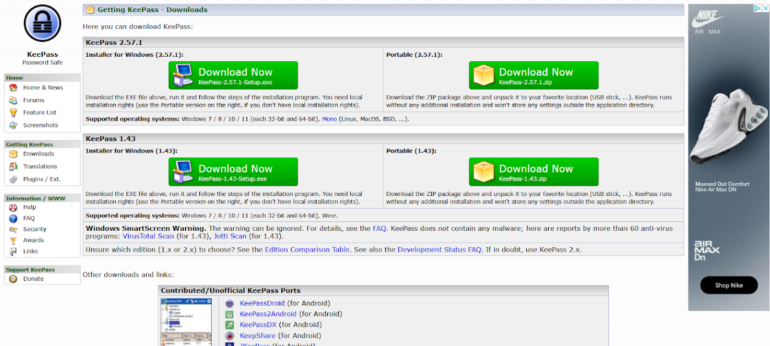
One big difference between KeePass and other password managers is that a lot of features aren’t included out of the box. Instead, users can customize their KeePass client’s feature set via downloadable plugins from the password manager’s site. Plugins are available for capabilities such as importing and exporting passwords, data backups and auto typing.
Is KeePass safe?
Yes, KeePass is a safe and secure password manager. It utilizes the industry standard AES-256 encryption for its database and user vaults. It’s also open-source, allowing the public to verify its source code for possible vulnerabilities or potential security holes.
This is a big feature for privacy enthusiasts, especially those who value transparency, as it lets the users and experts collaborate with KeePass in keeping it secure to use.
Encryption-wise, I like that KeePass encrypts the whole database, which means that not only are passwords encrypted but also other items such as usernames and notes.
As of March 2025, KeePass had not been involved in any data breach. The password manager has been audited in the European Commission’s Free and Open Source Software Auditing (EU-FOSSA 1) project, which showed that it had zero security issues.
KeePass also shares that it is the recommended password manager in the BSI Cyber Security Recommendations BSI-CS 003 2.0 by the German Federal Office for Information Security and is on the list for recommended free software for French public agencies.
To me, these recommendations from government agencies hold a lot of weight since they handle highly sensitive and public data.
Key features of KeePass
Aside from password storage and password generation, KeePass comes with a few key features that make it unique compared to other password managers.
Library of plugins and extensions
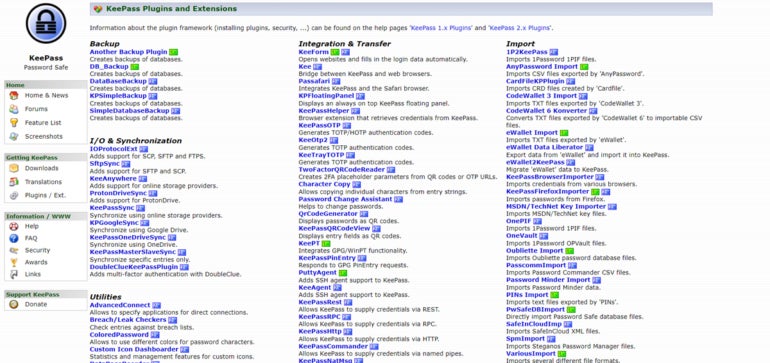
One of KeePass’ biggest selling points is the ability to download and add plugins for each user’s KeePass client. These plugins add more features or modify existing functionality, such as letting users import or export different file formats, changing the KeePass user interface, or adding autofill capabilities.
Right now, there are more than 180 downloadable plugins on the KeePass website. This is perfect for users who value being able to customize their password manager and its feature set.
For me, I prefer a password management solution that already comes with dedicated features, without having to worry about adding them after the initial installation. If you’re like me on this, 1Password or NordPass are password managers with a variety of features already baked in.
Local-device password management
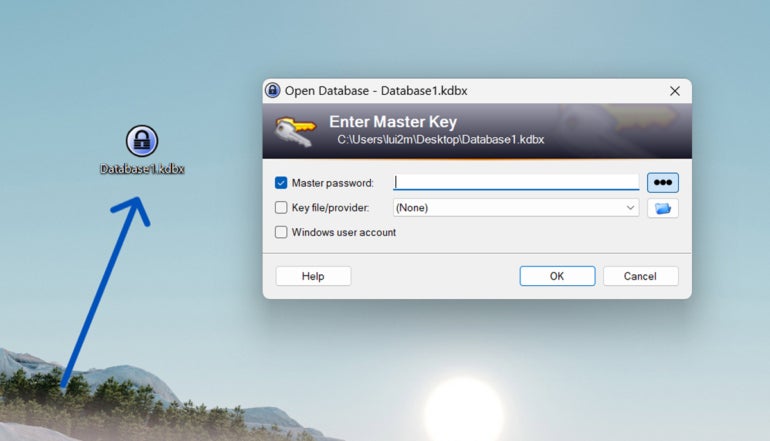
Another standout feature from KeePass is that it is a completely local password management system. This means that all your passwords and stored credentials are encrypted locally on your computer or device of choice. This is in contrast to other password managers that store passwords in the cloud, like 1Password or LastPass.
If you’re paranoid about cloud-based password managers possibly being involved in a data breach and leaking your data, KeePass can be a great solution since everything is stored locally. You can read our LastPass review to learn more about how data breaches can affect a password management solution.
On the flip side, KeePass’ all-local implementation can be a disadvantage since you won’t have the convenience of easy access to your passwords on multiple devices through the cloud.
Auto-Type functionality
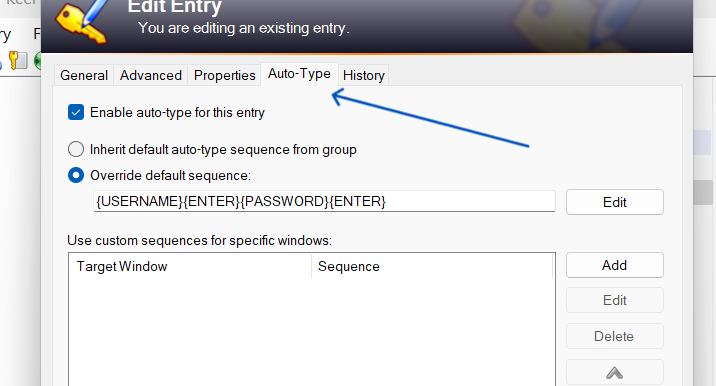
Unlike most modern password managers, KeePass doesn’t have a conventional autofill feature. What it does have is Auto-Type — a global auto-type hotkey which automatically types out credentials in your chosen account pages.
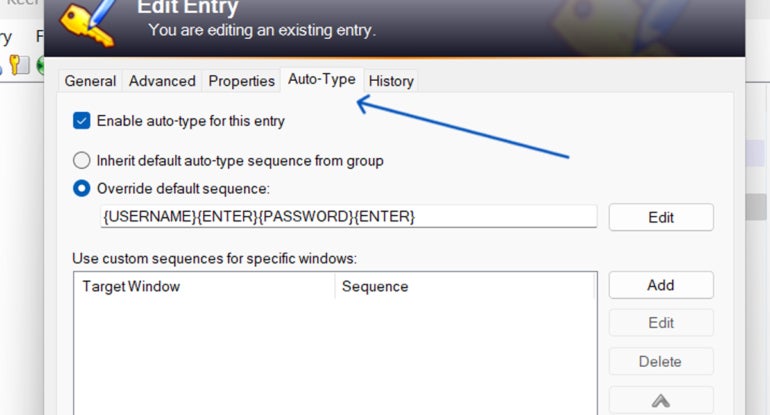
Auto-Type works by having KeePass open in the background, switching to the website, and KeePass automatically typing out your login credentials after you hit a particular keyboard shortcut. This is opposed to other password managers that automatically fill out the username and password fields via a browser extension or through a clickable pop-up.
While seeing KeePass automatically type out my password was cool at first, I did find it really finicky to use after a few times. Because I had to manually set the sequence in which the login credentials are to be typed, i.e. if the username or password goes first, there were times that KeePass couldn’t type my details in the proper fields.
Despite Auto-Type being a unique party trick that I haven’t encountered on other password managers, I honestly found manually copying and pasting from the KeePass client to be a better alternative.
KeePass authentication and security options
KeePass comes with two main multi-factor authentication (MFA) options: key file and linking a Windows user account. A key file is a file that you can save either on your computer, USB flash drive, or any other device, which acts as an additional requirement in tandem with your master password to access your database.
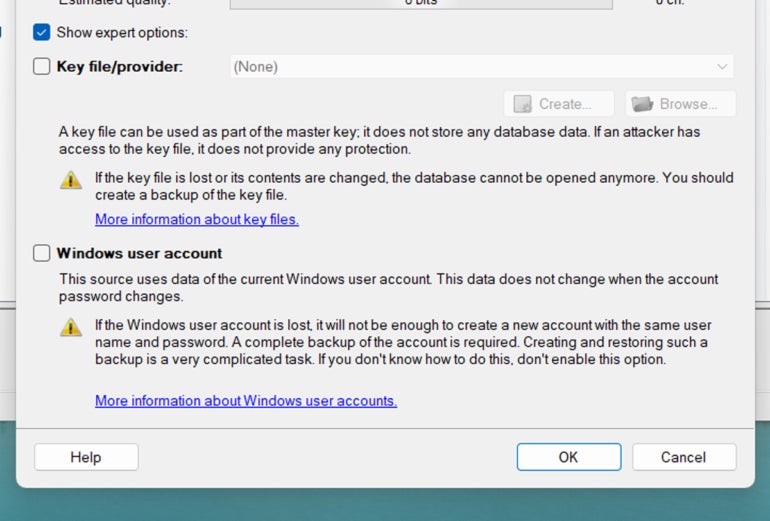
You can set your KeePass vault or database to only open if you’re logged into a specific Windows user account. I would have preferred it if KeePass had more MFA options like 1Password’s fingerprint verification or NordPass’ authenticator app integration.
While you can download two-factor authentication (2FA) or One-Time Password (OTP) plugins, I think having these authentication options baked within the app itself is more user-friendly. This saves users the time of having to pick which plugin is the best, especially since most competitors have these readily available once installed.
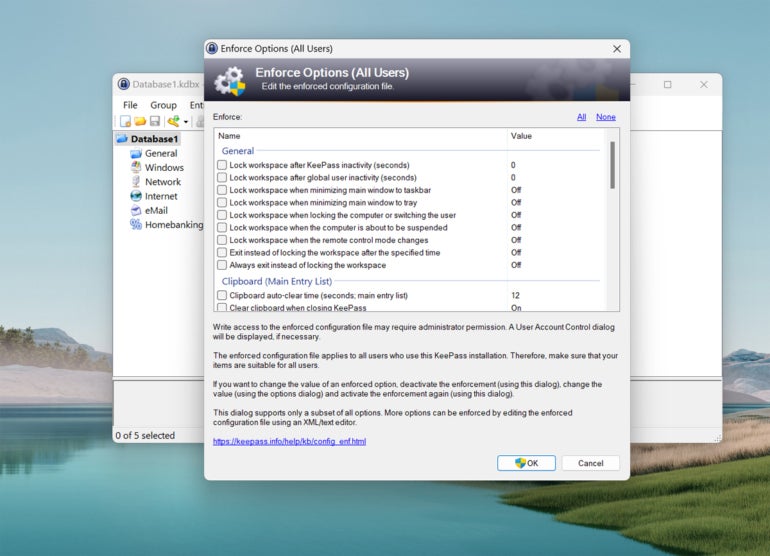
For security options, I like that KeePass has a timer for whenever you copy passwords off your database. At default, KeePass automatically removes any copied credential from the clipboard after 12 seconds.
There are also different Enforce Options that let you set whether you want your KeePass database to automatically lock after inactivity or have KeePass warn you whenever a key transformation setting is weak.
KeePass interface and performance
KeePass’ desktop user interface (UI) falls flat in both design and ease of use. Its design is dated and looks a bit like legacy-Windows applications from the 2000s. I prefer password managers with a sleek and modern UI.
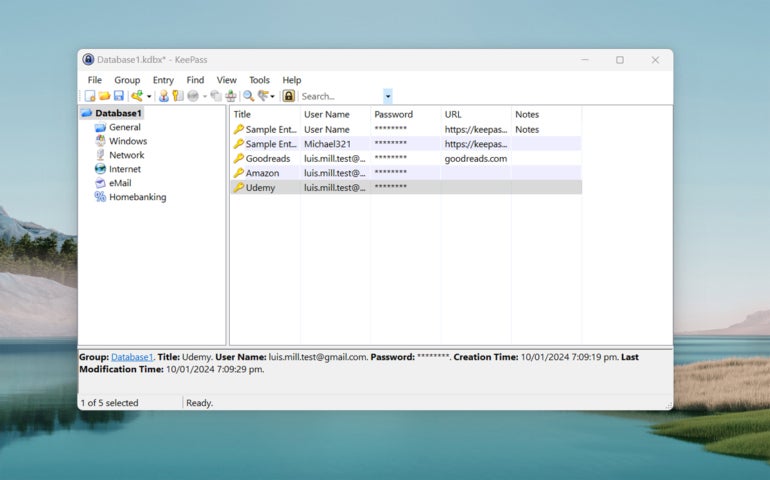
KeePass’ application is also not the easiest password manager to use and learn. Once I installed the application, I got a blank dashboard with no included guide. There wasn’t a clear tutorial on how to save my first password or use any of KeePass’ features.
Fortunately, there are video tutorials, guides, and forum posts online that outline how to use KeePass. However, I don’t think the password manager needs to sacrifice ease-of-use to get to their goal of customizability.
In terms of performance, I had no trouble adding new password entries inside the KeePass app. The included password generator also worked without any issue and I like that there’s no limit to password characters.
It’s unfortunate that KeePass doesn’t have traditional autofill and password capture and replay functionality. Without any plugins, you have to manually input login credentials to save new usernames and passwords. This adds an extra step to the process compared to something like Keeper’s KeeperFill feature that automatically saves and fills in new logins upon creation.
KeePass mobile app
KeePass doesn’t have its own proprietary iOS or Android mobile application. However, it recognizes user-generated mobile ports of its service.
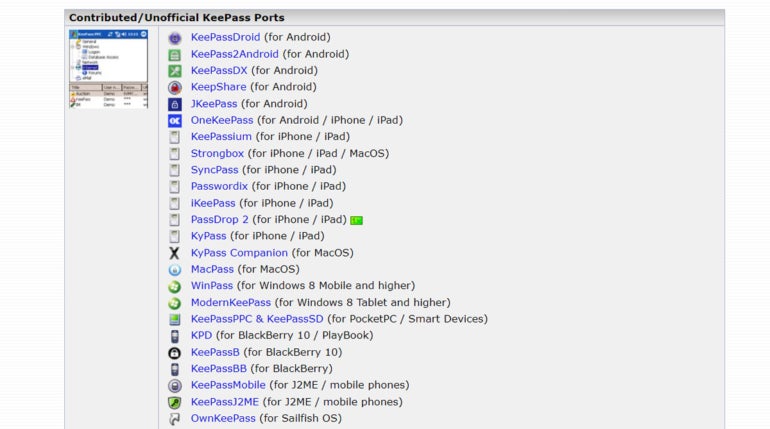
This provides users a ton of options in terms of KeePass mobile applications. However, this means that there’s no assurance that a given mobile app will be supported long-term. Each mobile port will also have varying levels of quality, so your mileage may vary.
KeePass pros
- Completely free password manager.
- Open source and secure.
- Highly customizable.
- Downloadable user-generated plugins.
KeePass cons
- Hard to learn and not user-friendly.
- No autofill feature included.
- Auto-Type is a bit clunky.
- Multi-factor authentication options are separate downloads.
- Design looks a bit dated.
- No official mobile app.
SEE: Penetration Testing and Scanning Policy (TechRepublic Premium)
Who is KeePass for?
KeePass is for users who want a password manager they can personalize. With its large library of downloadable plugins and extensions, KeePass can be a very powerful tool for those willing to take the time to maximize its capabilities.
It’s also a good pick for individual users who are wary of cloud-based password managers and want a secure way to store their passwords locally.
However, its less than friendly user interface, clunky auto-type feature, and lack of traditional password capture and replay make it hard to recommend against other top password managers in the market. Its locally-stored password storage also makes it hard
KeePass alternatives
If you find that KeePass isn’t a good fit, I’ve listed three alternative password managers that are worth a try.

Bitwarden
If you want a cloud-based password manager with a generous free version, check out Bitwarden. Bitwarden’s free version allows for unlimited password storage and access on an unlimited number of devices. You also get strong zero-knowledge encryption and affordable pricing on its paid plans across the board.
Check out our full Bitwarden review.

NordPass
NordPass is an all-around password manager that doesn’t have many faults. It has an intuitive user interface, plans for both single users and business, and has independently audited applications. It also utilizes the secure and more modern XChaCha20 encryption algorithm.
Check out our full NordPass review.
1Password
For avid travelers, 1Password can be a great pick. It comes with a handy Travel Mode feature that lets users hide select vaults whenever they travel. This is on top of its sleek desktop UI and strong AES-256 encryption. 1Password also provides 14-day free trials across all its plans that let you test their service.
Check out our full 1Password review.
Review methodology
My review of KeePass involved a detailed analysis of its security features and real-world performance. I used KeePass on a Windows laptop for testing and for hands-on experience.
I rated KeePass on everything from its password management features to its ease of use based on an internal algorithm to get a rating of 3.0 out of 5 stars. The scoring was based both on KeePass on its own and in relation to other password managers.
This article was originally published in January 2024. It was updated by Luis Millares in March 2025.