Group
Photo,
left
to
right:
Angelo
Di
Benedetto
(SVP
Worldwide),
Andrew
Fist
(Epicor),
Seamus
Byrne
(TechnologyAdvice),
Naghmeh
Mkhani
(Motorola
Solutions),
Vilesh
Chand
(Rondo
Building
Services),
Scott
Simmons
(BlastOne
International),
Bettina
Turnbull
(Sonova),
Rebecca
Cohen
(TechnologyAdvice),
Graeme
Evans
(Epicor),
Ben
Abbott
(TechnologyAdvice)
TechnologyAdvice
welcomed
an
esteemed
group
of
manufacturing
industry
technology
leaders
to
an
exclusive
roundtable
in
Sydney,
Australia
in
March,
to
explore
how
technology
could
supercharge
their
efforts
to
create
more
connected,
efficient
factories
and
businesses
now
and
into
the
future.
Hosted
in
partnership
with
Epicor,
one
of
the
leading
providers
of
ERP
solutions
globally,
guests
discussed
how
technology
could
empower
manufacturers
to
automate
key
processes
within
their
operations,
from
the
top
floor
to
the
plant
floor.
The
roundtable
looked
at
how
streamlining
operations
could
drive
productivity
and
cut
costs,
boosting
margins
and
revenue
growth.
Industry
leaders
also
looked
at
the
impact
of
artificial
intelligence,
including
how
it
could
accelerate
innovation
through
advanced
MES,
AI
and
machine
learning.
A
huge
thank
you
to
our
guests
and
Epicor
for
sharing
a
wealth
of
experience
and
insight.
With
so
many
different
accounts
and
passwords
to
manage,
it’s
a
good
thing
that
you’re
looking
for
a
password
manager.
However,
the
number
of
password
management
solutions
can
complicate
the
selection
process.
If
you’ve
narrowed
your
search
down
to
Keeper
vs.
KeePass,
you’re
getting
closer
to
making
the
best
decision
for
you.
Keeper
is
an
excellent
choice
because
of
its
many
features
and
secure
reputation;
though,
they
come
at
a
cost.
Alternatively,
KeePass
is
a
free
password
manager
with
limited
features.
Overall,
it’s
important
to
determine
which
is
the
best,
and
our
KeePass
vs.
Keeper
debate
will
help
you.
In
this
comparison,
we
will
explore
the
features,
performance,
pricing
and
overall
user
experience
of
Keeper
vs.
KeePass
to
help
you
decide
the
best
password
manager
for
your
needs.
Keeper
vs.
KeePass:
Comparison
table
Keeper
KeePass
Best
for:
Those
who
want
more
features,
higher
security
and
ease
of
use.
Those
who
want
a
free
service
for
password
protection.
Starting
Price
$2.04/month
Free
(with
donation
options)
Available
Platforms
Android,
iOS,
Linux,
Windows,
Mac
Android,
iOS,
Linux,
Windows,
Mac
Service
and
Support
24/7
ticket
system,
detailed
FAQs
and
guides,
free
Q&A
sessions
and
technical
support
webinars
No
customer
support
team
Browser
Extensions
Internet
Explorer,
Chrome,
Opera,
Safari,
Firefox,
Edge
Only
available
with
plugins
Password
Importing
Yes
Yes
(but
more
tedious)
Password
Sharing
Yes,
with
many
ways
to
share
Yes,
with
fewer
ways
to
share
Password
Generator
Yes
Yes
Autofill
Yes
No
Keeper
vs.
KeePass:
Pricing
The
biggest
difference
between
Keeper
and
KeePass
is
pricing.
KeePass
is
completely
free
but
a
subscription
to
Keeper
costs.
Keeper
pricing
Image:
Keeper
Keeper
divides
its
plans
into
two
groups:
Personal
&
Family
and
Organizations.
Keeper’s
Personal
plan
is
$2.92/month
for
one
user
vault
and
includes:
Unlimited
password
storage.
Unlimited
devices.
Unlimited
password
sharing.
Fingerprint
and
Face
ID.
Emergency
access.
24/7
customer
support.
Keeper’s
Family
plan
is
$6.25/month
for
five
user
vaults
and
includes
everything
in
the
Personal
plan,
plus:
10
GB
secure
file
storage.
Shared
folders,
records
and
manage
permissions.
Keeper’s
Organizations
tier
includes
Business
Starter,
Business
and
Enterprise
plans
with
various
features
to
cater
to
organizations,
small
and
large.
Keeper
offers
a
30-day
trial
for
its
Personal
plan
and
a
14-day
trial
for
its
Business
and
Enterprise
plans.
KeePass
pricing
Image:
KeePass
KeePass
is
an
open-source
password
manager,
which
means
that
many
of
its
features
can
be
configured
through
plugins.
You
can
customize
KeePass
with
as
many
plugins
as
you’d
like
—
free
of
charge.
However,
KeePass
asks
for
donations
upon
sign
in.
Some
premium
features
for
mobile
apps
require
payment.
For
example,
if
you
download
KeePass
from
the
Play
Store,
you
must
pay
$10
to
use
the
password
generator.
Feature
comparison:
Keeper
vs.
KeePass
Whether
you’re
searching
for
an
alternative
to
KeePass
or
believe
that
Keeper
is
ideal,
it’s
still
wise
to
compare
the
features.
Here
are
a
few
notable
features
to
consider:
Password
importing
You
can
import
passwords
from
many
browsers
using
both
KeePass
and
Keeper.
However,
Keeper
seems
more
intuitive
and
allows
you
to
import
passwords
from
other
password
managers
and
browsers.
Though
KeePass
makes
it
possible
to
import
passwords,
it’s
tedious
because
you’ll
need
to
add
a
plugin
for
this
capability.
Password
generator
Most
people
can’t
create
strong
and
unique
passwords
themselves,
so
they
require
a
password
generator.
KeePass
wins
here
because
it
has
many
customizable
options.
You’ll
find
nine
toggles
to
disable
or
enable,
allowing
you
to
choose
the
characters,
symbols
and
length.
Still,
Keeper
has
much
to
offer.
You
can
choose
the
length
of
every
password,
up
to
100
characters,
and
specify
whether
it
should
include
special
characters,
numbers
or
capital
letters.
Password
sharing
Password
sharing
is
a
helpful
feature
that
most
password
managers
offer.
Keeper
is
the
winner
here
because
it
makes
it
easy
to
share
files
and
passwords.
You
have
many
options,
such
as
SMS,
AirDrop,
email
and
links.
The
default
mode
is
set
to
“view
only,”
but
you
can
change
this.
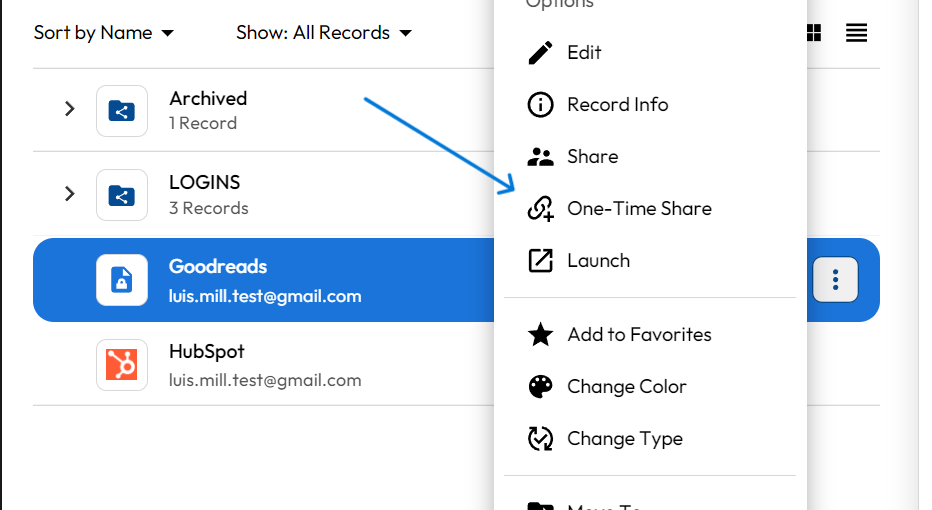
There’s
also
a
one-time
share
feature.
Figure
A:
Keeper
One-Time
Share
Image:
Keeper
KeePass
isn’t
ideal
for
password
sharing.
You
could
share
the
whole
database
by
sending
the
file
through
email.
However,
there
is
no
built-in
messaging
system,
so
it’s
not
easy
or
safe
to
do
this.
Autofill
Autofill
is
excellent
because
it
helps
you
make
payments,
speed
up
the
login
process
and
more.
Luckily,
both
products
have
this
feature,
though
they’re
implemented
in
different
ways.
Keeper
makes
it
easy
to
set
up;
simply
add
it
to
the
browser
extension
or
through
the
app.
Once
you
log
in,
select
the
“autofill
credentials”
toggle
and
click
“enter”
to
go
to
websites
and
apps.
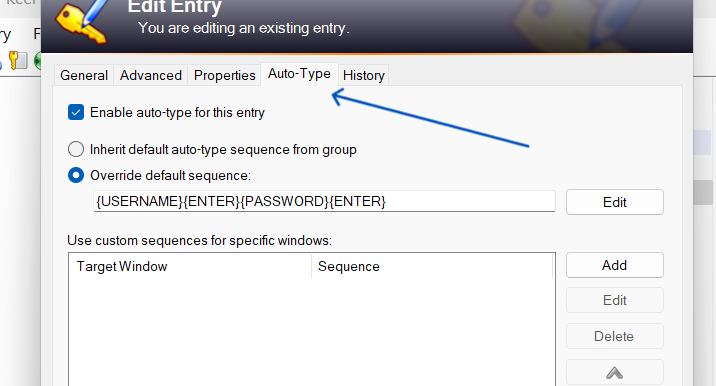
KeePass
doesn’t
offer
an
autofill
feature,
but
it
does
have
Auto-Type.
This
lets
you
choose
keypresses
that
will
happen
automatically.
Still,
it’s
not
as
intuitive
or
user-friendly
as
Keeper.
Figure
B:
KeePass
Auto-Type
Image:
KeePass
Keeper:
Pros
and
cons
Pros
Offline
support,
regardless
of
platform.
Available
on
all
major
browser
extensions,
platforms
and
operating
systems.
BreachWatch
is
available
to
protect
usernames
and
passwords
from
the
Dark
Web.
Having
a
good
password
manager
is
crucial,
but
it’s
often
hard
to
determine
which
one
is
the
best.
When
comparing
Keeper
and
KeePass,
we
considered
factors
such
as
security,
ease
of
use,
portability
and
value.
We
scored
each
product
using
an
internal
algorithm.
The
scoring
was
based
on
the
products
individually
and
in
relation
to
other
password
managers.
Should
your
organization
use
Keeper
or
KeePass?
Overall,
Keeper
outperforms
KeePass
in
many
categories.
It
offers
more
features
and
stronger
security
while
being
easier
to
use.
However,
you
shouldn’t
automatically
discount
KeePass.
It’s
a
free
service
with
no
reported
history
of
data
breaches.
Its
functionality
can
be
increased
through
the
use
of
plugins.
Still,
KeePass
isn’t
user-friendly.
If
you’re
not
tech-savvy
or
willing
to
play
around
with
the
system,
it
might
be
hard
to
configure.
Ultimately,
it
will
be
up
to
you
to
decide
which
password
manager
is
best
for
your
needs.