Posted on

These 3 features just made Android 16 a lot more exciting

Android 16 logo on a phone.

Joe Maring / Android Authority

As hard as it is to believe, we’re just a few short months away from Android 16’s public release. We’ve had Developer Previews since last November and beta releases since January, and we’re expecting the final release to be ready in May or June.

So far, the update hasn’t given us much to look forward to. There are loads of developer-focused and under-the-hood tweaks, but in terms of exciting user-facing changes, Android 16 has been lacking. Outside of improvements to the photo picker, Live Updates notifications, and improving app support for tablets and foldables, it’s shaping up to be a pretty dull update.

Thankfully, it looks like things are taking a turn for the better. Google released Android 16 Beta 3 on March 13, and hiding inside this release are a handful of small yet promising new features. I have to admit, they’ve made me significantly more excited about Android 16 than I previously was.

Which Android 16 feature are you most excited about?

473 votes

Big upgrades to Quick Settings

Android 16 Beta 3 dual shade hero image

Mishaal Rahman / Android Authority

The first — and arguably biggest — change I’m excited about is the overhauled Quick Settings. Quick Settings in “stock” Android has largely stayed the same since Android 13, but Android 16 will introduce a new split design. Instead of seeing your notifications and Quick Settings on the same page, Android 16 will split them across two pages. You’ll get your notifications when you swipe down from the top left corner and your Quick Settings after swiping down from the top right.

I could take or leave the split design itself. What I’m most geeked about is the new look of the Quick Settings page. For one, your Quick Settings are now vertically scrolling and take up the entire page — meaning you’ll be able to fit a lot more toggles on your screen. As it stands today, Android 15 on a Pixel shows just eight Quick Settings toggles at a time. However, with this new design in Android 16, you’ll be able to see an appropriate 16 (or more) buttons at once. That’s a big upgrade.

Furthermore, Google appears to be experimenting with additional toggle sizes and designs, including a new small square that takes up half the space of the standard rectangle buttons. As visually pleasing as the big, rectangular bubbles may be, I’m really glad that more practical designs are coming with Android 16. The smaller icons still look great while letting you squeeze much more functionality on your screen. That’s a win-win if you ask me.

I love that Google is opening up Quick Settings to more user customization.

Finally, in addition to being more practical, I also love that Google is opening up Quick Settings to more user customization. Especially compared to skins like One UI and OxygenOS, stock Android has paled in comparison with giving you full control over what your Quick Settings look and feel like. For that to finally be changing in Android 16 is a big deal to me.

The biggest downside is that this new Quick Settings/notification panel likely won’t be ready in time for the first stable Android 16 release. However, we should see it with a future Android 16 update down the road, and I cannot wait for it.

More customizable app icons

Android 16 grid and icon shape customization hero image

Mishaal Rahman / Android Authority

In Android 15, home screen customization for Pixel phones is pretty basic. You have some app grid choices, accent color selections, and the option to theme your app icons with the accent color you choose. And … that’s about it. But Android 16 will add another option to the mix: app icon shapes.

Although not live in Android 16 Beta 3, we managed to enable the functionality, and it works as you’d expect. In a new “App shape & layout” page, you can choose one of six shapes to apply to all your app icons. Some are straightforward, like a circle or a squircle, while others have more unusual designs — including “four-sided cookie” and “complex clover.”

I’m encouraged this is a sign of even more customization yet to come.

Although I don’t like how all of these look, I do love seeing Google bring more customization options to the Pixel Launcher. App icon customization has been a pillar of third-party Android skins and launchers for years, yet Google’s Pixel Launcher has always lagged in this department. I’m also encouraged that this is a sign of even more yet to come — such as custom icon pack support or customizing app icons on an individual basis. This is one of the reasons I’ve preferred using OxygenOS 15 so much recently, and I’m thrilled to see Android 16 is taking steps to improve things here.

This one may or may not be ready in time for the first Android 16 public release, but I’m crossing my fingers that it is.

Lock screen widgets

Lock screen widgets on phones in Android 16 hero image

Mishaal Rahman / Android Authority

This last Android 16 feature isn’t technically part of Android 16 Beta 3. However, Google did confirm its existence recently as something that’ll be a part of Android 16 QPR1, which is set for a September rollout. The feature I’m talking about is lock screen widgets. Google added lock screen widgets specifically for Android tablets last year, but Android 16 will bring them to phones, too.

As someone who carries an iPhone and an Android phone, lock screen widgets with iOS 16 has been one of my favorite new iOS features in recent years. Customizing my lock screen to show my shopping list, upcoming calendar events, a Google Maps search widget, or even a shortcut to ChatGPT is equally cool and convenient.

I’m a big widget fan, but it doesn’t take long to run out of home screen space to put said widgets. The lock screen is a great canvas for them, especially to quickly glance at your calendar or to-do list, or to display some Google Photos memories. Admittedly, it is a bit silly to champion Google for re-adding a feature that previously existed with Android 4.2 (and was then removed with Android 5.0), but I’m still very happy to see lock screen widgets make a return.

Android 16 is shaping up nicely

Android 16 logo on smartphone 08

Edgar Cervantes / Android Authority

While certainly not the most thrilling Android update we’ve ever had, Android 16 is shaping up nicely and coming into focus better than it was a couple of weeks ago. Much of the update is still centered on behind-the-scenes changes you and I won’t immediately notice, but it’s reassuring that some user-facing goodies will give us new toys to play with. With a revamped Quick Settings and notification panel, new app icon customization options, and the reintroduction of lock screen widgets, I don’t think we can call Android 16 “boring” any longer.

We should get a better look at these changes during Google I/O in May, and it’s also possible that Google will show additional Android 16 features that haven’t been revealed yet. Even if it’s not the massive revamp that Android 13 was, there are exciting changes here, and I’m looking forward to getting my hands on them.

You might like
Posted on

Killed by Google: These are the apps I miss the most

Google is responsible for some of the most important, impactful apps and services ever created. Where would we be without Google Search? What on earth would I use if not Gmail? How could I possibly begin to imagine a world without Android? For all these massive hits that survived the test of time, Google has also laid to rest several apps I’ve really enjoyed using in the past. There are the apps Google killed that I miss the most.

Which dead Google app do you miss the most?

22 votes

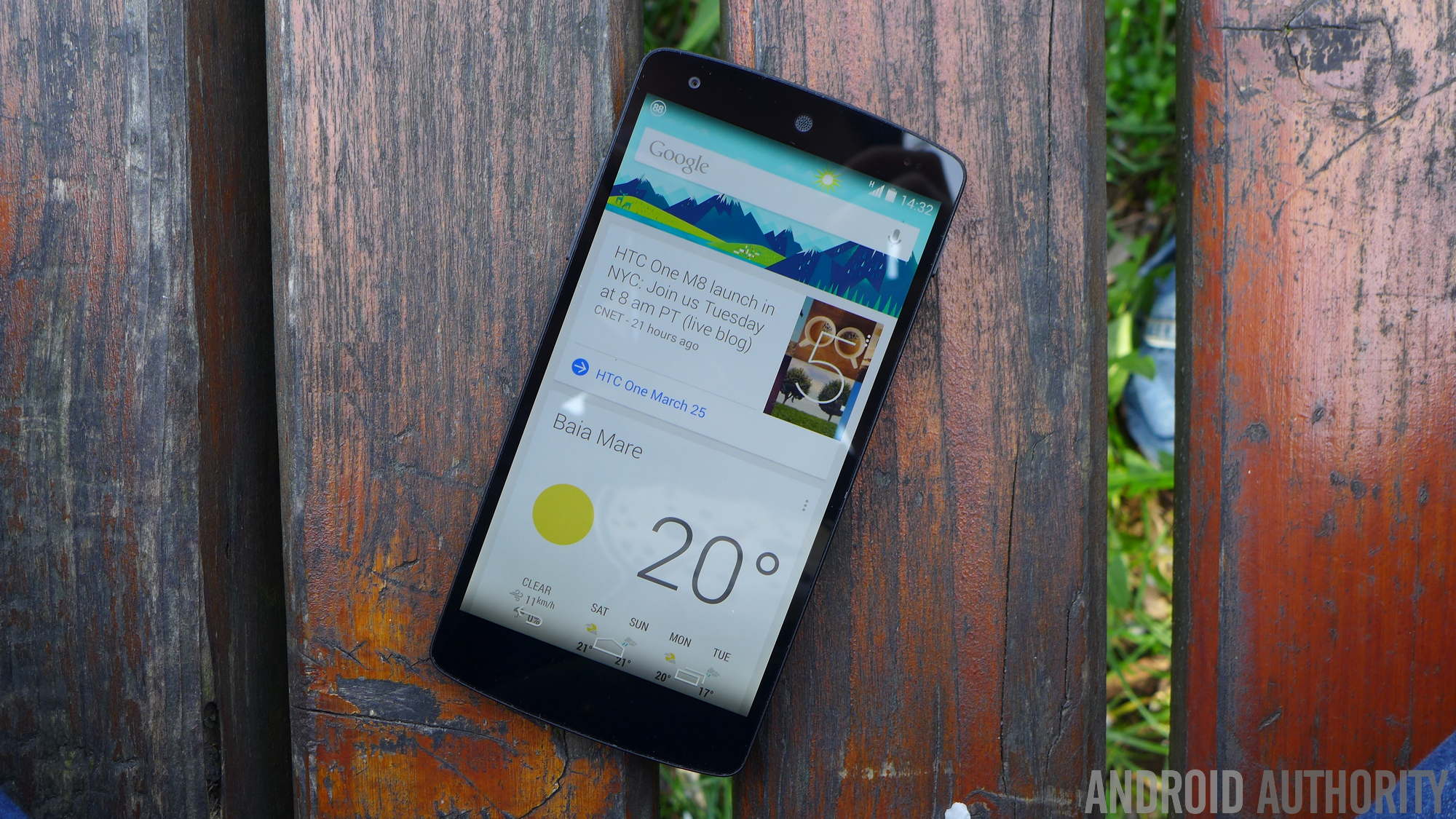
Google Now

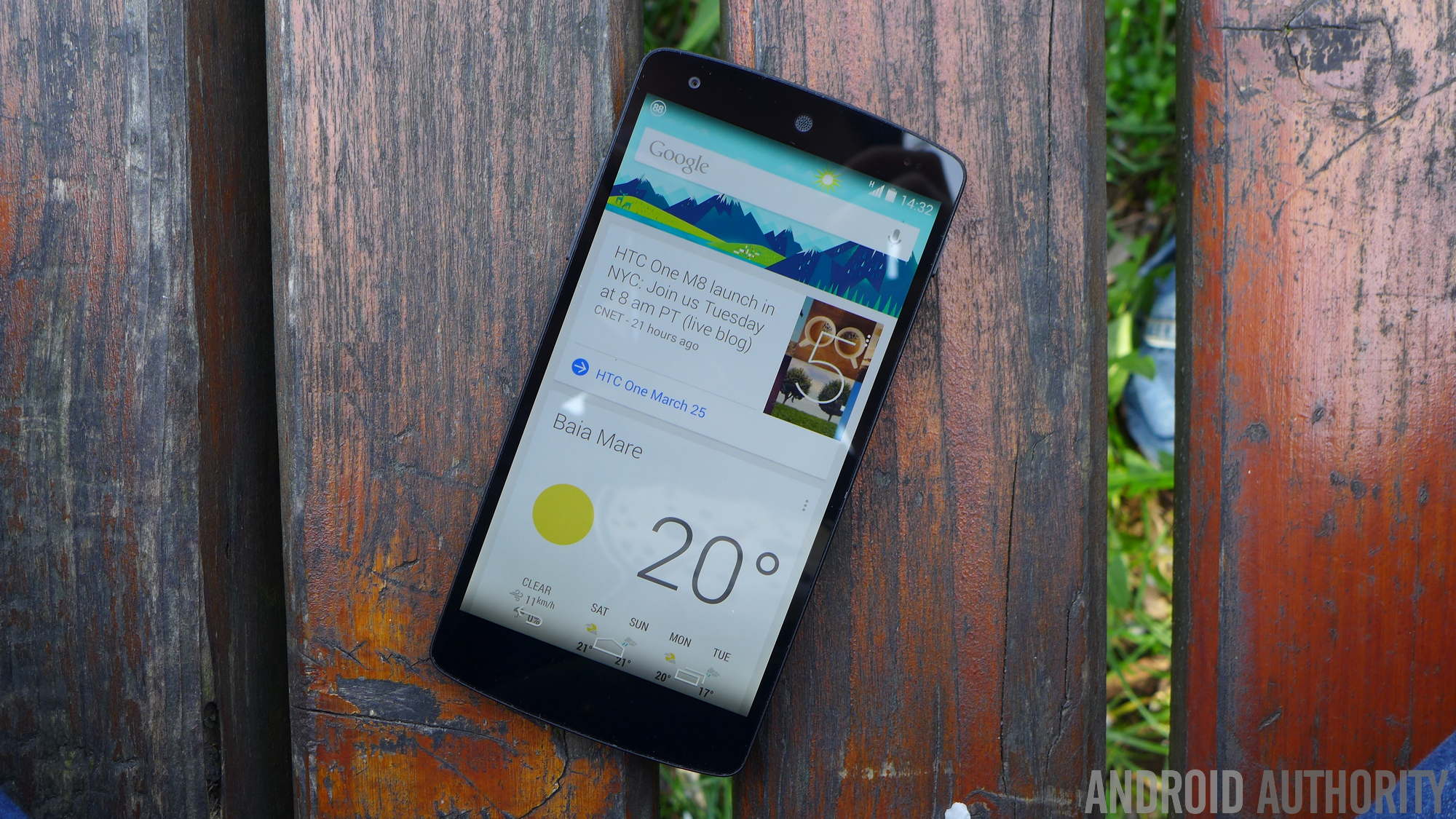
A product well ahead of its time, Google Now launched in 2012 to deliver contextually relevant information to users when needed. This sounds a bit like Google’s At a Glance widget and Assistant, but Now’s implementation was far superior to both.

Located within the Google app, Now displayed its information in scrollable cards, making it easy to visualize and interact with them. It notified me of upcoming events, when I should leave to arrive at my planned destination (including a handy countdown), prepared my boarding pass details when my flight time neared, and alerted me of contacts’ birthdays and weather information. This was just a taste of what I found helpful, though. Now supported a dizzying number of information cards and eventually expanded support to third-party services.

Google Now reliably offered me the information I needed in the moment without any direct intervention.

In 2015, Google Now was shuttered and was eventually replaced by the Discover feed, Google Assistant, and other features spread across different offerings. As much as I’ve relied on Assistant over the years, I don’t consider it a Now replacement. Assistant (or Gemini now, to an extent) demands I interact with it before it delivers information. Google Now required little to no attention on my part.

Inbox by Google

Google Chrome, Inbox by Gmail, and Pocket Casts icons on an HTC10.

Inbox by Google was a smarter, feature-full alternative email client that starkly contrasted with Gmail’s seemingly changeless design. Although its primary goal aligned with a bog-standard email client, it’s how it performed its job that made it revolutionary.

Inbox seamlessly grouped similar emails into “bundles,” making it super simple to trash multiple emails in one fell swoop or access particular information more easily. Think travel documents, like boarding passes, hotel booking confirmations, and transport details. This, paired with its email pinning and reminder features, made it a potent personal management tool far beyond email.

Inbox was a fresh take on the email app that would still feel current years later.

I preferred Inbox over Gmail during its relatively brief run, enjoying many of its features at a time when I traveled plenty for work. It made achieving inbox zero possible, a goal I will never see again with Gmail.

While Google officially killed off Inbox in 2019, some five years after its debut, many of its features were integrated into Google’s premier email app. That said, I still miss the simplicity and focus of the company’s renegade mail tool.

Google Trips

As I wrote in a recent piece, Google desperately needs a reliable travel app. In 2016, it had just that.

Trips was another Google app I heavily relied on. It paired perfectly with Inbox or Gmail, automatically syncing important travel information from emails, detailing points of interest and travel guides from Google Maps, and offering easy access to itineraries. It also included a trip-planning feature for those who know they want to visit famous cities but have no idea where to start.

Trips was Google’s short-lived but much-loved travel app, and I still miss it dearly.

More importantly, Trips offered offline support for moments I wasn’t within sight of a cell tower and a brilliant point-by-point map visualization tool called “Your day plan.” How I wish the latter feature was integrated into modern Google Maps!

Not willing to let a good time stand, Google shuttered Trips in 2019 and still hasn’t replaced it with a competent travel platform. Of all the Google products that no longer exist, Trips leaves the largest void on my device.

Android Auto on smartphones

One of the first cars I owned was a beautifully simple Toyota built like a tiny fort that offered few creature comforts. But when I stuck a smartphone cradle on the dashboard and popped in my device, I could run Android Auto for phone screens on it for navigation like a member of the digital aristocracy. It was brilliant.

The app, which rolled out in 2016 for phones running Android Lollipop or newer, was a nifty innovation, especially before the dawn of modern Android Auto infotainment units, which are a dime a dozen on modern vehicles.

Don’t have a car with a screen? No Android Auto for you.

However, even though it still makes plenty of sense in the modern context, Google didn’t see fit to continue developing Android Auto for phone screens. The app would shutter in 2022, three years after Google announced its demise. Now, if you want Android Auto in your car, you’ll need a vehicle with a dedicated screen and relevant support.

Granted, we still have driving mode on Google Maps for those who don’t have Google’s automotive support in their cars, so not all is lost.

Trusted Contacts

google maps apple maps google strip district

Ryan Haines / Android Authority

Google Maps

Trusted Contacts rolled out in 2016 to keep loved ones up to date about the live location of friends and family members. The app allowed users to request the location of others, making it useful for parents to keep tabs on their kids.

I know many modern location-sharing apps exist on Android, but Trusted Contacts was simple enough for anyone to use. My family, in particular, relied on this app back when I scuttled myself to and from work on foot and by rail.

Trusted Contacts offered a fast and fluid way to keep my live location shared with loved ones.

My folks could see where I was on my journey home, while I could also keep tabs on them when they travel. If their request for my location wasn’t accepted within a few minutes, it would automatically share my details with them. This meant that if I couldn’t get my device out on a train or at the side of the road, they’d know where I was regardless.

Despite its simple functionality, Trusted Contacts lasted a surprisingly long before being absorbed into Google Maps. It drew its last breath in 2020, but we can still enjoy location-tracking features in Google’s mapping app. It’s not quite the same, though.

Google Reader

google news alternative inoreader 1

Andy Walker / Android Authority

Shut down in 2013, Google Reader was an aggregation tool that closely resembled Gmail in its appearance. But instead of providing a river of emails, it siphoned content from RSS feeds you plug into it.

Although it may not be aesthetically exciting or groundbreaking through our modern lens, it offers plenty of essentials for catching up on the news. I loved its broad search functionality, sensible categorization and organization tools, and fuss-free ability to share interesting articles with others.

Perhaps it’s the nostalgia talking, but Google Reader was the perfect RSS feed aggregator for my needs.

Google Reader also functioned offline through the Google Gears extension. At a time when my internet connection was spotty at worst and 2Mbps at its best, this was an invaluable trick for me. Of course, my Reader journey started when Windows XP was still my desktop OS, and it took another five years for Reader to migrate to Android.

Of course, modern RSS and feed readers for Android exist in the hundreds, with many great options available. Inoreader (pictured above), in addition to Feedly, are two of my current favorites, although both lack the early charm of Reader.


Is there a dead Google product that you still miss today? We’d love to hear how it left an impression on you. Drop a comment below.

You might like